Start by choosing a laptop that works with your school’s required software and your printer. When you’re working with handouts, documents and sources side by side, screen space and enough memory matter more than graphics performance. A Chromebook is only suitable if your workflow can be handled entirely using approved web apps. Also check the exact configuration, connections and included charger.
Who is this buying guide for?
Teacher using school software and a printer
You create handouts at home, but also need to open files in your school’s required environment and print them on your existing printer. Your software and printer requirements determine which laptop is suitable. Microsoft Support, for example, explains which Microsoft 365 features are available through a Chromebook web app.
Handout creator working with lots of sources
You write while referring to sources and documents. Screen space and memory, as well as the keyboard, may therefore be important considerations. The Consumentenbond explains the difference between light office work and running several programmes at once.
Home user writing simple documents
You mainly create simple documents and want a configuration that suits your software, connections and way of working. Check what’s included in the box too, such as the charger.
What should you look for when choosing?
For people creating lesson handouts at home, key considerations include software and printing, screen space, working on several things at once and having all the connections you need.
| What to consider |
What should you check? |
Who should consider this? |
| School software and printer |
Check the required programmes and versions, as well as support for your exact printer model with the operating system you’ve chosen. |
I want to open my school documents and print them at home without changing the way I work. Around 31% of consumers put software and printing first. |
| Reading and working space |
Compare screen size and resolution. If you’re using an external monitor, check that the laptop has the right video connection. |
If I want to view a handout alongside my sources, screen space matters. Around 25% of consumers prioritise reading and working space. |
| Working with several documents at once |
Check how much memory the exact configuration has and whether it suits the number of programmes and tabs you use. |
I often switch between documents and sources, so I want a configuration that can keep up. Around 25% of consumers prioritise smooth multitasking; the Consumentenbond says 8 GB is enough for light office work, while 16 GB is useful when running several programmes. |
| Connections and charging |
Check which connections you need and whether the configuration includes a suitable charger. |
I want to use my existing equipment and know what else I’ll need besides the laptop. Around 19% of consumers focus mainly on having a complete, practical setup. |
Pitfalls to avoid when buying
-
Assuming every configuration in a product range is the same
Specifications can vary by model and region. Acer lists a specific configuration for the Aspire Go 15 model NX.JRREH.015; those details don’t necessarily apply to other configurations.
Compare the full model or part number with the technical specifications and the contents of the box.
-
Assuming a Chromebook offers all the desktop features of Office
Microsoft Support says you can use Microsoft 365 web apps on a Chromebook, but you can’t install the Windows or Mac desktop versions.
Before choosing a Chromebook, try using your school’s required documents and workflow in the approved web apps.
If your school requires desktop software, you may need a different laptop or to adapt the way you work.
-
Assuming a USB-C port means a charger is included
A charging port doesn’t tell you what’s in the box. Acer says the Aspire Go 15 model NX.JRREH.015 is supplied without a charger.
Check whether each configuration includes a charger and whether an existing power supply is suitable.
For the Acer configuration mentioned, you’ll need to arrange a suitable power supply if you don’t already have one.
-
Using a personal laptop to handle pupil data without checking first
The Dutch Data Protection Authority says schools must handle pupil data carefully and securely. It recommends using a secure working environment when working from home, where possible.
Before handling pupil data on a new laptop, ask your school which accounts, storage locations and devices are approved.
Brands to compare
Lenovo
Lenovo offers IdeaPad Slim 5 configurations for everyday document work. Assess each configuration individually.
- The IdeaPad Slim 5 14AKP10 specifications list HDMI and USB-C with video output.
- Lenovo says configurations may vary by model and region.
Acer
The Aspire Go 15 is a Windows laptop worth considering if you want a larger built-in screen.
- For model NX.JRREH.015, Acer Store Netherlands lists a 15.6-inch Full HD screen, 16 GB RAM and a 512 GB SSD.
- Acer Store Netherlands says this configuration is supplied without a charger; this doesn’t necessarily apply to other configurations.
ASUS
The ASUS Vivobook S16 is a separate range with a larger screen.
- ASUS Netherlands lists a Snapdragon processor for the Vivobook S16 S3607QA.
- For this Windows on Arm configuration, check that your school apps and printer will work. Microsoft Support points out that some printer installers can cause problems on Arm PCs.
HP
The ProBook range is worth considering if your school or employer has requirements for device management or support.
- The official HP Store Netherlands lists Windows 11 Pro and various service options for certain ProBook 4 configurations.
- These features aren’t available on every ProBook, and you don’t necessarily need a business laptop to create a handout.
Apple
A MacBook Air running macOS is an option if it’s compatible with your school’s required software and peripherals.
- The Dutch specifications for the 13-inch MacBook Air with M5 list 16 GB of memory and two Thunderbolt 4 ports with USB-C.
- You may need an adapter for an HDMI monitor; check the connection on your monitor.
Joybuy laptops for creating handouts at home
Explore these Joybuy laptops as possible options for writing and comparing lesson handouts at home. Check that each configuration works with your school software and printer, and has the connections you need.
 No image available
HP OmniBook X Flip NG AI PC 16-as0050nd
Check that this configuration’s school software compatibility, printer support and connections suit the way you work.
View at Joybuy
 No image available
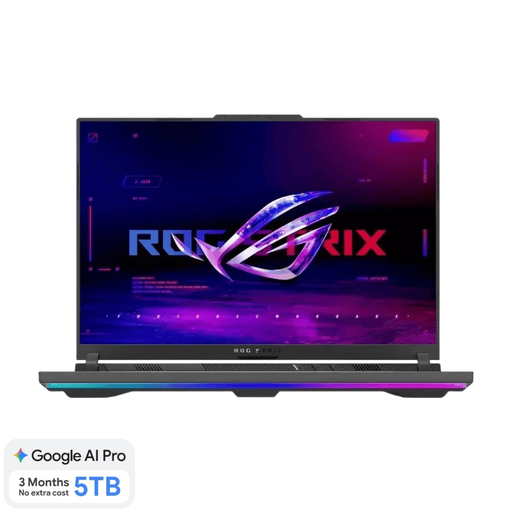
ASUS ROG Strix G16 G614FR-S5252W 16-inch laptop
A 16-inch configuration may suit you if you want to view handouts and sources on the built-in screen. Check that this model works with your school software and printer.
The product name lists 16 GB of memory, a 1 TB SSD and a QWERTY keyboard.
The charger must be purchased separately.
View at Joybuy
 No image available
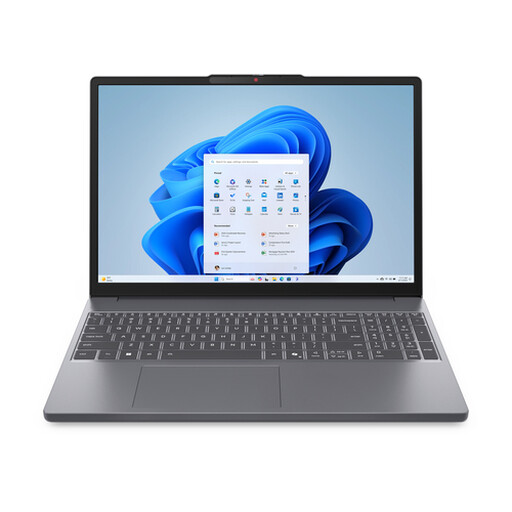
Lenovo IdeaPad Slim 3 15AHP10 15.3-inch laptop
This configuration may suit you if you compare documents on the built-in screen. Check that its connections work with your printer and any monitor you use.
The product name lists a Ryzen 7 8840HS, 16 GB of memory, a 512 GB SSD and a QWERTY keyboard.
The charger must be purchased separately.
View at Joybuy
 No image available
Auusda T156A laptop
Check that this configuration’s software compatibility, printer support and connections suit your home workspace.
The product name lists 16 GB DDR4 memory, a 512 GB SSD, a 3050E processor and a backlit keyboard.
View at Joybuy
 No image available
ASUS ProArt P16 H7607BA-SE030X 16-inch laptop
This configuration may suit you if you want to view lots of documents and sources on the built-in screen. Check that it works with your school’s required software and printer.
The product name lists 64 GB RAM, a 1 TB SSD and Windows 11 Pro.
View at Joybuy
Frequently asked questions
How can I check whether I can print my handout at home?
Check that your exact printer model is supported by the laptop’s operating system and processor architecture. Microsoft Support reports that installers from some printer manufacturers can cause problems on Arm PCs. Follow the instructions for your printer model.
Can I use Microsoft 365 on a Chromebook?
Yes. Microsoft Support says you can access apps including Word and OneDrive through web apps. You can’t install the Windows or Mac desktop versions of Microsoft 365 on a Chromebook, so check that the school’s way of working can be handled entirely in the web version.
Is 8 GB of memory enough for creating handouts?
The Consumentenbond says 8 GB is enough for light office work; if you use several programmes at once, it considers 16 GB a useful option. Choose a configuration that suits the number of documents and tabs you usually have open at the same time.
What should I do if a handout contains pupil data?
Check with your school which devices, accounts and storage locations are approved. The Dutch Data Protection Authority says schools must handle pupil data carefully and securely. For home working, it recommends using a secure working environment and the organisation’s equipment where possible.
What are my rights when I buy a laptop online?
According to ACM ConsuWijzer, a standard online purchase generally comes with a cooling-off period of up to 14 days after delivery, subject to legal exceptions. The Netherlands Authority for Consumers and Markets also says the seller is responsible for the statutory guarantee if the product doesn’t meet what you can reasonably expect. A manufacturer’s guarantee doesn’t replace this right.


