Choose a laptop that suits your photo-editing software and camera files: lens profile correction is a software feature, not a special laptop function. Adobe describes support for specific camera-lens combinations and suggests manual correction or creating a custom profile if results with non-RAW files are disappointing. When power sockets are scarce, key factors include battery tests under comparable workloads, the power required for charging and whether a power adapter is included.
Who is this buying guide for?
Photographers working on location
You edit photos in places where a power socket isn’t always available, so you weigh portability, charging and battery use against one another. Apple publishes separate maximum battery life figures for video streaming and wireless internet use; these aren’t battery tests for RAW editing.
RAW editors with large sessions
You work with large files or catalogues and pay attention to memory, storage and screen space. Adobe lists memory and processor speed as factors that can affect Lightroom performance.
Photographers with a specific camera workflow
You want to import photos from your camera and use lens correction for your camera-lens combination. Adobe describes lens profiles and manual correction as software features; also check which connections your memory card requires.
What should you look for when choosing?
| What to consider |
What to look for |
Who should prioritise this? |
| Battery and charging |
Compare battery tests carried out under similar workloads. Check the charging power, USB-C charging method and whether a power adapter is included. |
If I work on location, I want to understand how charging and battery use will fit my sessions. Around 36% of consumers put working with few power sockets at the top of their list. |
| Performance and storage |
Check your software and plug-in requirements, and compare the memory and SSD capacity of the exact configuration with your files and catalogue. |
When working with large RAW files or catalogues, I want my chosen configuration to suit the way I work. Around 29% of consumers put processing performance at the top of their buying concerns. |
| Screen for reviewing images |
Check the screen size, resolution and stated colour gamut coverage for the specific configuration. A colour gamut specification alone doesn’t measure how accurate colours will look in your use. |
When reviewing corrections on the built-in screen, I want enough workspace to see the detail. Around 21% of consumers give screen quality their highest priority. |
| Camera and software |
Check whether your software supports a suitable profile for your camera-lens combination. Also look at the card reader, ports and any separate accessories you may need. |
When I want to keep using my existing camera and software, I look for profiles and connections that suit my workflow. Around 14% of consumers prioritise their workflow and any additional requirements. |
Common buying mistakes
-
Taking a battery life figure as a guarantee of editing time
Apple gives separate maximum battery life figures for video and wireless internet use; these aren’t measurements taken during RAW editing. ASUS gives the battery capacity in Wh for the ProArt range reviewed, but capacity alone doesn’t tell you how long the laptop will run while correcting lenses.
Where possible, look for a battery test using a workload similar to yours, and bear in mind that results will vary with usage.
-
Assuming any USB-C charger will be powerful enough
A USB-C port alone doesn’t tell you whether your existing charger provides the power required. The charging power needed varies between configurations.
Check the required wattage, supported charging technology and whether a power adapter is included with the configuration you choose.
-
Confusing a fast laptop with automatic lens support
Adobe describes lens profiles for specific camera-lens combinations. If results with non-RAW files are unexpected, Adobe suggests manual correction or creating a custom profile.
Check your camera, lens and file format in the software you actually plan to use.
-
Considering only the laptop itself
A card reader, suitable power adapter or software may need to be chosen separately and won’t necessarily come with every configuration.
Before buying, check which connections and accessories your workflow requires, as well as any software requirements that apply to you.
Brands to compare
Apple
The MacBook Air M5 range offers compact configurations with USB-C charging. Compare screen sizes and the memory and storage configuration you need.
- For the 13-inch configuration, Apple gives separate maximum battery life figures for video streaming and wireless internet use; these figures aren’t a test of RAW editing.
- The 13-inch configuration reviewed has two USB-C/Thunderbolt ports; you may need a separate card reader for your camera card.
Lenovo
The ThinkPad X1 Carbon Gen 14 is a compact Windows option available with a range of screen and storage configurations.
- For one configuration reviewed, Lenovo specifies an anti-glare IPS screen with 100% sRGB and a 65 W USB-C power adapter.
- These specifications apply to that configuration; the base configuration shown has a 256 GB SSD.
HP
The OmniBook Ultra range includes compact Windows models with different processors. Check the full model configuration before assessing software compatibility.
- For the Intel configuration reviewed, model 14-kd0672nd, HP lists a 14-inch 3K OLED screen, 16 GB RAM and a 512 GB SSD.
- HP recommends a 65 W USB-C power adapter for this configuration, sold separately; these configuration details don’t automatically apply to other variants.
Dell
The XPS 14 DA14260 is a configurable Windows option that lets you compare processor, memory and storage choices.
- For the configuration reviewed, Dell lists an included charger and a charging range of 45–93 W.
- Specifications depend on the configuration you choose; the charging details don’t indicate general battery life for lens correction.
ASUS
The ProArt P16 H7607BA is a 16-inch creator laptop with an SD card reader and USB-C Power Delivery, for those who want a larger built-in workspace.
- For the range reviewed, ASUS specifies a 99,9 Wh battery and a 140 W USB-C power adapter; battery capacity isn’t a measure of how long it will last.
- One Dutch configuration reviewed with 128 GB states that the power adapter isn’t included. Also check software and plug-in compatibility for the exact configuration.
Laptop picks at Joybuy
These laptop picks are suited to editing photos on the move, working on the built-in screen, and weighing up memory, storage and charging.
 Image unavailable
ASUS Vivobook S16 S3607QA-SH109W
A good fit if you want to work on a built-in 16-inch screen and check your charging options for places with few power sockets.
16-inch WUXGA OLED screen; Snapdragon X processor; 16 GB LPDDR5X; 512 GB SSD; 70 Wh battery and a specified 65 W USB-C power adapter. Battery capacity isn’t a measure of how long it will last; check whether the power adapter is included with this configuration.
View at Joybuy
 Image unavailable
HP OmniBook Ultra Next Gen AI 16-bk0004nd
An option if you want to combine plenty of memory and local storage with a large built-in screen; check in advance that the configuration suits your software.
128 GB RAM; 2 TB SSD; 16-inch 3K OLED touchscreen; 99 Wh battery and a specified 140 W USB-C power adapter. Battery capacity doesn’t tell you how many hours you can edit for; check whether the power adapter is included.
View at Joybuy
 Image unavailable
Lenovo Yoga 9 16N1X11 (83N70020MH)
Worth comparing if you want plenty of local storage and work on a large screen; check the exact software and device requirements before choosing.
32 GB RAM; 1 TB SSD; 16-inch OLED touchscreen with 2880 × 1800 pixels; 360-degree hinge and laptop and tablet use.
View at Joybuy
Image unavailable
Lenovo Yoga 9 16N1X11 (83N70021MH)
An alternative in the same model range if a large built-in OLED screen and memory for several applications are important to you.
32 GB RAM; 512 GB SSD; 16-inch PureSight Pro OLED touchscreen; 360-degree hinge and laptop and tablet use.
View at Joybuy
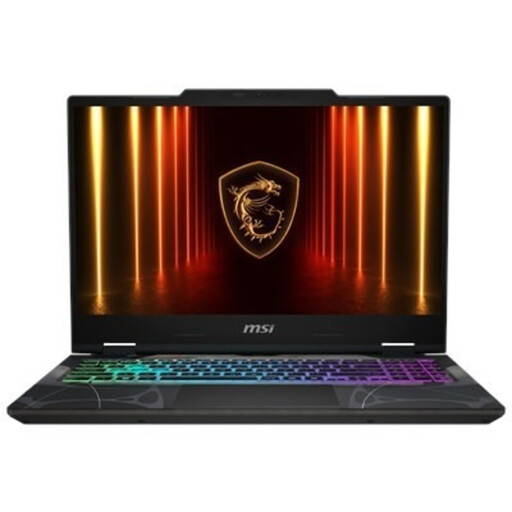 Image unavailable
MSI Cyborg A15 AI B2HWGKG-248NL
Compare this configuration if you’re looking for a laptop with a 15.6-inch screen; assess the specifications against the photo-editing software you use.
AMD Ryzen 9 270 processor with 8 cores; 16 GB DDR5; 512 GB SSD; 15.6-inch Full HD screen with 144 Hz; RTX 5070 with 8 GB GDDR7.
View at Joybuy
Frequently asked questions
Do I need a special laptop feature to correct lens distortion?
No, correction is done in photo-editing software. Check whether the software supports your camera-lens combination; if automatic results with non-RAW files are disappointing, Adobe suggests manual correction or creating a custom profile.
How do I correct lens distortion and perspective in Lightroom Classic?
First, check whether a suitable lens profile is available. Adobe recommends applying the profile for your camera-lens combination before using Upright perspective correction; lens profile correction and perspective correction are separate edits.
Can I use any USB-C charger when there are few power sockets?
Not without checking the charging specifications. The European Commission recommends checking the information about the required charging power when choosing a charger; the figures needed vary by laptop. Also check whether a power adapter is included with the configuration you choose.
Which software requirements should I check for Lightroom Classic?
Check which subscription includes Lightroom Classic and whether your chosen laptop configuration and any plug-ins are compatible with it. Adobe distinguishes between Lightroom and Lightroom Classic on its Dutch comparison page.


