
Student who does a lot of typing
You write up lengthy lecture notes and want to work comfortably with text, sources and study materials. Also check which software your course requires.


If you mainly type, choose a portable laptop with a comfortable keyboard, a screen that suits you and enough battery life for your study day. You may not need extra processing power or pen input. A 2-in-1 is a better fit if you regularly write on slides or diagrams. Before choosing a Chromebook or Mac, check that it runs your course software. Treat the quoted battery life as a manufacturer’s figure, not a guarantee that it will last through a full study day.
You write up lengthy lecture notes and want to work comfortably with text, sources and study materials. Also check which software your course requires.
You move between lectures and the library and need to weigh up portability and battery life. A quoted maximum run time doesn’t show how long it will last during your own study day.
You regularly annotate slides or diagrams, so a suitable touchscreen with pen support could be useful.
Choose this if: you mainly type and want a familiar Windows environment.
Bear in mind: check your course’s software requirements and the specifications of the exact configuration.
Choose this if: macOS is suitable for your course and you often work away from a power socket.
Bear in mind: Apple quotes up to 15 hours of wireless web browsing for the 13-inch MacBook Air with M5. This isn’t a measured run time for your study day.
Choose this if: you regularly draw diagrams or write directly on digital study materials.
Bear in mind: check the weight, pen compatibility and whether the pen is included with that configuration.
Choose this if: the study software you need runs on ChromeOS and the note-taking app suits the way you work.
Bear in mind: some courses have specific software requirements. Also check the end-of-update date for the exact model.
| Consideration | What should you check? | Who should pay particular attention? |
|---|---|---|
| Portability and working away from a power socket | Compare the weight of the exact configuration. For battery life, check what activity was tested: Apple and Acer use different descriptions, so their figures aren’t directly comparable real-world tests. | I move between lectures and the library and don’t want to keep looking for a power socket. Around 28% of consumers put portability and working without a regular place to charge first. |
| Quiet operation | Check whether the exact model has a fan and, if possible, try the keyboard. A fanless design doesn’t tell you how loud the keys are or how they feel to type on. | I work somewhere quiet and want to make as little noise as possible. Around 22% of consumers put quiet operation first when choosing. |
| Affordable everyday typing | Compare the RAM, storage and screen on the exact configuration. The Consumers’ Association (Consumentenbond) says 8 GB of RAM is enough for light tasks and recommends 16 GB if possible when using lots of programmes at once. | I want to take notes and handle everyday study tasks without choosing unnecessarily powerful hardware. Around 17% of consumers put affordable everyday typing first. |
| Writing with a pen | Check whether the configuration has a touchscreen and supports a suitable stylus, and whether the pen is included. ASUS lists stylus support for the Vivobook 14 Flip TP3407. | I take handwritten notes or draw diagrams on digital course materials. Around 11% of consumers put pen input first. |
| Course software | Check your course’s current requirements and whether the required programmes run on the laptop’s operating system. Google explains how to prepare Google Keep notes for offline use on a Chromebook. | I want to make sure required study software will work before I choose. Around 22% of consumers put course software first. |
Apple and Acer describe battery life using different test activities. Your own usage, including screen brightness and the programmes you run, may differ.
Compare figures only alongside their test descriptions, and allow for your own working day.
Some courses have requirements for laptops or the programmes you use. A warning about specific school software doesn’t mean a Chromebook is unsuitable for every course.
Check the required programmes and versions with your course provider, and look up the end-of-update date for the exact Chromebook model.
ASUS lists stylus support for the Vivobook 14 Flip TP3407, but that doesn’t confirm that every configuration comes with a pen.
Check the exact configuration, pen compatibility and what’s included in the box.
ACM ConsuWijzer distinguishes between commercial warranties and statutory guarantees.
Check what extra cover provides; don’t treat it as a replacement for your statutory rights.
Acer’s range includes standard Windows laptops and Chromebooks. Check that each model meets your course requirements.
The 13-inch MacBook Air with M5 is a macOS option if your course software runs on it.
The Vivobook 14 Flip TP3407 is an option if you want to use a pen as well as type.
The Yoga Slim 7 is a standard laptop option if pen input isn’t a priority.
The products below include laptops for taking lecture notes and 2-in-1 models with touchscreens. Check software compatibility and whether any accessories you need are included with each configuration.
 No image available
Suitable for typing and using the touchscreen or 2-in-1 modes.
14-inch touchscreen, 16 GB memory, 512 GB SSD and a 360-degree hinge.
Charger not included.
 No image available
The product description highlights productivity and different ways to use the laptop thanks to its 2-in-1 design.
16-inch touchscreen, 24 GB memory, 1 TB SSD and Windows 11.
 No image available
Suitable for working on documents and taking notes on the touchscreen; the product description also mentions tablet, tent and stand modes.
Intel Core 5 120U, 8 GB RAM, 512 GB SSD, 14-inch 2K touchscreen and Windows 11 Home. The stated weight is approximately 1,60 kg.
USB-C charger and stylus not included.
 No image available
A standard laptop option for documents and study materials; the product description mentions everyday productivity tasks.
AMD Ryzen 5 7520U, 8 GB RAM, 512 GB SSD, 14-inch IPS screen and Windows 11. The screen has an anti-glare finish and the stated weight is approximately 1,42 kg.
The laptop is supplied without a charger.
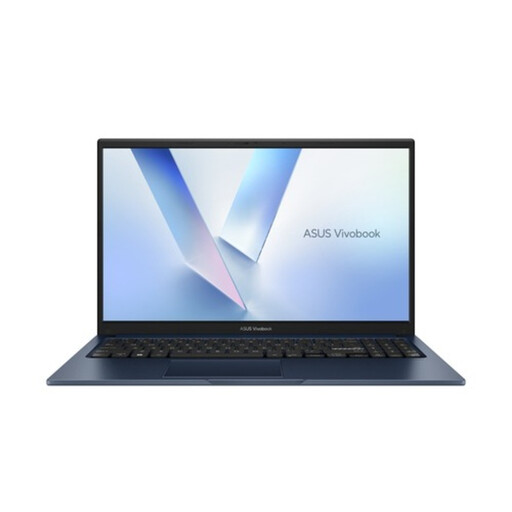 No image available
The product description lists documents, office applications and online learning as possible uses.
Intel Core 5 320, 8 GB RAM, 256 GB SSD, 15,6-inch Full HD screen with an anti-glare finish and QWERTY keyboard.
Not for every use. The Consumers’ Association (Consumentenbond) says 8 GB is enough for light tasks and recommends 16 GB if possible if you use lots of programmes at once. Also check your course requirements.
Yes, if you set up Google Keep appropriately. Google explains that you can save existing notes to your Chromebook in advance so you can read and edit them offline. Try this beforehand; it doesn’t mean every course app will work offline.
It depends on the exact configuration and what’s included. ASUS lists stylus support for the Vivobook 14 Flip TP3407, but that doesn’t automatically mean the pen is in the box. Check what’s included before buying.
According to ACM ConsuWijzer, for a standard online purchase of goods you generally have a statutory cooling-off period of up to 14 days after delivery; check which exceptions and returns terms apply. ACM ConsuWijzer also distinguishes between statutory guarantees and guarantees offered by the seller or manufacturer. A commercial warranty doesn’t replace your statutory rights.