What should you look for when choosing?
Start with the software you actually need to use, then consider whether the built-in screen or the connections available at your shared workspace will shape your day-to-day work.
| What to consider |
What should you check? |
Who does this matter to? |
| Screen for layouts and images |
Compare the resolution, size and screen finish of the exact configuration. For example, Lenovo lists a glossy OLED screen for the Yoga Slim 7i 83R0006BMH. |
If you do a lot of design work on your laptop screen, you’ll want to be able to assess layouts and images on it. Around 33% of consumers say the built-in screen is their top priority. |
| Software and storage |
Make a note of the programmes and versions you need. For Photoshop 27.x, Adobe lists 8 GB RAM as the minimum and recommends 16 GB or more; also check how much free storage your software requires. |
If you use both Figma and Photoshop, first check that the configuration you choose can run both. Around 27% of consumers put software compatibility first. |
| Connecting at your desk |
Compare the laptop’s ports with the cables for your monitor and peripherals, as well as the charging options available. Arboportaal sets out additional workstation requirements for employees who work with screens for more than two hours a day. |
If you regularly move between shared workspaces, you’ll want to connect your monitor and peripherals and set up your workstation appropriately. Around 20% of consumers say connecting to their workstation is their top priority. |
| Portability and working without a mains socket |
Compare the size and weight of the exact configuration, and check what a quoted battery life is based on; a video-streaming test isn’t a measure of design work. |
If you often take your laptop with you, you’ll want to rely less on a mains socket. Around 20% of consumers say portability is their top priority. |
Joybuy laptops for this type of work
This selection includes Windows laptops with different screen sizes and connectivity options, suited to design work and use at a shared workspace. Compare each configuration with your software, screen and available connections.
 No image available
HP OmniBook 5 Flip 14-fp0075nd C5VM5EA#ABH
Could suit you if you’re looking for a compact Windows laptop with multiple modes for a flexible workspace.
14-inch OLED touchscreen with 1920 × 1200 pixels and a 360° hinge; 16 GB memory and 512 GB SSD. The description lists USB-C with DisplayPort and HDMI. A compatible USB-C charger of at least 45 W is not included.
View at Joybuy
 No image available
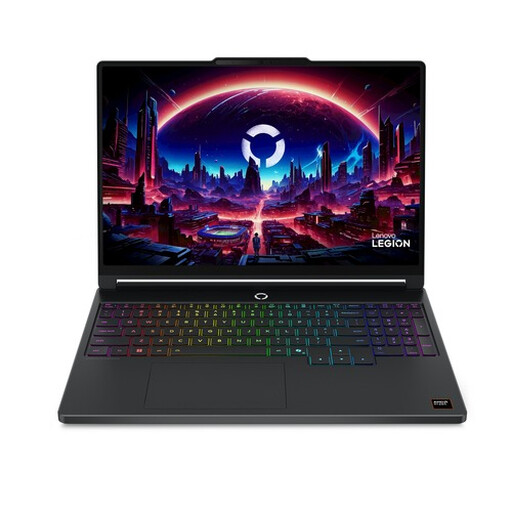
Lenovo Legion 5 15AHP11
Could suit you if a larger built-in screen and 16 GB memory are important for your design work.
Windows 11, 16 GB memory and 512 GB SSD; the 15.3-inch WQXGA OLED screen has a resolution of 2560 × 1600 pixels. The product details list USB4 ports.
View at Joybuy
 No image available
MSI Stealth 16 AI+ B3WF-011NL Copilot+ PC
Could suit you if you’re looking for a 16-inch OLED screen and ports for peripherals or an external monitor.
Windows 11, 32 GB memory and 1 TB SSD; the 16-inch QHD+ OLED screen has 100% DCI-P3 coverage. The product details list Thunderbolt 4 and HDMI 2.1.
View at Joybuy
 No image available
ASUS Zenbook A16
Could suit you if you want a larger screen with an anti-glare finish for a workspace with changing light conditions.
16-inch WUXGA screen with a 16:10 aspect ratio and 100% sRGB coverage; 16 GB memory and 512 GB SSD. The product details list two USB4 ports with DisplayPort output for compatible external monitors.
View at Joybuy
 No image available
MSI Prestige 16 AI+ C3MG-236NL Copilot+ PC
Could suit you if you need a 16-inch OLED screen and a range of connection types for your shared workspace.
Windows 11, 32 GB memory and 1 TB SSD; the 16-inch 2.8K OLED screen has 100% DCI-P3 coverage. The product details list two Thunderbolt 4 ports, USB-A and HDMI.
View at Joybuy
Frequently asked questions
Do I need a dedicated graphics card for Figma?
Not just because you use Figma: Figma doesn’t specify a particular graphics card as a requirement. However, check that your browser is supported and WebGL works. Figma says a dedicated laptop GPU can improve performance, but it uses more battery power.
What changes if I also use Photoshop?
Check the requirements for your version of Photoshop and your operating system. For version 27.x, Adobe lists 8 GB RAM as the minimum and recommends 16 GB or more; also check GPU support, screen resolution and available storage space.
Can I work on a laptop all day without accessories?
Arboportaal advises against using a laptop without accessories for more than two hours a day or for more than one hour at a time. Employees who work with screens for more than two hours a day must also use a screen and keyboard that aren’t attached to each other; with a laptop, it must be possible to use a separate screen or keyboard. Whether this requirement for employees applies to you depends on your working arrangements.
Is a USB-C charger always included or suitable?
No, this varies by configuration. Apple states that a power adapter isn’t included with the MacBook Air configuration reviewed. Check the charging details and the power requirements of the laptop and charger. According to the European Commission, EU rules on a common charging port have also applied to laptops since 28 April 2026, but a USB-C plug alone doesn’t prove that an existing charger provides enough power.
How do returns and the legal guarantee work when buying online in the Netherlands?
For eligible online consumer purchases, you generally have 14 days from receipt to withdraw from the contract, according to the European Union’s Your Europe website. Check who the seller is and what terms and return costs apply. Withdrawing from an online purchase is different from the legal guarantee: ACM ConsuWijzer explains that this guarantee depends on what you could reasonably expect from the product.


