
Designers using two external monitors
You want to use two separate external screens for your design, preview and references. Check the capabilities of the exact laptop configuration, as well as the connection or dock.


For landing page design, a laptop with its built-in screen and one external monitor is often a different choice from a setup with two external monitors. Start by considering your design software and screen setup. If you want two external screens, check support for the exact laptop model and how they connect. Browser-based work doesn’t automatically require a powerful graphics setup, while Photoshop and running several programmes at once give you more reason to consider memory and storage.
You want to use two separate external screens for your design, preview and references. Check the capabilities of the exact laptop configuration, as well as the connection or dock.
You switch between a landing page, browser tabs and possibly Photoshop. Figma runs mainly in the browser; for the Photoshop desktop version reviewed, Adobe recommends 16 GB of RAM or more.
You work on the laptop screen when you’re out and connect a monitor at your desk. Consider both the screen size for working on the go and the video connection at your regular workspace.
A good fit if: you want to spread your design work and browser preview across two screens. Check that the video output is suitable for your monitor and the resolution you want.
Keep in mind: this setup doesn’t mean the laptop can also drive two external monitors; you may not need a dock.
A good fit if: you need two separate external workspaces, possibly alongside the laptop screen. Lenovo lists different numbers of supported screens for different processor configurations of the ThinkPad T14 Gen 6 (Intel). Apple specifies that the MacBook Air M5 supports up to two external displays alongside its built-in screen, within the stated resolution and refresh rate limits.
Keep in mind: check the exact model, connection method and dock. Plugable explains that the MST adapters it tested mirror screens on a MacBook. A DisplayLink solution requires software and permission to record the screen on macOS.
| What to consider | What to look for | Who is this more important to? |
|---|---|---|
| Independent screens | Count the laptop screen and external monitors separately. For the exact model and dock, check the number of independent displays supported, along with the supported resolution and refresh rate. | I want to put my design and references on two separate external screens. Around 36% of consumers prioritise screen support. |
| Design software | Make a note of the programmes you use. Figma runs mainly in the browser; for the Photoshop version reviewed, Adobe lists 8 GB of RAM as the minimum and recommends 16 GB or more. | I work in the browser and sometimes edit images locally too, so I want to use my programmes side by side. This combination of software is the main concern for around 29% of consumers. |
| Reviewing images | Compare the stated resolution and colour specifications for the exact configuration. Don’t assume that the laptop display and external monitor will show the same image. | I review images regularly and want to know which screen to use to check my design. Screen quality matters most to around 21% of consumers. |
| Portability and connections | Compare the laptop’s size with how you’ll use it on the go. At the office, check the video connections you’ll need and, if you use a dock, its outputs and charging capacity. | I work in different locations and want to be able to work on the go without an external monitor. Portability and connecting at a regular workspace are the top priority together for around 14% of consumers. |
The laptop screen plus one external monitor already make a two-screen setup. Two external monitors place additional requirements on the model and connection method.
Before choosing a laptop or dock, work out how many external monitors you actually want to connect.
This helps you avoid choosing a dock or adapters you don’t need for your setup.
The MST adapters described by Plugable mirror the display on a MacBook rather than creating two independent desktops. DisplayLink requires software and permission to record the screen on macOS.
Check which technology the specific dock uses and whether it’s compatible with your Mac and preferred screen setup.
You may need a different connection method. With DisplayLink, you’ll also need to install software and grant permission.
Screen support and configurations can vary within the same product range. Lenovo, for example, distinguishes between processor configurations of the ThinkPad T14 Gen 6.
Compare the full model name and processor configuration with the specifications for your preferred setup.
ACM ConsuWijzer distinguishes between a commercial warranty and the seller’s responsibility for a faulty consumer product.
Check any service terms and extended warranty separately from your statutory rights.
An additional warranty package may incur extra costs.
The MacBook Air M5 is an option if you want macOS and need to connect external screens.
The ThinkPad T14 Gen 6 (Intel) is worth considering for a Windows setup where support for multiple screens matters.
The EliteBook 8 G1i 14 is a business Windows range worth comparing if configuration and service terms matter to you.
The Zenbook 14 OLED UX3405CA is a Windows range where the built-in screen and connections may be worth considering.
These laptop picks cover design work, browser use and connecting external screens. Compare the listed configuration for each model and, before you decide, check that its connections are suitable for your monitor setup.
 No image available
Worth comparing if you want to consider the built-in screen and memory configuration for your design work.
16-inch 3K OLED touchscreen with 120 Hz; 32 GB RAM; 1 TB SSD; Windows 11 Pro; QWERTY keyboard.
 No image available
Compare this configuration if you want to weigh up the stated screen and memory specifications for your design work.
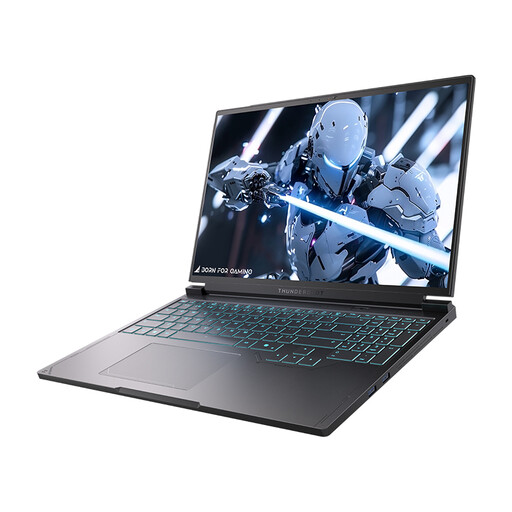
16-inch QHD+ 240Hz 2K screen; Core i7-13650HX; NVIDIA GeForce RTX 5060; 16 GB DDR5 RAM; 1 TB SSD.
 No image available
An option to compare if you want macOS and value the built-in screen space as well as connecting external displays.
15-inch; M5; 16 GB memory; 512 GB storage; QWERTY keyboard.
 No image available
Compare this configuration if you want to consider memory and storage as well as your design software.
14-inch; M5 Pro; 24 GB memory; 1 TB storage; Space Black.
 No image available
Worth comparing if you want a 14-inch laptop to take with you and value the stated screen and memory specifications.
Snapdragon X; 16 GB RAM; 512 GB SSD; WUXGA OLED; Dutch QWERTY keyboard; Iceland Gray.
According to the product listing, a compatible 65 W USB-C Power Delivery charger is required and sold separately.
No. The laptop screen and one external monitor already make two screens. If you also want to use two independent external monitors, check the specifications for the exact model and your chosen connection method.
Not necessarily. Figma runs mainly in the browser and lists browser and WebGL requirements. For the Photoshop desktop version reviewed, Adobe specifies 8 GB of RAM as the minimum and recommends 16 GB or more. Check the requirements of the programmes you use.
No. Plugable says that the MST adapters it tested mirror screens on a MacBook rather than showing two independent desktops. DisplayLink says its macOS app needs permission to record the screen, so check which technology the specific dock uses.
Connect the monitors, open Display settings and arrange the screens shown. If needed, use ‘Identify’ or ‘Detect’. These settings can’t add support that the laptop or dock doesn’t have. Microsoft Support explains these display settings for Windows.
For the employee situation described by Arboportaal, the screen and keyboard must be separate if you work at a screen for more than two hours a day. When using a laptop, you must therefore be able to use a separate monitor or keyboard. This isn’t a general product specification or a uniform requirement for every private buyer.