
Drawing directly on the screen
If you want to sketch on your laptop, check the pen support for the exact configuration. A touchscreen doesn’t automatically mean a compatible pen is included.


Choose a laptop with confirmed pen support if you want to draw directly on the screen. If you use a separate graphics tablet, focus on how the laptop works with your existing display and connections. For both options, check the exact configuration, compatibility with your drawing app, and how you’ll manage user accounts and software access at a shared workspace.
If you want to sketch on your laptop, check the pen support for the exact configuration. A touchscreen doesn’t automatically mean a compatible pen is included.
If you want to view colour and fine lines in a cityscape, compare the laptop screen with the display at the shared workspace. Manufacturer information describes product specifications; it isn’t an independent measurement of the screen you’ll be using.
If you connect your own equipment at a shared workspace, check that the display, graphics tablet and laptop work together, and decide how to keep accounts, files and software access separate.
Best if: you want to sketch outlines directly on the laptop screen.
Check: pen compatibility, how it works with your drawing app, and whether the pen is included with the exact configuration.
Best if: you already use a graphics tablet and monitor, or want to connect them at the shared workspace.
Check: you won’t be drawing directly on the laptop screen. Check the tablet drivers, software and connections required for your setup.
Best if: you want to pair a standard laptop with existing input devices and a shared display.
Check: the connections and configuration of the exact model; a built-in drawing pen isn’t a given.
| What to consider | What should you check? | Who is this important for? |
|---|---|---|
| Drawing input | Check pen compatibility with the exact model and your app, and see whether the pen is included. | If I want to sketch on the laptop screen, I need to know whether the pen works with the app and whether it’s included in the box. Around 33% of consumers make drawing input their top buying priority. |
| Screen for colour and detail | Compare the screen configuration and decide which display you’ll use to assess the finished result. | If I want to assess the lines, details and colours in the skyline, I’ll compare the laptop screen with the display at the workspace. Around 27% of consumers prioritise assessing the screen. |
| Connections and separate accounts | Check your monitor, tablet, cables and dock; set up separate user accounts and review the software terms. | When several people use the same workspace, I want to set up the equipment and access appropriately without mixing up accounts. Around 20% of consumers give the shared setup top priority. |
| Portability | Compare the size and connection to an external display with how you’ll use the laptop on the move and at your desk. | If I travel between my drawing location and a shared workspace, I need a laptop that suits both. Around 20% of consumers prioritise portability. |
A touchscreen alone doesn’t confirm that the stylus you want supports pressure sensitivity or is included with the configuration.
Before choosing to draw on the screen, check pen support, what’s included in the box and whether it works with your drawing app.
You may need to buy a compatible pen separately.
Separate operating system accounts help users keep their files and settings apart, but they don’t change the licence terms for illustration software. Adobe states that sharing a personal Adobe account isn’t permitted.
Set up separate user accounts and check which software licence suits your actual use before buying.
Multiple users may need separate software access.
The connections need to work with the monitor and graphics tablet at the shared workspace; you may need additional connection accessories.
Make a note of the available ports and cables at the workspace, and check what’s included with the exact laptop configuration.
Depending on the equipment you already have, you may need a suitable power supply, adapter or dock.
The Yoga 9i 2-in-1 Gen 11 is one option to explore if you want to draw on the screen.
The ProArt PZ14 HT7407 is a detachable option to consider if you’re looking for a creative setup with stylus support.
The MacBook Air M5 is a traditional laptop option to pair with a separate graphics tablet and external display.
The configurable XPS 14 DA14260 is a traditional Windows laptop to consider alongside your existing drawing equipment.
This Joybuy selection includes laptops in a range of screen sizes and designs, including a 2-in-1 and models to consider for a shared workspace. For each configuration, check that the input options, connections and software suit your equipment.
 No image available
The 16-inch configuration is worth comparing if you’re looking for a built-in screen for illustration work.
According to the product name: 16-inch screen, 64 GB RAM, 1 TB SSD, Windows 11 Pro and QWERTY keyboard.
Check pen support and the connections for the exact configuration separately.
 No image available
The built-in touchscreen is an option to consider for illustration work, but touch input alone doesn’t confirm pen support.
According to the product name: 16-inch 3K OLED touchscreen with 120 Hz, 32 GB RAM and a 1 TB SSD.
If you want to draw on the screen, check that your chosen pen works with this configuration and your app.
 No image available
The 2-in-1 design may suit you if you want to use the laptop in different ways. Check pen compatibility before planning to draw directly on the screen.
According to the product name: 16-inch 2-in-1, 32 GB RAM, 1 TB SSD and QWERTY keyboard.
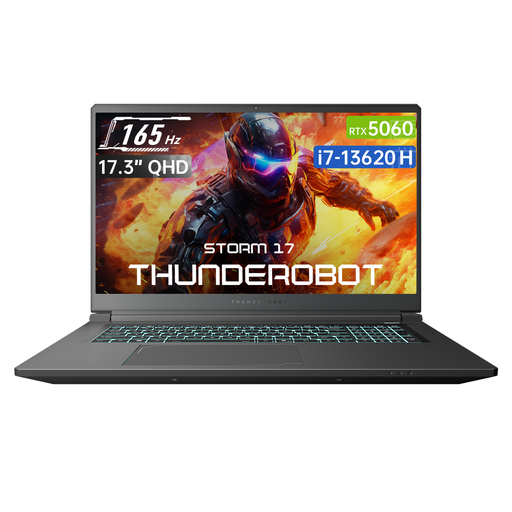 No image available
The 17.3-inch screen is worth including in your comparison if you want to assess a laptop with plenty of built-in screen space.
According to the product name: 17.3-inch QHD screen with 165 Hz, Intel Core i7-13620H, 16 GB DDR5 RAM and a 1 TB SSD.
Check that its size and connections suit the way you’ll use it on the move and at the shared workspace.
 No image available
A traditional laptop to consider if you’re thinking about using a separate graphics tablet. Check compatibility between the tablet, software and workspace equipment.
According to the product name: 15-inch configuration with M5 chip, 16 GB of memory and a 512 GB SSD.
No. A touchscreen alone doesn’t confirm support for pen pressure. Check that the specific pen works with the device and drawing app, and whether it’s included. Adobe describes pressure sensitivity for an Illustrator tool used with a graphics tablet.
Create a separate Windows account for each user to keep files and settings apart. Microsoft explains how to use multiple user accounts; also check the licence terms for your illustration software. Adobe states that sharing a personal Adobe account isn’t permitted.
Check whether your setup requires a pen, monitor adapter or dock, power supply and suitable software access. What you need will depend on the laptop configuration and the equipment already at the shared workspace.
For a consumer purchase made at a distance, you generally have a statutory cancellation period of up to 14 days after delivery, with some exceptions, according to ACM ConsuWijzer. The seller must also resolve an issue under the statutory guarantee rules if a product doesn’t do what you could reasonably expect when used normally. This doesn’t necessarily apply to a business purchase.