
Illustrator using a second display
You want to see your illustration alongside reference images, for example. Check each laptop’s video output, the cable you need and whether you can use the built-in screen and monitor at the same time.


Start by considering how you like to draw, then check whether the exact laptop configuration supports your external monitor through its available ports. A device with pen input suits you if you want to sketch directly on the screen. A standard laptop with a separate graphics tablet gives you more freedom over your drawing surface, but may require extra equipment and cables.
You want to see your illustration alongside reference images, for example. Check each laptop’s video output, the cable you need and whether you can use the built-in screen and monitor at the same time.
You want to work on the device with a compatible pen and connect an external display as well. Check both pen support and the video output on the exact configuration.
You move between workspaces and weigh up the laptop’s size and weight, its power supply and your drawing tools against the screen space available. A device’s weight won’t tell you how much your complete setup weighs.
Choose this option: if you want to spread your illustration software and references across two screens and don’t need to draw on the laptop screen itself.
Keep in mind: you may need a suitable video cable or adapter and, potentially, a separate graphics tablet.
Choose this option: if drawing directly on the screen and having a compact laptop are important to you.
Keep in mind: with Windows on Arm, check that your illustration app, tablet driver and monitor adapter are compatible.
Choose this option: if a larger built-in screen and pen input matter more to you than a compact setup.
Keep in mind: before buying, check that the exact configuration has the connection you need for your external monitor.
| What to consider | What to look for | Who is this important for? |
|---|---|---|
| Connecting a second display | Check the video output on the exact configuration, whether it can be used at the same time as the built-in screen, and the connections on your monitor and cable. | If you want reference images or tools alongside your illustration, you’ll want to make sure your setup will work. Around 33% of consumers rank connecting a second display as their top priority. |
| Drawing directly on screen | Check which pen is compatible, what’s included in the box, and whether your drawing app and any drivers work with the model. | If you’d rather sketch on the laptop screen than use a separate graphics tablet, you’ll want to know whether you can use the right pen. Around 27% of consumers give drawing directly on screen top priority. |
| Colour and workspace | Compare the screen specifications for the exact configuration. For print work, also consider the colour management and output settings. | If colour and reviewing illustrations across different screens matter for your work, check these features separately. Around 20% of consumers put colour work first. |
| Taking your setup with you | Compare the laptop’s size and stated weight, and include the power supply, cables, monitor and any graphics tablet in your calculations. | If you work in different places, you’ll want to know how much of your complete drawing setup you’ll need to carry. Around 20% of consumers make portability their top priority. |
For a second display, both the video capabilities of the specific port and the connection on your monitor matter.
Check the model specifications and make sure both ends of the cable match the laptop and monitor.
Stylus support doesn’t automatically mean the right pen comes with the configuration you’ve chosen.
Check what’s included in the box and which pen is compatible with the exact model.
Screen specifications and colour management for printing are different parts of your illustration workflow.
Compare the screen information and, for print work, check the relevant colour management and output settings too.
The MacBook Air M5 is an option if you want to work with macOS and connect an external display.
According to ASUS, the ProArt PZ13 HT5306QA combines a compact screen with pen support and USB4-C video output.
The Yoga Pro 9i Gen 11 configuration reviewed, 83SF003UMH, is an option if you’re looking for a larger built-in workspace and pen input.
This Joybuy selection includes laptops for use with an external monitor, as well as models whose product descriptions mention pen input.
 No image available
The product description mentions pen input and HDMI, so you can consider both drawing directly on screen and connecting an external monitor.
16-inch OLED touchscreen with 2880 × 1800 resolution; 360-degree hinge; 32 GB RAM; 1 TB SSD.
 No image available
The product description lists USB-C with DisplayPort and HDMI for connecting an external display.
14-inch Full HD IPS-level screen; 16 GB DDR4; 512 GB SSD; stated weight 1.40 kg. The power adapter must be purchased separately.
 No image available
The product description lists support for up to two external displays and two Thunderbolt 4 ports.
15.3-inch Liquid Retina display; M5 chip. The power adapter is not included.
 No image available
The product description lists support for up to two external displays, plus HDMI and Thunderbolt ports.
14.2-inch Liquid Retina XDR display; 24 GB memory; 1 TB SSD.
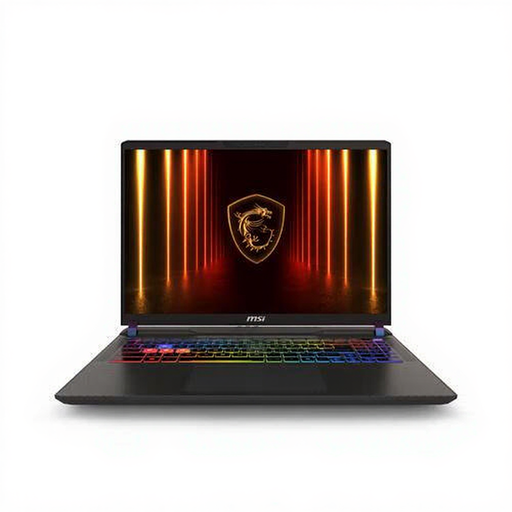 No image available
The product description lists HDMI 2.1 and Thunderbolt video output for a laptop-and-monitor setup.
16-inch Quad HD+ screen with 2560 × 1600 resolution; 16 GB DDR5; 1 TB SSD; stated weight 2.7 kg. The power adapter must be purchased separately.
First, connect a suitable video cable or adapter. In Windows, you can then identify and arrange the displays. For a Mac, Apple recommends checking the ports, the number of supported displays and the cables required for the exact model beforehand.
No. Don’t assume it’s compatible without checking your own equipment. Microsoft says many apps work on Windows 11 Arm, but some drivers may require specific support. Check the software and tablet manufacturers’ information for your app and graphics tablet.
For a purchase covered by Dutch consumer law, your statutory guarantee is separate from any manufacturer’s guarantee. According to ACM ConsuWijzer, the seller must remedy a faulty product free of charge under the applicable conditions; there isn’t one fixed statutory guarantee period that applies to every laptop.
Not always. ACM ConsuWijzer says there is generally a 14-day cooling-off period for online consumer purchases, with some exceptions. Consumer protection doesn’t automatically apply to a purchase made mainly for business; the position of small businesses may vary depending on the law and circumstances.