
Editing at a small desk
You want to edit holiday videos at your usual workstation and are looking for a laptop size that works well there.


For short, simple holiday videos, a compact laptop with enough memory and storage is often a more sensible starting point than automatically opting for the most powerful creator or gaming laptop. If you regularly edit 4K video in Premiere on Windows, compare the configuration with Adobe’s recommendation of 32 GB RAM or more for 4K and above. Just bear in mind that a larger screen and extra processing power take up more desk space.
You want to edit holiday videos at your usual workstation and are looking for a laptop size that works well there.
You often work with 4K holiday footage and want to match the configuration to your editing software. For Premiere on Windows, Adobe recommends 32 GB RAM or more for 4K and above.
You import and keep lots of video files, and want to work out in advance how much internal and external storage you need, along with the right ports. The Consumentenbond recommends considering 512 GB or more for large photo and video files.
| What to consider | What should you check? | Who is this important for? |
|---|---|---|
| Size and desk space | Compare the dimensions and screen size of the exact configuration. Check for a suitable video port if you want to connect an external screen. | If I have limited desk space, I want the laptop to fit my workstation without making the timeline too small to use comfortably. Around 33% of consumers prioritise laptop size. |
| Editing 4K footage | Make a note of your resolution and editing software, then compare them with the configuration. For Premiere on Windows, Adobe recommends 32 GB RAM or more for 4K and above. | If I regularly edit 4K footage, I want to match the memory and graphics configuration to my software, not just the screen size. Around 27% of consumers prioritise this editing requirement. |
| Storage for files | Check the SSD capacity and how much space you need for source files and projects. Adobe recommends a fast SSD or NVMe drive for the Premiere media cache. | If I keep lots of travel footage, I want to plan space for both source files and projects. Around 20% of consumers prioritise storage for travel footage. |
| Software and ports | Check the current system requirements for your editing software and the ports on the exact configuration. Don’t assume every model has a card reader. | If I want to keep using my existing editing software, I want to know in advance whether it works with the laptop’s operating system and ports. Around 20% of consumers start with their software and workflow. |
Adobe distinguishes between HD media and 4K and above for Premiere on Windows. The 4K recommendation does not automatically apply to less demanding projects.
First, check the resolution of your footage and which software you use. Then compare the system requirements with the configuration of the exact model.
Source files, projects and the media cache also use storage. Adobe recommends a fast SSD or NVMe drive for the Premiere cache.
Plan for storage for your footage and working files, and check that the laptop has ports for any external storage you might need.
Memory, storage and ports can vary between configurations. The specifications of one configuration do not automatically apply to other variants.
Before buying, check the full model name and the memory, storage and port specifications of your chosen configuration.
The 14-inch MacBook Pro with M5 is a compact Mac worth comparing if you want to use Final Cut Pro and its software requirements suit your workflow.
The ProArt PX13 HN7306 is a compact Windows configuration worth comparing if a creator-focused screen is important to you.
The Yoga Pro 7 Gen 10 is an alternative to consider if a creator-focused screen matters more to you than the smallest possible size.
The Swift 14 AI OLED NX.J2KEH.001 is a compact Windows configuration worth comparing for its memory, storage and screen.
The OMEN Transcend 14 range includes a compact Windows laptop that is also available with a dedicated GPU.
This Joybuy selection includes compact laptops and models with a larger built-in screen. Compare their size with your desk space, editing software and storage needs.
 No image available
A compact option if you’re looking for a smaller screen and the configuration suits your editing software.
14.2-inch screen, 24 GB of memory and 1 TB SSD. The description lists three Thunderbolt 4 ports, HDMI and an SDXC card slot.
 No image available
A larger screen may suit you if you prefer to edit on the laptop itself and have enough desk space.
15.3-inch WQXGA OLED screen, Ryzen 7 250, 16 GB of memory, 512 GB SSD and GeForce RTX 5060 with 8 GB of graphics memory. For Premiere on Windows, Adobe recommends 32 GB RAM or more for 4K and above; this configuration has 16 GB.
 No image available
Worth considering if you want a larger built-in screen and have room for it.
15-inch screen, 16 GB of memory and 512 GB SSD. The product description lists two Thunderbolt 4 ports and support for Final Cut Pro; check the current software requirements before buying.
 No image available
Consider this configuration if you regularly work with 4K footage and have room for the larger screen on your desk.
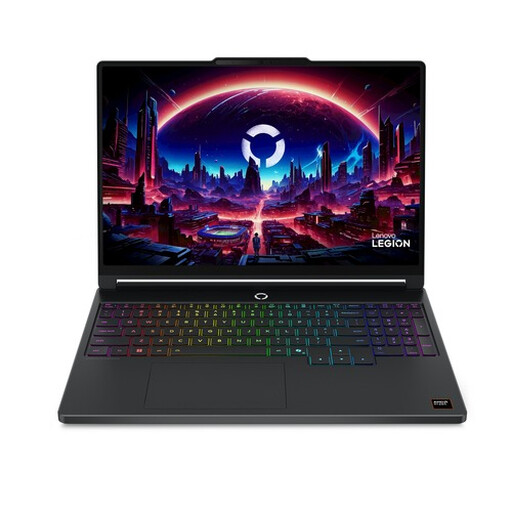
16-inch QHD+ OLED screen, 32 GB of memory, 1 TB SSD and GeForce RTX 5060 with 8 GB of graphics memory. The screen takes up more desk space than a more compact laptop.
 No image available
The 14-inch screen may suit a small workspace; also check that the memory configuration works with your editing software.
This configuration has 8 GB of memory and a 512 GB SSD. For Premiere on Windows, Adobe recommends 16 GB for HD media; compare this recommendation with how you use the laptop.
That depends on your software, footage and exact configuration. For Premiere on Windows, Adobe recommends 32 GB RAM or more for 4K and above. Adobe also explains how to use proxy files—lower-resolution copies of video files—while editing. This does not guarantee a particular model’s speed.
First check that you have room for the screen and that the laptop, cable and monitor are compatible. Apple lists HDMI and Thunderbolt 4 for the 14-inch MacBook Pro with M5; check the ports on other models individually.
Allow space for both source files and working files, and check the storage capacity of the exact laptop configuration. Adobe recommends a fast SSD or NVMe drive for the Premiere media cache and explains how to change its location.
No. According to ACM ConsuWijzer, your statutory guarantee is separate from any manufacturer’s or seller’s warranty. With normal use, you are entitled to a product that lasts as long as you can reasonably expect it to. If a product is faulty, the seller is responsible for providing an appropriate solution; there is no fixed two-year statutory guarantee for every laptop.
For online consumer purchases, ACM ConsuWijzer says you usually have a statutory cooling-off period of up to 14 days after delivery. Check which exceptions apply and read the returns information; a retailer’s voluntary returns policy is separate from this statutory right.