Start with the software and accounts your school uses. A standard laptop may be enough for online resources, documents and presentations, but you can’t install the Windows or Mac desktop versions of Office on a Chromebook. Next, check that you can position the screen and keyboard comfortably and that the ports suit your monitor or presentation screen. A laptop alone won’t make prolonged screen work at a sit-stand desk ergonomic: your workspace setup and varying your posture matter too.
Who is this buying guide for?
Teachers who prepare lots of teaching materials
You research historical sources, write assignments and work across several documents or windows. Compare the school software, memory and storage with the way you work. Consumentenbond recommends 16 GB of RAM if you use lots of programmes at once. Kennisnet explains how open educational resources are made easier for teachers and schools to find.
Teachers who spend long sessions at a sit-stand desk
You want to use your laptop with an adjustable screen and a separate keyboard, and alternate between sitting and standing. Arboportaal highlights the importance of a suitable screen-based workstation and changing your posture regularly.
Teachers who move between workspaces
You take your laptop with you and may connect it to a monitor or presentation screen. Check the size and weight of the exact model, and make sure its ports are compatible with the screens you use.
What should you look for?
First, decide which factor matters most for preparing your lessons: software, your workspace setup, screen connections or portability.
| What to consider |
What to look for when buying |
Who is this important for? |
| School software and teaching materials |
Find out which programmes, learning platform and accounts are required. Try representative files and presentations on the operating system you’re considering. |
If my school’s programmes and lesson files need to work on the laptop, I check the software and accounts first. Around 40% of consumers prioritise software and teaching materials. |
| Setting up your sit-stand desk |
Check whether the screen and keyboard can be positioned separately, and change your posture regularly. Arboportaal says that employees who work at a screen for more than two hours a day should use a screen and keyboard that aren’t attached to each other. |
If I work at my sit-stand desk for long periods, I want to position my screen and keyboard comfortably and vary my posture. Around 30% of consumers prioritise their workspace setup. |
| Connecting to a screen |
Note the inputs on your monitor and presentation screen, then compare them with the video output on the exact laptop model. Check whether you’ll need a cable, adapter or dock. |
If I want to use my existing monitor or presentation screen, I check in advance that it will connect to the laptop I choose. Around 20% of consumers prioritise screen connectivity. |
| Taking it between workspaces |
Compare the weight and size of the exact model. Also consider whether you want to work away from your usual workspace without access to a power socket. |
If I take my laptop between my desk, home and classroom, I consider the size and weight of the model. Around 10% of consumers prioritise portability. |
Common pitfalls
-
Assuming a sit-stand desk is a complete laptop workstation
An adjustable desk doesn’t let you adjust the laptop screen and keyboard separately. Arboportaal states that employees who work at a screen for more than two hours a day must use a screen and keyboard that aren’t attached to each other.
Consider your whole setup and alternate between sitting and standing. Check how you can use a separate keyboard and position your screen appropriately.
A separate monitor, stand, keyboard or connection accessories may take up extra space and require additional equipment.
-
Choosing a Chromebook because it can open Office files
The web versions of Microsoft 365 aren’t the same as the installable Windows or Mac desktop versions of Office. Microsoft states that you can’t install those desktop versions on a Chromebook.
Check in advance which lesson programmes, files and school accounts you need, and whether your school’s usual way of working is supported on a Chromebook.
-
Assuming every USB-C port works with every screen
Ports vary between laptop models and screens. A USB-C port doesn’t automatically mean that the laptop will connect directly to your monitor or presentation screen.
Compare the video output on the exact laptop model with the screen’s input, and check whether you’ll need a suitable adapter or dock.
You may need an adapter or dock, which means extra connection equipment at your workspace.
Brands to consider
Dell
According to Dell Netherlands, the Dell Pro 14 Essential PV14255 is a configurable Windows laptop with a 14-inch screen.
- The configurator offers options including 8 or 16 GB of RAM.
- Specifications may change if you adjust the configuration, so check the model you select.
HP
HP ProBook models with Windows 11 Pro may be worth considering if your school uses a business-focused Windows setup.
- For one ProBook 4 G1i 14 model, HP Netherlands lists 16 GB of RAM and a 512 GB SSD.
- These specifications apply to that model. They aren’t a performance test or a feature of every ProBook.
Acer
The Acer Chromebook Plus 514 CB514-6HT-32PZ is a ChromeOS option for those who use approved browser-based programmes.
- Acer lists a matte 14-inch screen, HDMI and two USB-C ports for this model.
- Check that your required school software and files work on this Chromebook. You can’t install the Windows or Mac desktop versions of Office on it.
Apple
The 13-inch MacBook Air with M5 is a macOS option if your school and the programmes you use support it.
- Apple lists two Thunderbolt 4 ports with support for external displays on this model.
- Check how to connect HDMI equipment and whether your school software is compatible with macOS.
Joybuy products
This selection includes Windows laptops for lesson preparation and a MacBook for those who can use macOS and the school software they need.
 Image unavailable
ASUS Vivobook S16 S3607QA-SH109W
A Windows laptop to consider if you want to work with teaching materials and several programmes on one device. Check that your school software works with this model.
16-inch WUXGA OLED screen; Snapdragon X Processor; 16 GB LPDDR5X; 512 GB SSD; Windows 11 Home.
According to Arboportaal, if you work at a screen for more than two hours a day, the screen and keyboard must be positioned separately.
Joybuy
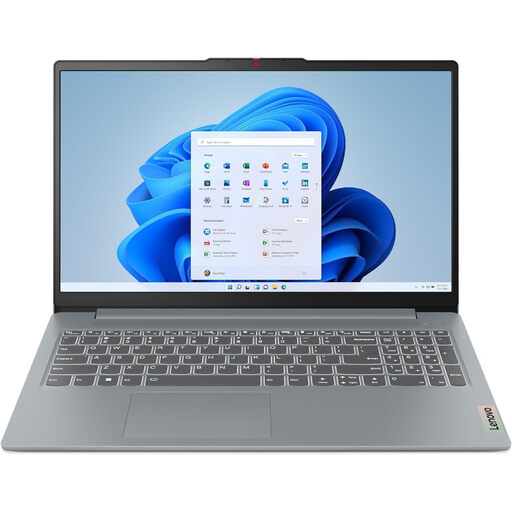 Image unavailable
Lenovo IdeaPad Slim 3 15AHP10
A laptop to consider if you want to prepare teaching materials and connect your existing screen. Check that the ports match your monitor.
15.3-inch WUXGA screen; Ryzen 5 8640HS; 16 GB DDR5; 512 GB SSD; Radeon 780M; Wi-Fi 6.
According to Arboportaal, if you work at a screen for more than two hours a day, the screen and keyboard must be positioned separately.
Joybuy
 Image unavailable
MSI Modern 14 F1MG-867NL
A Windows laptop to consider if you want to use teaching materials alongside an external monitor. Check which cable or connection your screen needs.
14-inch Full HD screen; Intel Core 7 150U; 16 GB DDR4; 512 GB SSD; HDMI; USB-C with DisplayPort; Windows 11 Home.
According to Arboportaal, if you work at a screen for more than two hours a day, the screen and keyboard must be positioned separately.
Joybuy
 Image unavailable
Apple MacBook Air 15-inch M5
A macOS option to consider if your school supports the software you need. Also check how to connect your existing screens.
M5 chip; 16 GB memory; 512 GB storage; Starlight; QWERTY keyboard.
According to Arboportaal, if you work at a screen for more than two hours a day, the screen and keyboard must be positioned separately.
Joybuy
 Image unavailable
Lenovo IdeaPad Slim 5 15ARP10
A laptop to consider if you want to prepare teaching materials and use an external screen. Check in advance that it’s compatible with your equipment.
15.3-inch screen; Ryzen 5 7535HS; 16 GB RAM; 512 GB SSD; HDMI; USB-C with DisplayPort; Cloud Grey; QWERTY keyboard.
According to Arboportaal, if you work at a screen for more than two hours a day, the screen and keyboard must be positioned separately.
Joybuy
Frequently asked questions
Is a laptop on its own enough for prolonged work at a sit-stand desk?
Not necessarily. According to Arboportaal, employees who work at a screen for more than two hours a day must use a screen and keyboard that aren’t attached to each other. Set up your workspace so you can position your screen and input devices appropriately, and change your posture regularly.
Can you edit your Office teaching materials on a Chromebook?
You can use the web versions if they work with your school’s usual way of working and your files. Microsoft states that the Windows and Mac desktop versions of Office can’t be installed on a Chromebook, so check which programmes and features you need.
What should you do if you use pupil data on your laptop?
Agree with your school on how the laptop will be used and managed. The Dutch Data Protection Authority says that under the GDPR, schools must be able to show which technical and organisational measures they take to protect personal data. A brand or operating system alone doesn’t prove compliance.
What warranty applies to a private purchase in the Netherlands?
According to the Dutch government, you’re entitled to a product that works as it should, and you can contact the seller if it doesn’t. The Netherlands has no fixed statutory warranty period. A manufacturer’s warranty or an extended warranty you’ve bought doesn’t replace your legal rights.


