
Teacher at a shared desk
Prepares lessons at different workstations and wants to connect a suitable screen and peripherals. Arboportaal outlines points to consider when working with screens.


Start by checking the school software and connections available at the shared desk. Then compare screen space, portability and storage for digital teaching materials. Utrecht University provides digital teaching and assessment materials for history, while the Consumentenbond distinguishes between storage needs for everyday office work and large files. For extended screen-based work, also check whether the workstation can accommodate a suitable setup with separate peripherals.
Prepares lessons at different workstations and wants to connect a suitable screen and peripherals. Arboportaal outlines points to consider when working with screens.
Works with digital history and assessment materials and wants to read sources alongside the lesson plan. Utrecht University provides teaching and assessment materials for history and people & society.
Regularly takes their laptop with them and weighs portability against the space available on the built-in screen. The Consumentenbond and Docentenplein highlight portability when choosing a laptop for education.
Start with the requirements of your school software and the shared desk. Then decide how much screen space, storage and portability suit the way you prepare lessons.
| What to consider | What should you check? | Who is this important for? |
|---|---|---|
| Connecting to the workstation | Make a note of the screen and dock connections you need. For USB-C, check that the laptop supports the required video output. | If I work at different desks, I want to connect my screen and peripherals without assuming that an unsuitable port will work. For consumers who prioritise connecting to the shared desk, this is the top purchasing priority for around 36%. |
| Reading sources and lesson plans | Compare the available desk space with the screen size, and consider how many files you want to store locally. The Consumentenbond recommends 256 GB for everyday office work and 512 GB or more for lots of large files. | If I want to view digital sources alongside my lesson plan, I look for enough screen space and storage for my files. Around 29% of consumers make sources and screen space their top purchasing priority. |
| Taking it between workstations | Compare the weight and screen size, and check whether you can charge it in the places where you usually work. | If I take my laptop between classrooms or workstations, I weigh a lower carry weight against the space available on the built-in screen. For consumers who prioritise mobility, this is the top purchasing priority for around 21%. |
| Software and pupil data | Ask your school’s IT team which apps, drivers, printers and security settings are supported, and check these for the exact laptop configuration. | If I use school software or pupil data on my device, I want to know in advance which platforms and settings the school allows. Around 14% of consumers put software compatibility and data handling first. |
A dock may require specific support for video over USB-C. The connector’s shape alone doesn’t tell you whether the exact laptop configuration supports video and charging through the dock.
Before buying, compare the requirements of the dock you have with the ports and specifications of the model you’re considering.
Depending on the connections available, you may need a suitable adapter or a different dock.
A compact laptop is easier to carry, but it won’t automatically provide a suitable setup for extended screen-based work.
Check what equipment is already available at the shared workstation and discuss the setup with your employer.
A suitable workstation may require separate input devices or an additional screen.
Apps and drivers may behave differently on a laptop with an Arm processor.
Ask your school’s IT team to check the required software, printer and other peripherals for the model you’re considering.
The ThinkPad E14 Gen 7 is a 14-inch business range for anyone looking for a compact Windows laptop.
The TravelMate P2 14 is a business laptop range. Acer also lists configuration TMP214-55-G3-TCO-53YV, part number NX.BQNEH.002.
The Dutch ProBook 4 G1q configuration C54W6AT#ABH is a 14-inch Windows 11 Pro model with Snapdragon X.
The 13-inch MacBook Air with M5 reviewed here is a macOS option if you’ve checked that your school environment supports the platform.
These Joybuy products are suited to preparing lessons at a shared desk, with screen space, connections and storage in mind.
 No image available
Worth considering if you want to read sources on a spacious built-in screen and need connections for an external display.
16-inch touchscreen; weight 1.88 kg; Thunderbolt 4 with DisplayPort; 512 GB SSD.
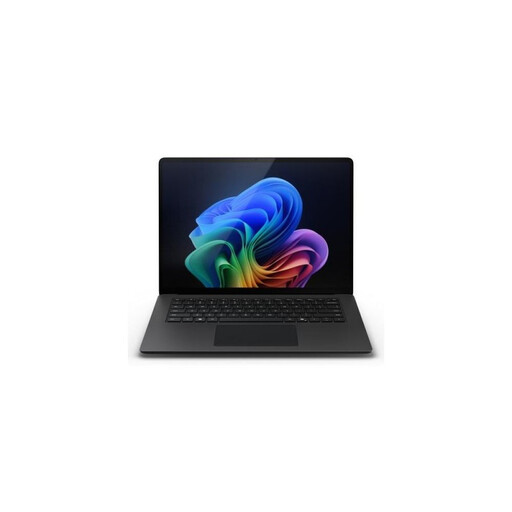 No image available
A portable screen option to compare if you want to view documents and sources on the laptop screen. Check that your school apps and peripherals work with Windows for Arm.
13.8-inch touchscreen with a 3:2 aspect ratio; 16 GB memory; 512 GB SSD; weight 1.34 kg.
 No image available
Worth comparing if you’re looking for a built-in screen and an HDMI connection for desk-based work.
14.2-inch XDR display; HDMI; supports up to two external displays; 1 TB SSD storage.
 No image available
Worth considering if you want to read teaching materials on the laptop screen and also connect an external display.
14-inch OLED display; 16 GB memory; 512 GB SSD; HDMI and USB-C with DisplayPort; Windows 11 Home. Charger not included; according to the product description, a compatible USB-C charger of at least 45 W is required.
 No image available
A lightweight option to compare if you want to read documents on the laptop screen and take your laptop with you regularly. Check that your school apps and peripherals work with Windows for Arm.
14-inch OLED display with a 16:10 aspect ratio; weight approximately 0.98 kg; HDMI and USB-C with DisplayPort; 512 GB SSD. A compatible 65W USB-C Power Delivery charger is required and not included.
No. The connector’s shape alone isn’t enough to confirm compatibility. For example, a dock may require DisplayPort Alt Mode over USB-C. Check both the dock and the exact laptop configuration, including video output and charging.
Set up your workstation to suit how long and how you work. Arboportaal explains that for employees who work with screens for more than 2 hours a day, the screen and keyboard must not be attached to each other. Its separate advice is not to use a laptop without accessories for more than 2 hours a day or for longer than 1 hour at a time. Discuss the setup with your employer; this doesn’t mean every buyer needs one particular laptop model.
Ask your school which accounts, storage locations, screen-lock settings and device settings you should use. The Dutch Data Protection Authority says schools must be able to demonstrate that they have technical and organisational measures in place to protect personal data. A feature listed by a manufacturer doesn’t, by itself, prove that school policy is being followed.
As a consumer, you’re entitled to a product that works properly, and the retailer is your point of contact if there’s a problem covered by the statutory guarantee, according to the Dutch government. Online consumer purchases generally come with a cooling-off period of up to 14 days after delivery, subject to legal exceptions outlined by ACM ConsuWijzer. Check the terms separately if the school or employer is the business buyer.