What should you look for when buying?
Start with your workspace: decide whether a generous built-in screen or an external monitor would work better for reading and organising sources. Then check the software and connections required by your school and home equipment.
| Consideration |
What should you check? |
Who is this important for? |
| Working with sources and a lesson plan at the same time |
Compare screen size and resolution; also check the memory and storage of the exact configuration. |
If I want to read sources alongside my lesson plan, I need enough workspace to switch between documents less often. For around 33% of consumers, working with sources and teaching materials at the same time is the top buying priority. |
| Comfort at a permanent home workspace |
Check that the built-in screen suits your work and that the video output is compatible with your monitor. |
If you mainly work at a permanent desk, you’ll want to know whether the laptop screen is sufficient or whether you can connect your existing monitor. A suitable screen and the connections you need are the top buying priority for around 25% of consumers. |
| School software and secure working |
Ask which operating systems, apps and drivers your school supports; also check the agreed working environment. |
I want to know in advance whether required school apps and equipment will work, especially when handling school data. Compatibility with school software and peripherals is the top buying priority for around 25% of consumers. |
| Taking your laptop between home and school |
Compare the size of the exact configuration and decide whether you use an external monitor at home. |
If you regularly take your laptop with you, a more compact size may matter more than a large built-in screen. Portability between workspaces is the top buying priority for around 17% of consumers. |
Laptop options on Joybuy
This selection focuses mainly on laptops with large built-in screens for preparing lessons at home. Compare the screen specifications and connections for each configuration, and also check that your school software is supported.
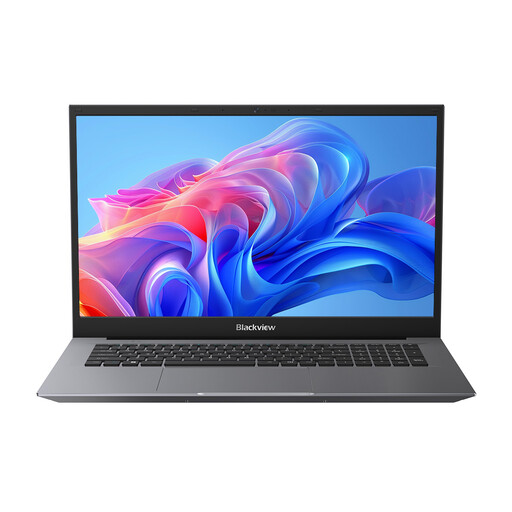 Image unavailable
Blackview AceBook 10, 18.5-inch
The 18.5-inch screen is worth considering if you mainly use the laptop at a permanent home workspace.
18.5-inch LCD screen; Intel Pentium Silver N6000; 16 GB DDR4 RAM; 512 GB SSD; Windows 11 Pro.
View on Joybuy
 Image unavailable
ASUS ProArt P16 H7607BA-SE181X
The 16-inch configuration listed is an option to compare if you want plenty of screen space at your home workspace.
16-inch OLED touchscreen; 128 GB RAM; 1 TB SSD; Windows 11 Pro; QWERTY keyboard.
View on Joybuy
 Image unavailable
Lenovo ThinkBook 16 G8 IAL 21SK00EBMH
The 16-inch screen and listed video connections are useful if you want to view sources on a large screen at home or connect a monitor.
16-inch WUXGA IPS anti-glare screen; Intel Core Ultra 5 135H; 16 GB DDR5; 512 GB SSD; HDMI 2.1; USB-C with DisplayPort; Windows 11 Pro; QWERTY keyboard.
View on Joybuy
 Image unavailable
HP OmniBook Ultra Next Gen AI 16-bk0001nd
The 16-inch configuration with an OLED touchscreen is an option to compare for a permanent workspace; check that its connections suit your monitor.
16-inch 3K OLED touchscreen, 120 Hz; 32 GB RAM; 1 TB SSD; USB-C/USB4 with DisplayPort; Windows 11 Pro; QWERTY keyboard.
View on Joybuy
 Image unavailable
HP OmniBook Ultra Next Gen AI 16-bk0004nd
This configuration has a 16-inch OLED touchscreen; compare its screen and connection specifications with your workspace and monitor.
16-inch 3K OLED touchscreen, 120 Hz; 128 GB RAM; 2 TB SSD; USB-C/USB4 with DisplayPort; Windows 11 Pro; QWERTY keyboard.
View on Joybuy
Frequently asked questions
Do you need a larger screen to prepare a history lesson?
No, a larger screen isn’t essential. If you often read a source alongside a lesson plan, compare the workspace offered by the built-in screen with that of a more compact laptop paired with an external monitor. For the latter option, check the connections.
What should I check before connecting a laptop to my monitor or school printer?
Compare the video output on the exact laptop configuration with the input on your monitor. If you’re using Windows on Arm, also check that the required printer and other devices have supported drivers.
What are the rules on guarantees and cooling-off periods in the Netherlands?
According to the Dutch government, statutory guarantees in the Netherlands have no fixed duration and you are entitled to a product that is fit for purpose. For eligible distance purchases, a 14-day cooling-off period applies in many cases; check the terms and exceptions that apply to your purchase.
Can I handle pupil data on my own laptop?
Follow your school’s policies; the guidelines do not give blanket permission to use any personal laptop. The Dutch Data Protection Authority advises using your organisation’s equipment and a secure home-working environment wherever possible.


