
A writer who doesn’t want to lose a chapter
Wants to keep recoverable versions of their manuscript and research, rather than relying solely on syncing or a folder on the same laptop.


First, choose a laptop that suits your writing software and backup routine. Microsoft Support explains how to use File History to back up to external storage on Windows, while Apple Support describes Time Machine for macOS. On a Chromebook, you’ll need to make the relevant documents available offline in advance and arrange a separate backup. None of these options automatically keeps a recovery copy if your backup drive isn’t connected, and you should check that you can restore files.
Wants to keep recoverable versions of their manuscript and research, rather than relying solely on syncing or a folder on the same laptop.
Switches between writing and research documents, so screen space, local storage and access to files without an internet connection are important.
Also works away from their usual desk and wants to check in advance that documents open offline and that an external backup drive fits into their workflow.
A good fit if: you use Windows writing software and want to set up File History on an external drive.
Bear in mind: File History only saves the files you select to the chosen storage location; a disconnected drive won’t receive new copies. Microsoft Support explains how this backup feature works.
A good fit if: you use macOS software and want to set up Time Machine with separate external storage. Apple Support describes Time Machine as a backup option for an external drive.
Bear in mind: check that the port on the exact MacBook configuration is compatible with your existing drive.
A good fit if: your writing software and documents work offline, and you manage your local and external copies yourself.
Bear in mind: Google Chromebook Help notes that some apps don’t work offline. Changes to Drive files used offline only sync once you’re connected again; syncing isn’t a separate backup.
| What to consider | What should you check? | Who is this important for? |
|---|---|---|
| Separate offline backups | Check the connection on your external drive, which manuscript and research folders will be included, and whether you can restore a file. | I want to be able to restore earlier versions of my manuscript and research, even without internet access. Around 29% of consumers prioritise separate offline backups. |
| Comfort when typing for long periods | Check the keyboard layout on the exact configuration and compare screen size, resolution and reflections. | I want to type comfortably and read text easily during long writing sessions. Around 29% of consumers prioritise keyboard and screen comfort. |
| Working without an internet connection | Open your manuscript and essential research offline in advance; weigh screen size and weight against portability. | When I write in different places, I want to be able to open my documents without an internet connection. Around 24% of consumers prioritise working on the go offline. |
| Research material and software | Check the system requirements for your writing app, the size of your local files and whether you’ll need a new licence if you switch platforms. | I want to use my existing writing app and research files on the laptop. Around 18% of consumers prioritise software and research compatibility. |
A synced change isn’t the same as an independently stored recovery copy. A copy on the same laptop also carries the risk of being lost if the laptop goes missing.
Keep a separate copy on external storage too, disconnect the drive as part of your routine and test that you can restore an earlier version.
The desktop downloads of Scrivener described by Literature & Latte are for Windows and macOS; the developer sells licences for each platform.
Before choosing a laptop, check the system requirements and licence for the app you actually want to use.
If you switch platforms, you may need a different app or a licence for the new platform.
Ports can vary between configurations. Apple lists USB-C ports for the 13-inch MacBook Air reviewed here; Lenovo says that a port on the ThinkPad E14 Gen 7 Intel varies depending on the processor configuration.
Compare the connection on your existing backup drive with the specifications for the exact configuration.
If the connections aren’t compatible, you may need a suitable adapter or a different external drive.
The Dell 14 DC14255 is a Windows configuration worth comparing if you want to tailor memory and storage to your writing and research files.
The MacBook Air M5 is worth considering if you use macOS and want to use Time Machine with separate storage.
The Acer Chromebook Plus 514 CB514-5H-53HQ (NX.JKAEH.002) is a ChromeOS configuration to consider if you make documents available offline in advance.
The ThinkPad E14 Gen 7 Intel series is worth considering if you want to compare Windows configurations with ports for external storage.
This selection focuses on laptops for writing locally and managing files. For each configuration, check the operating system, compatibility with your writing app and connection for your external backup drive.
 No image available
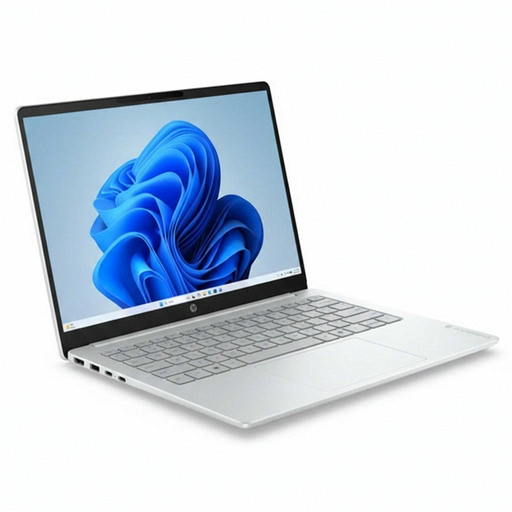
A Windows laptop to consider if you want to store your manuscript and research locally and connect an external storage device.
Intel Core 3 304, 8 GB RAM and 512 GB SSD. Windows 11 Home. The description lists a 14-inch screen, a backlit keyboard and a weight of 1.42 kg.
The description lists USB-A and USB-C ports; check which connection is compatible with your drive.
 No image available
A Windows laptop to compare if you want to store your writing and research files locally.
AMD Ryzen 5 7520U, 8 GB RAM and 512 GB SSD. Windows 11 Home. The screen is 14 inches, with a 1920 × 1200 resolution and a 16:10 aspect ratio; the description also lists a weight of around 1.42 kg.
The description lists USB-A and USB-C ports. The charger isn’t included and must be purchased separately.
 No image available
A laptop to compare if a larger screen and backlit keyboard are important to you when writing.
16 GB DDR4 RAM, 512 GB SSD and a 3050E processor. The screen is 15.6 inches, Full HD IPS; the description lists USB-A and USB-C connections.
Before use, check that your external drive and writing software are compatible with this configuration.
 No image available
A Windows configuration to compare if you want to write locally and use external storage.
Intel Core 7 150U, 16 GB DDR4 and 512 GB SSD. Windows 11 Home. The description lists a 14-inch Full HD anti-glare screen, a backlit keyboard and a weight of 1.40 kg.
The description lists USB-A and USB-C ports; check which one is compatible with your backup drive.
 No image available
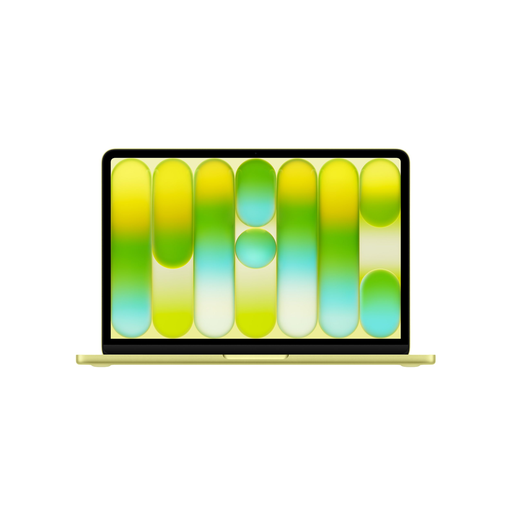
A macOS option to consider if you use macOS writing software and want a compact laptop.
13-inch screen, 8 GB memory and 256 GB SSD. You’ll need separate storage for a Time Machine backup; check that the connection is compatible.
A USB-C power adapter rated at least 20 W is required and sold separately.
Yes, if your writing app and files support offline use and you make the documents you need available in advance. Google Chromebook Help notes that some apps don’t work offline; changes to Drive files used offline will sync once you’re connected again. Keep a separate backup too.
On Windows, File History can copy selected files to an external drive or network location; on macOS, Time Machine can use an external drive. Microsoft Support and Apple Support explain these options. Check that your manuscript and research are included, then try restoring a file from the backup.
Not if the copy is stored only on the same computer. Literature & Latte explains that, by default, the automatic backup is kept in a folder on that computer. So copy important projects to separate storage too, and check that you can restore them.
Compare your drive’s connection with the specifications for the exact laptop configuration. Ports can vary between models or configurations; if they don’t match, you may need a suitable adapter or a different drive.