
Creating a printed booklet
You’re combining historical photographs with text and want to submit a multi-page PDF. Adobe’s InDesign and print guides can help you check the software requirements and print settings.


Choose a compact laptop based on the layout software you use and whether the built-in screen is sufficient or you need an external display. Adobe lists 8 GB of RAM as the minimum and 16 GB as recommended for InDesign. If you work with lots of large photo and video files, the Dutch Consumers’ Association recommends considering 512 GB of storage or more. For print, also ask which PDF profile and submission settings your printer recommends.
You’re combining historical photographs with text and want to submit a multi-page PDF. Adobe’s InDesign and print guides can help you check the software requirements and print settings.
You have limited workspace and are weighing up whether the laptop screen is enough or you’d like to connect an external display. Check the ports on your chosen configuration; Apple, for example, specifies two Thunderbolt 4 ports for the MacBook Air M5 configuration reviewed.
You want to sketch or make notes directly on the screen while laying out your booklet. Lenovo says the pen is optional and sold separately for the Yoga 7 configuration reviewed.
Start with the requirements of your layout software and the screen setup that suits your desk. Then work out how much memory and storage your files need, and whether a touchscreen is really useful for your workflow.
| What to consider | What should you check? | Who is this for? |
|---|---|---|
| Screen and print | Compare screen size, resolution and finish. Ask your printer which PDF profile and submission settings you need. | I want to assess historical photographs on screen and submit my booklet to meet my printer’s requirements. Around 33% of consumers prioritise the screen and print quality. |
| Desk space | Check the laptop’s dimensions and whether your chosen configuration supports the external display you want. | At a small desk, I want to arrange my page and tool panels clearly, possibly using an external display. Around 27% of consumers give workspace their top priority. |
| Memory and storage | Compare the software requirements with the memory and storage of the exact model, especially if you keep lots of photos on your laptop. | I want to use my layout software and still have room for scans and photo files. Around 20% of consumers prioritise memory and storage. |
| Sketching and ports | Check whether the specific model supports touch input, whether a pen is included and which ports your peripherals require. | If I sketch or make notes while laying out my booklet, I want to know whether a touchscreen will suit my workflow. Around 20% of consumers prioritise sketching or the way they connect their devices. |
A screen specification doesn’t tell you which settings to use or what the result will look like for your particular print job.
Before submitting the final file, discuss the PDF profile you need and the proofing process with your printer.
An extra proof or round of corrections can take more time.
What’s in the box varies by configuration. Lenovo lists the pen as optional; Apple doesn’t list a mains charger as included with the MacBook Air configuration reviewed.
Check what’s in the box and which pen or charger you’ll need for your chosen model.
You may need to buy a pen or charger separately.
Laptops in the same range can differ in processor, screen and memory. The full model code helps you identify the exact configuration.
Compare the full model code, screen specifications, memory, storage and keyboard layout before making a decision.
The 13-inch MacBook Air M5 is a compact macOS option. Apple lists the specifications for the base configuration reviewed; they won’t necessarily apply to other models.
The Zenbook 14 OLED UX3405 is a compact Windows option. Check the exact configuration, as specifications vary between models.
The Yoga 7 2-in-1 Gen 10 is worth considering if you want to sketch or make notes directly on the screen while laying out your booklet.
This selection includes compact laptops and 2-in-1 models for layout work at a small desk. For each model, check that the software, screen setup and any pen or charger are right for your project.
 No image available
A 2-in-1 model to consider if you want to sketch or make notes directly on the screen as well as lay out your booklet.
The USB-C charger and stylus aren’t included. The product information recommends a compatible charger rated at 45 W or higher.
 No image available
A compact laptop to compare if you want to keep project files and photos stored locally.
This model lists a Ryzen 7 8840HS processor, 16 GB of memory and a 1 TB PCIe SSD.
 No image available
A 14-inch model to include in your comparisons if you’re looking for a compact laptop for layout work and photo files.
The product title lists 24 GB of memory and 1 TB of storage. The packaging information lists a USB-C to MagSafe cable; check whether a mains charger is included with this model.
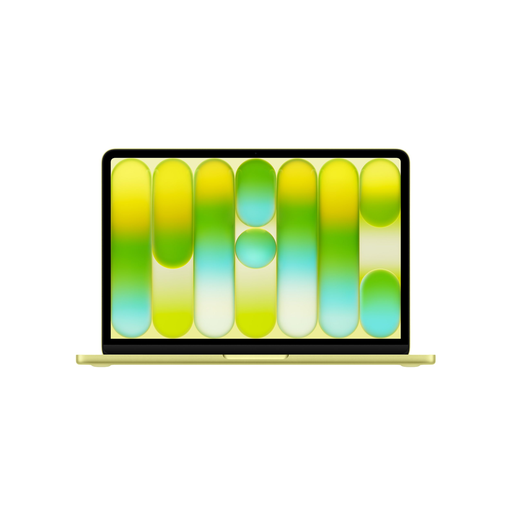 No image available
Its 13-inch size makes this an option to compare if you have limited desk space.
The product title lists 8 GB of memory and 256 GB of storage. A mains charger isn’t included; the product information recommends a USB-C adapter with USB Power Delivery rated at 20 W or more.
 No image available
This model is worth comparing if you’re looking for a compact laptop with an OLED screen for layout work.
The product title lists 16 GB of memory and a 512 GB SSD. A compatible 65 W USB-C Power Delivery charger is required and isn’t included. Compatibility with older software, specialist peripherals and some professional applications may vary on Windows on Snapdragon.
Not for the layout work described alone. Check the requirements of your chosen software and files; for optimal GPU use, Adobe lists additional screen and GPU requirements for the Windows versions mentioned.
Check your printer’s submission requirements too. For PDF exports, Adobe recommends using the preset suggested by your printer and explains how to add bleed to designs that extend to the edge of the paper. Screen specifications alone don’t determine the print result.
Check the pen and the exact model. Lenovo says the pen is optional and sold separately for the Yoga 7 2-in-1 reviewed.
For a consumer purchase in the Netherlands, the seller is responsible for the statutory guarantee: the product must meet what you could reasonably expect when used normally. The Dutch Authority for Consumers and Markets’ ConsuWijzer service explains that a manufacturer’s guarantee doesn’t replace this right.
For online purchases, you generally have a statutory 14-day cooling-off period from the day after delivery, according to the Dutch Authority for Consumers and Markets’ ConsuWijzer service. Check the applicable terms and exceptions; this cooling-off period is separate from any additional returns promise offered by a retailer.