
Guide writer who makes frequent changes
If you move chapters or images around, start by checking what your document software can do. Microsoft Support and LibreOffice Help explain how to use cross-references in Word and Writer.


Start with your document software: try creating a cross-reference to a heading or image, then update it after making a change. A Windows laptop or MacBook is a good fit for Word for desktop or LibreOffice Writer. A Chromebook may be enough if links and bookmarks in Google Docs meet your needs. Then weigh up screen space, portability and any software costs.
If you move chapters or images around, start by checking what your document software can do. Microsoft Support and LibreOffice Help explain how to use cross-references in Word and Writer.
If you check text, images and references side by side, compare the display options and consider whether you want to connect an external monitor. Apple UK and Lenovo describe display and connectivity options for specific models or ranges.
If you take your laptop between home and your holiday home, weigh up its size against your workspace and the document software you want to use while you’re away.
A good fit if: you want to use document fields for references to headings or captions and work on Windows.
Bear in mind: check the exact laptop configuration and which application or licence you need.
A good fit if: you want to use macOS and your chosen desktop software supports the references you need.
Bear in mind: a more compact screen gives you less workspace. Also check software costs and the connections you need.
A good fit if: links to bookmarks or sections within the same document are enough for you.
Bear in mind: test your document and the references you plan to use first. Being able to edit Microsoft 365 files doesn’t prove you can create the same fields as in Word for desktop.
First, decide which references your document software needs to create and update. Then compare screen space, portability and the software you already have or still need.
| What to consider | What should you check? | Which shoppers? |
|---|---|---|
| Maintaining cross-references | Create a test document with a heading and an image, move them, then check the references again. | When I change sections, I want my references to remain useful. Shoppers who put cross-references first make up around 36%. |
| Screen space for formatting | Compare the display options and check whether the laptop can connect to your existing external monitor. | I mainly check text and formatting at one desk and want enough room to view sections side by side. Shoppers who prioritise screen space make up around 29%. |
| Taking it between locations | Compare the size and weight of the exact configuration, and check which power supply and connections you’ll need. | I write in different places and want a laptop that’s easy to carry. Shoppers who prioritise portability make up around 21%. |
| Laptop and writing software | Check which software licence you have or need, and which accessories are included with the configuration. | I’m looking for a document workflow that suits me and don’t want to pay for software or accessories I don’t need. Shoppers who prioritise total cost make up around 14%. |
Word for desktop and Writer describe cross-references as fields. Google Docs documents links to bookmarks; this doesn’t automatically work in the same way.
Test the workflow in the programme you actually plan to use before choosing a laptop. Create a reference, change the order of the sections and check that the reference is still correct afterwards.
Word for desktop may require a separate application or licence, so check what’s already included in your software.
Screen, memory, operating system and connections can vary between configurations. A feature listed for one configuration won’t necessarily be available on every laptop in the same range.
Compare the full model code and the specifications of the configuration you want to buy.
The Dutch Government distinguishes between statutory guarantees and any additional manufacturer or paid-for warranty.
Check exactly what additional cover offers and keep the seller’s details. Paid-for cover is only relevant if its terms genuinely add something for your situation.
The IdeaPad Slim 3 15IRH10 is a Windows range to compare if screen space and connections matter to you.
The MacBook Air M5, available in 13- and 15-inch configurations, offers a macOS option if it suits your document software.
The Vivobook 15 X1504 is a Windows range to compare if you’re looking for a 15-inch workspace.
The Inspiron 15 3530 is a Windows range with various screen and processor options.
According to HP, the OmniBook 5 range includes 14- and 16-inch sizes to suit different workspaces.
These laptops suit a Windows document workflow for writing and formatting a guide. Compare screen size, configuration and any included accessories with your own workspace.
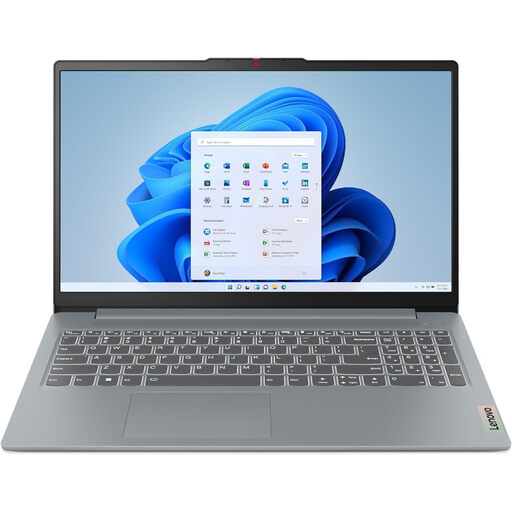 No image available
A Windows configuration to consider if you want to edit your guide on a Windows laptop.
The 15.3-inch WUXGA screen has a 16:10 aspect ratio. The laptop has Windows 11 Home, 16 GB DDR5 memory and a 512 GB SSD.
 No image available
This Windows laptop is an option if you work in different locations and want a 14-inch size.
This configuration has Windows 11 Home, 16 GB DDR4 memory, a 512 GB SSD and a backlit keyboard.
 No image available
A Windows 11 Pro configuration to compare if you want to check text and formatting on a larger built-in screen.
The 16-inch screen has a resolution of 1920 × 1200 and a 16:10 aspect ratio. According to the product description, the laptop is supplied without a power adapter.
 No image available
A macOS option if your chosen document software suits your cross-reference workflow.
This configuration has 16 GB of memory and 512 GB of storage. According to the product description, a USB-C power adapter isn’t included.
 No image available
This Windows 11 Home configuration is an option if you want a built-in screen for working on documents.
The 15.6-inch screen is Full HD and anti-glare. The product description lists HDMI and USB-C.
Yes. For the Word workflow described, the item you’re referring to must already exist. LibreOffice Writer also uses reference targets that you set up in advance.
Check reference fields after moving or renumbering sections, and update them if needed. Microsoft Support notes that you may sometimes need to update fields manually.
Yes, if links and bookmarks in Google Docs meet your needs. A Chromebook can also edit Microsoft 365 files, but test first to make sure you can create the references your document needs.
According to the Dutch Government, you should contact the seller, not the manufacturer, to resolve an issue under your statutory guarantee. An additional warranty doesn’t replace your statutory rights.
No. The Dutch Government states that a 14-day cooling-off period applies in many cases to distance purchases, but there are exceptions. Check which terms apply to your purchase.