What should you look for?
Windows laptop
A good fit if: your required programmes run on Windows or you need desktop Office.
Check: the exact configuration, keyboard layout and connection to the screen at your workstation.
MacBook with macOS
A good fit if: the portal and required programmes work on macOS and you take your laptop with you regularly.
Check: that the ports are compatible with the screens and accessories at the shared desk.
Chromebook with ChromeOS
A good fit if: you can write, collaborate and submit everything using supported online services.
Check: the Windows and Mac desktop versions of Office can’t be installed on a Chromebook. Microsoft Support also points out that some Word features work differently in a browser.
First, test the actual application template and portal. Then compare the workstation connections, comfort and any extra equipment you’ll need.
| What to consider |
What to look for when buying |
Who should consider this? |
| Documents and application software |
Test the portal, the actual template, attachments and any desktop software you’re required to use. |
If I need to edit an application file without losing any functionality, I’ll check the workflow first; around 29% of consumers put document compatibility first. |
| Comfort during long writing sessions |
Check whether you can position your screen and keyboard separately and adjust the workstation. |
If I’m going to be writing for a long time, I’ll look at the screen and keyboard setup at the shared desk; around 23% of consumers make writing comfort their top priority. |
| Taking it with you and connecting it |
Compare the ports and charging options on the configuration with the equipment available. |
If I move between desks, I’ll want to know whether I can connect my laptop there; around 18% of consumers put portability first. |
| Access to confidential files |
Check who can access the device and files, and what security rules apply. |
If my application contains sensitive information, I’ll want to manage access carefully at a shared workstation; around 18% of consumers put confidentiality first. |
| Costs and aftercare |
Look at the laptop, any peripherals you need, software and service separately. |
If I want to understand the cost of a complete workstation and any support, I’ll compare these items separately; around 12% of consumers put costs and aftercare first. |
Laptop options at Joybuy
These product picks focus on Windows and macOS laptops for working with documents and connecting to a shared workstation. Check that the specific configuration’s software, ports and keyboard layout suit your application and workstation.
 No image available
HP OmniBook X Flip NG AI PC 16-as0050nd D75LQEA#ABH
A Windows laptop with a 16-inch screen, if you’d like more room to view and write documents on your laptop display.
16-inch WUXGA touchscreen with a 16:10 aspect ratio; Windows 11 Home; 360-degree hinge; Thunderbolt 4 with DisplayPort, USB-A and HDMI; weight 1,88 kg.
View at Joybuy
 No image available
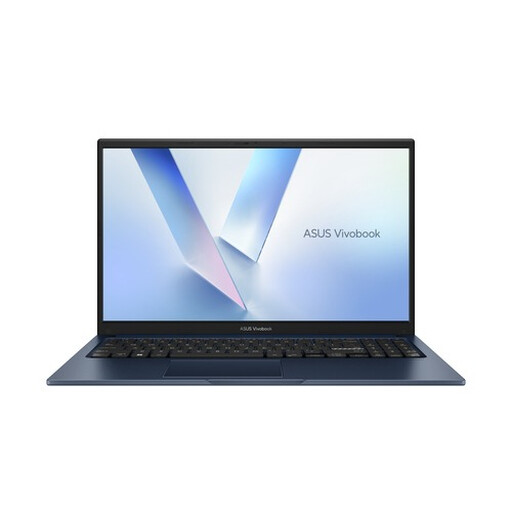
ASUS Vivobook 15 X1504MA-BQ588W, Quiet Blue, QWERTY
A Windows option if you want to view documents on an anti-glare 15,6-inch screen.
15,6-inch Full HD anti-glare screen; Core 3 304; 8 GB memory; 256 GB SSD; Windows 11 Home; weight 1,70 kg; webcam privacy shutter.
View at Joybuy
 No image available
ASUS Zenbook A16, 16 inch, WUXGA, 16 GB, 512 GB SSD
A Windows laptop with a 16-inch anti-glare screen, if you’d like more room to view documents.
WUXGA screen with a 16:10 aspect ratio; Windows 11 Home; 16 GB memory; 512 GB SSD; dual USB4 ports.
View at Joybuy
 No image available
Lenovo Yoga Pro 9 2-in-1 16N1X11
A Windows 2-in-1 for anyone who wants to use it in tablet mode as well as as a laptop.
16-inch PureSight Pro OLED touchscreen; 360-degree hinge; pen input; Windows 11 Home.
View at Joybuy
 No image available
Apple MacBook Air 15-inch M5, 16 GB, 512 GB, Starlight, QWERTY
A macOS option if you’d like more room to view documents on your laptop screen and take your laptop between workstations.
15,3-inch Liquid Retina display; 16 GB memory; 512 GB storage; two Thunderbolt 4 ports; macOS. The product description states that a USB-C power adapter isn’t included; an adapter of 35 W or higher is required.
View at Joybuy
Frequently asked questions
Can I write a grant application on a Chromebook?
Yes, if your documents, collaboration and submission process work with supported online services. Microsoft Support says that Microsoft 365 web apps are accessible on a Chromebook, but the Windows and Mac desktop versions of Office can’t be installed. So test your template and application portal first.
How should I set up a shared workstation for longer writing sessions?
Adjust your workstation whenever you move desks, and check whether the screen and keyboard can be positioned separately. Arboportaal outlines additional workstation requirements for employees who spend more than 2 hours a day working at a screen; this condition doesn’t automatically apply to every buyer.
Should I buy an extra warranty or service plan?
Not just because an offer mentions a limited manufacturer’s warranty. For a consumer purchase in the Netherlands, you have a legal guarantee with the seller; the ACM explains that this doesn’t last exactly two years for every product. Compare any additional service plan based on the specific support you need.
What privacy measures matter if my application contains personal data?
Manage who can access the device and files, and follow your organisation’s security rules. The Dutch Data Protection Authority emphasises that organisations must protect the personal data they process against unauthorised access; the measures needed will depend on the circumstances.
Is an external keyboard a legal requirement for everyone?
No, it doesn’t automatically apply to every buyer. Arboportaal outlines the requirement for employees who spend more than 2 hours a day working at a screen: when using a laptop, they must be able to use a separate screen or keyboard.


