What should you look for?
Choose your document software first and test its cross-references. Then compare screen space, storage and portability using your own writing and image files.
| What to consider |
What should you check? |
Who is this important for? |
| Document workflow |
Check that your preferred desktop software is available on the PC or Mac you’ve chosen, and find out how to update references and fields. |
If I want to update cross-references reliably after revisions, I’ll start by checking the features in my word processor; around 33% of consumers prioritise their document workflow. |
| Screen space |
Compare the screen size of the specific configuration with the window layout you use for text and sources. |
If I want to view my draft and source material at the same time while editing, I’ll focus on the available screen space; around 27% of consumers prioritise screen space. |
| Images and storage |
Check the SSD capacity of the configuration you’ve chosen and compare it with the size of your documents and image files. |
If I keep my own photos with my garden guide, I’ll want enough storage for those files; around 20% of consumers prioritise images and storage. |
| Portability and connections |
Weigh the screen size against how often you’ll take your laptop with you, and check that its ports suit your equipment. |
If I write in different places, I’ll want a size that suits my workspace and lets me connect my equipment; around 20% of consumers prioritise portability. |
Laptops with more screen space
This selection focuses on laptops with larger built-in screens and SSD storage for viewing and keeping text, sources and images. For each configuration, check whether the document software you want to use is available and whether any accessories you need are included.
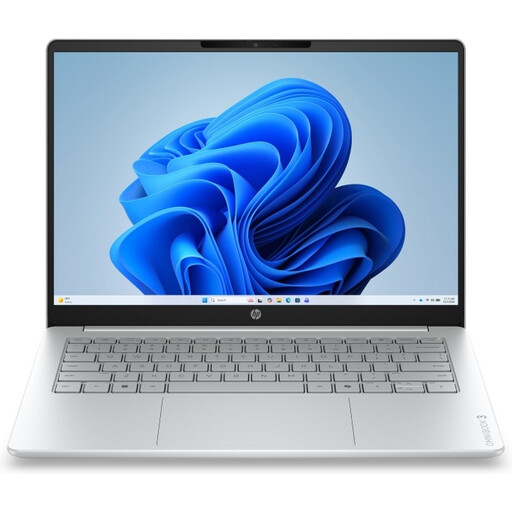 Image unavailable
HP OmniBook 3 17-dp0050ndx, 17.3-inch
The large screen and storage are useful if you want to view and keep text, sources and images on one laptop.
AMD Ryzen 5, 8 GB RAM, 512 GB SSD, Full HD IPS screen and Windows 11 Home.
The laptop is supplied without a power adapter, which must be bought separately.
View product
 Image unavailable
MSI Venture 16 AI A2HMG-068NL
This configuration may suit you if you want to view documents and sources on a 16-inch screen.
16-inch 16:10 screen, 1920 × 1200, 144 Hz, Intel Core Ultra 7 255H, 32 GB DDR5 RAM, 512 GB PCIe 4.0 SSD and Windows 11 Pro.
The configuration is listed without a power adapter; check what’s included in the box.
View product
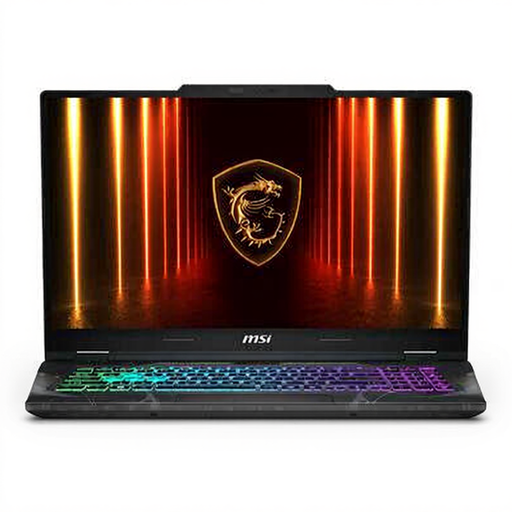 Image unavailable
MSI Cyborg 17 B2RWEKG-023NL
The 17.3-inch screen gives you room to view text and images on the same device.
Intel Core 7 240H, 16 GB DDR5 RAM, 512 GB SSD, Full HD IPS screen, NVIDIA GeForce RTX 5050, Wi-Fi 6E and Windows.
The charger isn’t included and must be bought separately.
View product
 Image unavailable
Apple MacBook Air 15-inch M5, 16 GB, 512 GB, Starlight (2026)
Compare this configuration if you want a larger screen for text and images. Check in advance that your preferred document software is available for the Mac you choose.
15-inch screen, M5, 16 GB memory, 512 GB storage and QWERTY keyboard.
A USB-C power adapter isn’t included and must be purchased separately.
View product
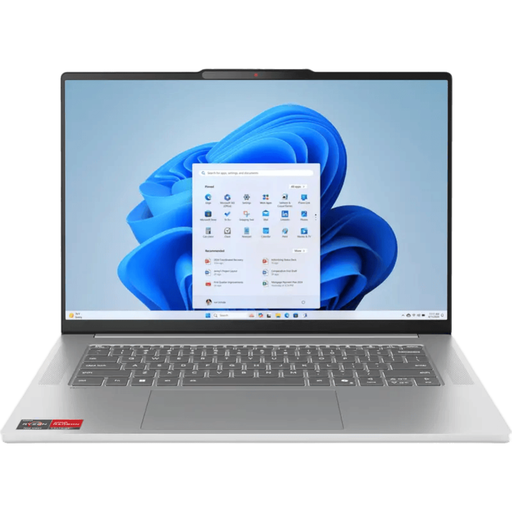 Image unavailable
Lenovo IdeaPad Slim 5 15ARP10, R7, 16 GB, 512 GB
This configuration is worth comparing if you want a larger screen for viewing text and sources, with storage for images.
15.3-inch IPS screen with a 16:10 aspect ratio, R7, 16 GB, 512 GB SSD and Windows 11.
The charger isn’t included and must be bought separately.
View product
Frequently asked questions
How do you create cross-references to a chapter or image?
First create the heading, caption or other item you want to refer to. Microsoft Support explains how to insert a cross-reference in Word, while LibreOffice Help covers references to items such as captions and bookmarks. Update fields after making major changes, then check the document.
Does Word need to be included with your laptop?
Don’t assume that buying a laptop includes a Word licence. Check which software or licence you have and whether your chosen PC or Mac meets the installation requirements. LibreOffice Writer is another option with documented support for cross-references.
What should you do if cross-references are incorrect after rearranging your document?
Check that the referenced item still exists and update the fields. Microsoft Support notes that fields, including cross-references, may sometimes need to be updated manually.
What warranty do you have when buying a laptop as a consumer in the Netherlands?
As well as any commercial warranty, you have a statutory guarantee: under normal use, the product must meet what you could reasonably expect. According to ACM ConsuWijzer, the retailer is your point of contact if a product doesn’t meet these expectations; there isn’t one fixed statutory guarantee period for every laptop.
Can you return a laptop bought online?
For many consumer purchases made remotely in the Netherlands, you have a 14-day cooling-off period. The Dutch government recommends checking the applicable terms and exceptions. A cooling-off period is different from a remedy for a faulty product.


