Choose a laptop with enough built-in screen space if you usually read a draft and source document side by side; Windows has a feature for snapping windows into place, and many Mac apps support Split View. If you take your laptop to different printers, weigh up its size and ports, and check that your printer model works with the operating system and software you need.
Who is this guide for?
Writer with two documents open
You’re writing a step-by-step guide while keeping instructions or screenshots in view. Readable screen space and a practical window layout both matter. Microsoft Support explains how to snap windows in Windows, while Apple Support says that many Mac apps support Split View.
Writer testing printers
You want to check installation and printing steps on your laptop. Support for your printer model and your chosen connection can make all the difference.
Writer working on the go
You take your laptop to different printers and weigh portability against screen space and the ports you need.
What should you consider when choosing?
Start by asking yourself whether you’ll mainly work with two documents on the built-in screen or write on location regularly. Also check printer compatibility and the ports on the exact laptop configuration.
| What to consider |
What should you check? |
Who should prioritise this? |
| Space for two documents |
Compare screen size, resolution and readability at your usual zoom level. Try viewing two representative documents side by side. |
When I’m writing a guide, I want to be able to read both the draft and the source at the same time. Around 34% of consumers prioritise readable space for two documents. |
| Testing printer steps |
For the exact printer model, check which operating system versions it supports and which installation, printing and scanning features are available. |
If I want to demonstrate the installation myself, my laptop needs to support my printer’s software and features. Around 33% of consumers rank printer testing above other buying concerns. |
| Working in different locations |
Compare the weight and size of the exact configuration, and check that its battery life meets your needs. Decide whether you’ll work without an external screen when you’re out and about. |
When I write in different places, I weigh portability against having enough built-in screen space. Around 20% of consumers give portability top priority. |
| Connecting a printer and monitor |
Compare the laptop’s ports with the cables for your printer and monitor, and check whether you’ll need an adapter. |
At a fixed workstation, I want to connect my printer and, if needed, a monitor to suitable ports. An estimated 13% of consumers give connectivity top priority. |
Common buying mistakes
-
Choosing based on screen size alone
A feature for arranging windows side by side doesn’t guarantee that your documents will be comfortable to read at your preferred text size.
Before you choose, try viewing two representative documents side by side at your usual zoom level.
If the documents aren’t comfortable to read this way, you may need an external screen or a different working layout.
-
Assuming every laptop supports the same printer steps
Printer software and compatibility vary by model and operating system. Google says that some printers aren’t compatible with ChromeOS.
Check support for the exact printer model and for all the features you want to demonstrate in your guide.
-
Assuming every USB-C port works with your existing devices
Ports vary from laptop to laptop. For example, Apple lists USB-C via Thunderbolt 4 for the MacBook Air reviewed, while HP also lists USB-A and HDMI for the OmniBook configuration mentioned.
Compare your printer and monitor plugs with the port list for the exact laptop configuration.
Depending on your devices, you may need a cable or adapter.
-
Thinking a commercial warranty replaces your statutory rights
According to the Netherlands Authority for Consumers and Markets, the seller is responsible for the statutory guarantee. A manufacturer’s commercial warranty doesn’t end that responsibility.
Keep your proof of purchase and, if something goes wrong, ask the seller what remedy is available under the statutory guarantee.
Brands to compare
Dell
The Dell 16 DC16251 is worth considering if you’re looking for a larger built-in Windows screen.
- For the configuration reviewed, Dell lists a 16-inch anti-glare screen and 16 GB of memory.
- Dell warns that changing configuration options can affect other specifications, so check the exact version.
Lenovo
The IdeaPad Slim 5 Gen 8 bundle is an example of a 16-inch Windows laptop for working with documents.
- For this bundle configuration, Lenovo lists a 1920 × 1200 IPS screen, 16 GB of memory and a 512 GB SSD.
- These specifications apply to a specific bundle with accessories, not to every IdeaPad.
Apple
The 15-inch MacBook Air with M5 is an option if you write on macOS and have checked printer compatibility for your model.
- Apple lists a 15.3-inch screen and USB-C ports via Thunderbolt 4. Many Mac apps support Split View.
- Check the printer software for your model and whether you’ll need an adapter for your existing cables.
HP
The OmniBook 5 16-bm0650ndx is a specific Windows configuration to compare if built-in ports are important to you.
- HP lists USB-C, USB-A and HDMI for this configuration.
- According to HP, the recommended 65 W USB-C adapter is sold separately. HP’s printer support can help you check a printer model, but it doesn’t confirm that every printer will work with this laptop.
ASUS
The Vivobook 16 OLED M1605 is worth considering when comparing screen space and built-in ports.
- For this product line, ASUS lists a 16-inch OLED screen with 1920 × 1200 pixels, plus USB-A, USB-C and HDMI.
- Other performance and memory options are listed as maximum specifications, so check the configuration you’re considering.
Joybuy laptops for working with documents
This selection includes laptops with a built-in screen for working with documents. For each model, also check compatibility with your printer and the ports you need.
 No image available
HP OmniBook X Flip NG AI PC 16-as0050nd D75LQEA#ABH
The 16-inch screen provides built-in space for viewing documents side by side.
Windows 11 Home; WUXGA screen; Thunderbolt 4 with DisplayPort support; 360-degree hinge.
According to the product description, the charger must be purchased separately.
View at Joybuy
 No image available
HP OmniBook 3 16-by0058ndx
The 16-inch screen gives you built-in workspace for viewing document windows side by side.
AMD Ryzen 5 7520U; 8 GB RAM; 512 GB SSD; 1920 × 1200 screen resolution; Windows 11 Home.
The product description says that a charger isn’t included.
View at Joybuy
 No image available
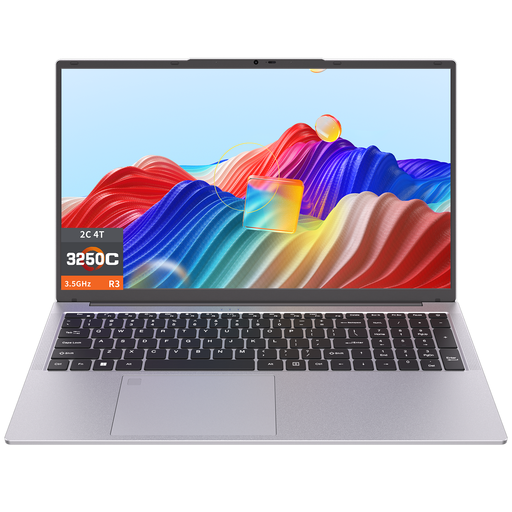
Auusda T173A, 17.3 inch
The 17.3-inch screen gives you space to work with documents on the laptop display.
3250C processor; 8 GB DDR4 RAM; 512 GB SSD.
View at Joybuy
 No image available
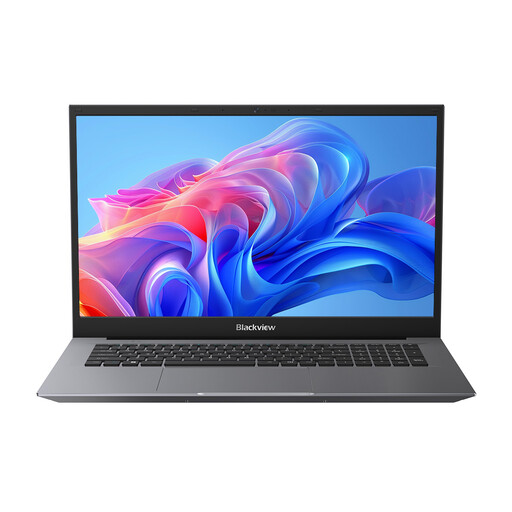
Blackview AceBook 10, 18.5 inch
The 18.5-inch screen offers built-in space for several document windows.
Full HD IPS screen; 16 GB DDR4 RAM; 512 GB SSD; Windows 11 Pro; USB-C, USB-A and HDMI.
View at Joybuy
 No image available
HP OmniBook Ultra Next Gen AI 16-bk0004nd
The 16-inch screen provides built-in space for working with documents.
128 GB RAM; 2 TB SSD; 3K OLED touchscreen with 120 Hz; Windows 11 Pro; HDMI and USB-C.
View at Joybuy
Frequently asked questions
Do I need a separate programme to view two documents side by side?
Not necessarily. Windows has a feature for snapping windows side by side. Many Mac apps support Split View; check whether the apps you write with do too.
How can I check whether I can test my printer’s installation steps?
Look up the exact printer model on the manufacturer’s website and check which software is available for your operating system version. If you use a Chromebook, Google also recommends checking printer compatibility; some printers aren’t compatible.
Which accessories should I check when buying a laptop?
Check what’s included, which charger comes with the laptop and whether you’ll need an adapter for a printer or monitor. HP says that the recommended 65 W USB-C adapter for the OmniBook 5 16-bm0650ndx is sold separately.
What are my rights when buying a laptop online in the Netherlands?
For online consumer purchases, you’ll often have up to 14 days from delivery to change your mind, subject to legal exceptions, according to ACM ConsuWijzer. The seller is also responsible for the statutory guarantee; a commercial warranty doesn’t replace that responsibility, according to the Netherlands Authority for Consumers and Markets.


