Base your choice mainly on where you want to use the two editors: on the laptop screen itself or at a desk with an external monitor. Visual Studio Code supports side-by-side editors, and memory, storage and connectivity also matter when you’re running several programmes at once. A larger built-in screen gives you more space, but makes the laptop less compact to carry around.
Who is this choice relevant for?
Developer without an external monitor
You want to see code and a preview, or two files, side by side while building the app. In that case, how well a split-screen layout works on the laptop screen is important. Visual Studio Code supports side-by-side editors.
Developer using several tools at once
You keep other programmes open alongside your editors, such as a browser and local development tools. So don’t just consider screen size: look at memory and storage for your complete setup too.
Developer who works at a desk and on the move
You switch between a compact mobile workspace and a desk with an external monitor. You’ll need to weigh up the built-in screen space against portability and the connections available on the configuration you choose.
What should you look for when buying?
Start by thinking about where you’ll use it: will you mainly work on the laptop screen, take the laptop with you often, or usually connect it to an external monitor? The percentages below show how much emphasis consumers place on each buying priority.
| What to consider |
What to look for |
Who should give this more weight? |
| Two editors side by side |
Try your layout at the screen size and resolution you’re considering, including the sidebar and terminal. |
If I want to be able to read both editors on the built-in screen, I prioritise usable screen space; around 36% of consumers put this first. |
| Memory and storage |
List the programmes and local project files you use at the same time, then check the configuration. |
If you keep a browser and development tools open alongside your editors, you’ll want to consider your whole workflow; around 29% of consumers prioritise having room for several tools running at once. |
| Portability |
Compare the screen size and stated weight. Only compare battery life figures alongside the conditions under which they were tested. |
If I regularly travel between workspaces, I want a laptop that’s easy to carry without compromising on my screen layout; around 21% of consumers put portability first. |
| External monitor |
Check the video output, monitor support and whether your setup needs an adapter or dock. |
If you mainly code at a fixed desk, you can factor in the extra screen space a monitor provides; around 14% of consumers prioritise this desk-based setup. |
Common pitfalls
-
Assuming the editor’s minimum requirements cover your whole workflow
The recommendation for Visual Studio Code relates to the editor, not automatically to all the programmes you use at the same time. The Consumentenbond recommends 16 GB of memory where possible for running several programmes at once.
Make a list of your editors, browser and local development tools, then assess the memory and storage configuration needed for that combination.
-
Comparing screen diagonals alone
Resolution, your window layout and the connection for an external monitor also affect usability. Check the video output on the exact configuration before choosing a monitor setup.
Try the layout you want to use and check which ports your monitor and other peripherals need.
You may need an adapter or dock for an external workspace, so check whether you need to add one to your setup.
-
Confusing an extended manufacturer’s warranty with your statutory rights
Any extended warranty on offer is separate from your statutory rights if a product is faulty.
First check which statutory rights apply, then compare exactly what an additional plan offers.
Brands to consider
HP
The HP ProBook 4 G1i 16 configuration reviewed is a Windows option for anyone mainly looking for a larger built-in screen.
- For model A23QQEA#ABH, HP lists a 16-inch WUXGA touchscreen, 16 GB RAM, 512 GB SSD, HDMI and USB-C.
- HP listed this configuration as unavailable; check current availability and the exact specification.
Lenovo
The ThinkPad T14s Gen 6 configuration reviewed is a more compact 14-inch Windows option for anyone combining portability with a desk-based setup.
- For part number 21QXCTO1WWNL1, Lenovo lists a 14-inch WUXGA screen, 16 GB of memory and a 512 GB SSD.
- The memory is integrated into the chip. Check the upgrade options for the exact configuration; features of other configurations don’t automatically apply to this model.
Apple
The MacBook Air 15-inch with M5 configuration reviewed is a macOS option for anyone who wants more built-in screen space on the move.
- For the configuration reviewed, Apple lists 16 GB of unified memory, a 512 GB SSD and support for external displays.
- The stated battery life is based on specific test activities, not on building this app. Also check that your development software and peripherals are compatible with macOS and the available ports.
Joybuy laptops for working with two editors
These Joybuy products have a built-in 16-inch screen and are worth considering if you want to use two editors on the laptop screen.
 No image available
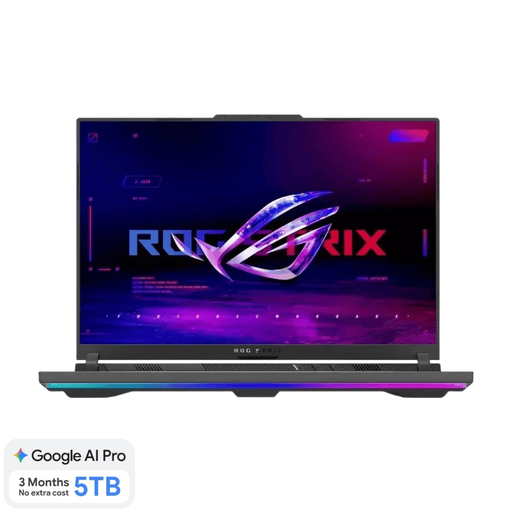
ASUS ROG Strix G16 G614FR-S5252W
The built-in 16-inch screen is suited to working with two editors on the laptop itself.
16 GB of memory and a 1 TB SSD. The product title lists a Ryzen 9 9955HX processor and RTX 5070 Ti.
The charger isn’t included as standard and must be purchased separately.
View at Joybuy
 No image available
HP OmniBook Ultra Next Gen AI 16-bk0001nd
This configuration combines a built-in 16-inch screen with 32 GB of memory and a 1 TB SSD.
The product title lists a 3K OLED touchscreen. The memory is soldered in and can’t be upgraded.
View at Joybuy
 No image available
HP OmniBook Ultra Next Gen AI 16-bk0004nd
This configuration has 128 GB of memory and a 2 TB SSD for anyone who needs that capacity alongside their editors.
The product title lists a 16-inch 3K OLED touchscreen. The memory is soldered in and can’t be upgraded.
View at Joybuy
 No image available
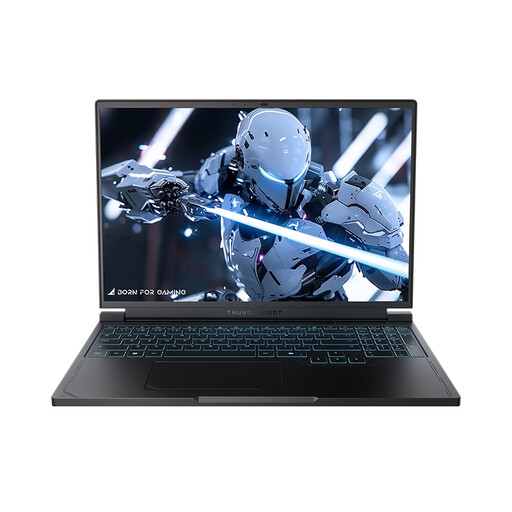
Thunderobot Radiant S16
The built-in 16-inch screen provides a good basis for a split-window layout on the laptop.
The product title lists a QHD+ screen, Ryzen 7 7745HX, 16 GB DDR5 RAM and a 1 TB SSD.
View at Joybuy
 No image available
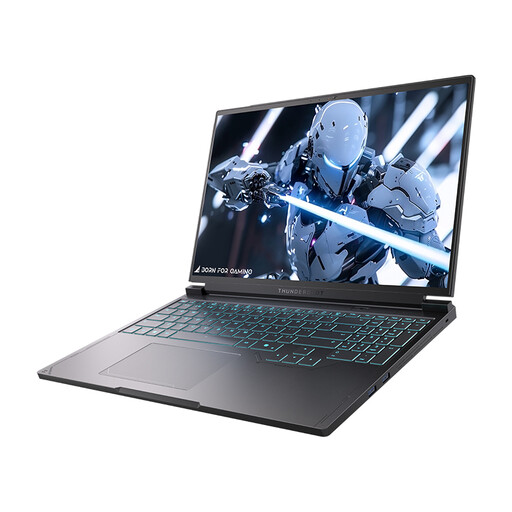
Thunderobot Radiant S16 5060
This 16-inch configuration is worth considering if you want to arrange two editors on the built-in screen.
The product title lists a QHD+ screen, Core i7-13650HX, 16 GB DDR5 RAM and a 1 TB SSD.
View at Joybuy
Frequently asked questions
Do I need two physical screens to use two editors?
No. Visual Studio Code can display editors side by side in a single window. An external monitor can give you more workspace, but it isn’t required for this editor feature.
How do I use an external monitor with a Windows laptop?
Connect a compatible monitor, then arrange the recognised displays in Windows display settings. Beforehand, check that the exact laptop configuration supports a suitable connection or adapter.
Is 16 GB RAM essential for this app?
No. Visual Studio Code recommends 1 GB of RAM for the editor; that doesn’t tell you how much memory your entire workflow needs. The Consumentenbond recommends 16 GB where possible for running several programmes at once. Choose a configuration that suits the tools you use simultaneously.
What are my rights if a laptop I bought online is faulty?
When you buy as a consumer in the Netherlands, you’re entitled to a product that meets the required standards; your statutory rights if something is faulty are separate from any extended warranty. According to the Dutch government, the Netherlands has no fixed statutory warranty period. Online purchases usually come with a 14-day cooling-off period after delivery, according to ACM ConsuWijzer, although exceptions apply. This cooling-off period is separate from your rights if a product is faulty.


