
Scan retoucher looking for a quiet laptop
If you edit scans in a quiet room, you’ll want to avoid distracting fan noise and make sure your scanning workflow works on the laptop. RTINGS describes the tested MacBook Air 13 with M5 as fanless.


Is a quiet workspace your priority? A fanless MacBook Air is a sensible choice if your scanner, driver and editing app work on macOS. If your scanning features depend on Windows, a Windows laptop may be a better fit, but check noise levels for the exact model. Choose memory and available storage to suit your software and scan files: Adobe recommends 16 GB RAM or more and 100 GB of free disk space for Photoshop 27.x, but those recommendations don’t automatically apply to every retouching app.
If you edit scans in a quiet room, you’ll want to avoid distracting fan noise and make sure your scanning workflow works on the laptop. RTINGS describes the tested MacBook Air 13 with M5 as fanless.
Your existing scanner or scanning app may determine which operating system, driver and connection you need. Epson Netherlands explains that push scanning requires suitable, compatible software.
If you edit lots of images or large files, it’s worth matching the memory and available storage to your files and software. Adobe and the Consumers’ Association provide information on memory and storage needs for specific uses.
| What to consider | What to look for when buying | Who should prioritise this? |
|---|---|---|
| Fan noise | Check whether the exact model is fanless. If it has fans, look for an independent noise test of that model. | If I’m retouching in a quiet study, I don’t want the fan to distract me; around 33% of consumers prioritise quiet when editing. |
| Scanner and software compatibility | Check the driver and required scanning features for your exact scanner model and operating system. Also check that the plug is compatible with the laptop’s ports. | If you want to keep using your existing scanner and its features, start by checking compatibility; around 27% of consumers give this top priority. |
| Memory and available storage | Compare the requirements of your own app and files. For Photoshop 27.x, Adobe recommends 16 GB RAM or more and 100 GB of free disk space; total SSD capacity isn’t the same as available space. | If I’m working with lots of scans or large files, I want enough room for working files and apps; around 20% of consumers put memory capacity and storage at the top of their list. |
| Image detail on screen | Check the screen size, resolution and finish of the exact model. Make sure you can view a scan at a useful magnification alongside your tools. | If I want to check for tiny dust spots, a comfortable working area matters; around 20% of consumers give screen quality top priority. |
A Windows laptop may have fans. A fanless model can also slow down under sustained load; RTINGS reports this for the tested MacBook Air 13 with M5.
Check the cooling design of the exact model. For laptops with fans, look for independent noise measurements of that model.
A scanner button or specific scanning feature may require software that works with the operating system. The scanner and laptop may also have different connections.
Check the scanner model, required features, driver and connections before choosing a laptop.
If the plugs don’t match, you may need a suitable adapter or a different scanning workflow.
The stated storage capacity doesn’t tell you how much space will remain after installing the operating system and apps. Adobe recommends 100 GB of free disk space for Photoshop.
Compare your scan archive and software with the space that will actually be free on the laptop.
Notebookcheck published a ranking in 2025 that included a MacBook Air M4. That model is not the same as the MacBook Air with M5; the Lenovo configuration 21NS0010GE also has a German keyboard.
Check the generation, full model code, keyboard layout and availability of the model you’re considering.
The MacBook Air may suit you if quiet operation is a priority and your scanner and apps work on macOS.
The ThinkPad X1 Carbon Gen 13 is a compact Windows option; specifications vary by configuration.
The Pro 13 Premium PA13250 is a Windows option if your choice is determined by Windows software.
The EliteBook X G1i is a Dutch business Windows configuration with ports suited to a fixed workspace.
These Joybuy laptop options are suited to retouching scans at a desk. Check that your scanner, software and required connections are supported by each model.
 No image available
The 16-inch model may suit you if you want to view scans on a larger, anti-glare screen.
AMD Ryzen 5 7520U; 8 GB memory, not upgradeable; 512 GB SSD; 2K IPS screen with anti-glare finish; Windows 11 Home; two USB-A ports, two USB-C ports and HDMI. Charger not included as standard.
 No image available
This model may suit you if you want to retouch scans on a 14-inch screen and connect wired equipment.
AMD Ryzen 5 7520U; 8 GB memory, not upgradeable; 512 GB SSD; 14-inch IPS screen with 1920 × 1200 resolution and anti-glare finish; Windows 11 Home; USB-A, USB-C and HDMI. Charger not included as standard.
 No image available
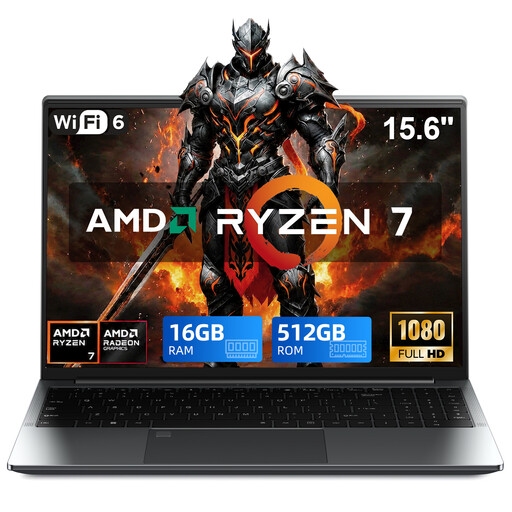
The rotating touchscreen may suit you if you want to adjust the viewing angle while looking at scans.
AMD Ryzen 7 5825U (8C-16T, up to 4.7 GHz); 16 GB DDR4; 512 GB SSD; Windows 11 Pro; 15.6-inch Full HD touchscreen with 360° rotation.
 No image available
This 16-inch model may suit you if you want to retouch scans on a larger anti-glare screen.
Snapdragon X processor; 16 GB LPDDR5X; 512 GB SSD; 16-inch WUXGA OLED screen with anti-glare finish; Windows 11 Home; Cool Silver.
 No image available
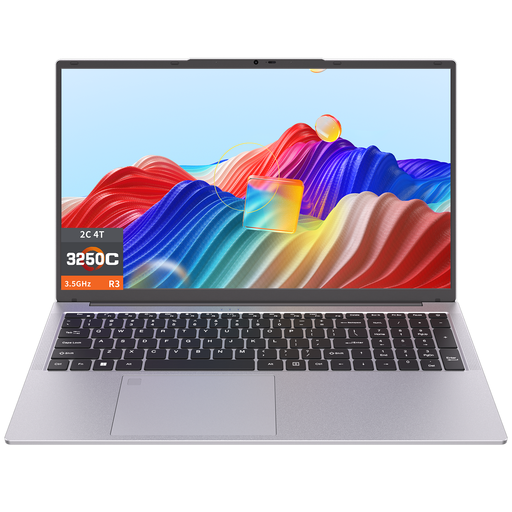
The 17.3-inch screen may suit you if you want to view scans on a larger laptop display.
3250C processor; 8 GB DDR4 memory; 512 GB SSD; fingerprint unlocking.
No. Photoshop is one example, not a required app. Adobe describes the Dust & Scratches filter for damaged or scanned images and warns that a larger filter radius causes more blurring. Check the hardware requirements for your own software and workflow.
Check with the scanner manufacturer that a driver and any additional software are available for your exact scanner model and operating system. Epson explains that push scanning requires compatible scanner software for the devices covered by its guidance. Scanning features and buttons may therefore depend on that support.
Install software that works with your scanner and operating system, then test a scan first. When using the Dust & Scratches filter, Adobe recommends options including a Smart Object or duplicate layer, so you can restore details while retouching.
No. The Dutch government states that there is no fixed statutory warranty period in the Netherlands: you’re entitled to a product that works properly, and its expected lifespan depends on the circumstances. If a product is faulty, contact the seller; when considering an extended warranty, check what additional rights it offers.
For many distance purchases from a business, consumers in the Netherlands have a 14-day cooling-off period, according to the Dutch government. Check the applicable terms and exceptions. The cooling-off period doesn’t tell you how quiet a particular laptop is or whether it’s compatible with your scanner.