
Desk switcher
You regularly connect your laptop to a shared monitor or dock. Check which ports and cables the workstation uses beforehand; Lenovo and Apple list different connections for each model and configuration.


First, choose the presentation app and features you need, then check that the laptop is compatible with the shared desk’s monitor, dock and power supply. A Chromebook may be enough for browser-based slide work, while using all the features of the full PowerPoint desktop app calls for a Windows or macOS setup that works with your software and files. A portable laptop is useful if you often move between desks, but check the screen size too, and whether you’ll need a cable, adapter or charger.
You regularly connect your laptop to a shared monitor or dock. Check which ports and cables the workstation uses beforehand; Lenovo and Apple list different connections for each model and configuration.
You edit existing presentations and may need features that aren’t available in the web version. Microsoft Support explains that PowerPoint for the web doesn’t include all the features of the desktop version.
You mainly create and share slides online. Microsoft Support explains how to access Microsoft 365 on the web using a Chromebook; Google Chromebook Help also explains how to make certain Drive files available offline.
When choosing a laptop for presenting slides at a shared desk, your decision mainly depends on the software you need, the workstation’s connections, how often you take your laptop with you and which accessories you already have.
| What to consider | What should you check? | Who should pay particular attention? |
|---|---|---|
| Connecting to the shared desk | Compare the monitor and dock connections with those on the exact laptop configuration, and check which cable you need. Lenovo lists HDMI and USB-C with DisplayPort for the ThinkPad E14 Gen 7 Intel; still check that the full workstation setup is compatible. | If I want to use the monitor provided without any hassle, I check the laptop, dock and cable connections first. Around 36% of consumers put connectivity first. |
| Presentation software and file features | Open a representative file and check which features and accounts you need. Microsoft Support states that PowerPoint for the web doesn’t include all the features of the desktop app. | If my existing presentations need specific features, I want to be sure my software supports them. Around 29% of consumers give software and file features top priority. |
| Taking your laptop between workstations | Compare the weight and screen size of the exact configuration. Also check that you can use a suitable charger at different desks. | If I often move between workstations, I want to know what I’ll need to carry every day and whether the screen is comfortable to use without an external monitor. Around 21% of consumers put portability first. |
| Everything you’ll need | Check what’s in the box and compare it with the power supply, cables and dock you have. Dell states that the Pro 14 configuration shown doesn’t include a charger; contents may vary by configuration. | If I want to use my laptop at the workstation straight away, I want to know in advance which extra items I’ll need. Around 14% of consumers prioritise total costs and aftercare. |
The shape of a port alone doesn’t tell you whether the laptop, cable, dock and monitor can work together to display an image.
Make a note of the workstation’s connections and compare them with the specifications of the exact laptop configuration before you order.
According to Microsoft Support, PowerPoint for the web doesn’t include all the features of the desktop version. This can matter if you need to edit existing slides that use specific features.
Test a representative file and check which apps and features you need before choosing ChromeOS or a web-only setup.
The Pro 14 configuration described by Dell doesn’t include a charger. Extra warranty cover is optional and separate from your statutory rights.
Check what’s in the box and whether your existing power supply is suitable. If you’re considering extra cover, compare what it offers beyond your statutory rights.
The ThinkPad E14 Gen 7 Intel we looked at is a Windows laptop with connections for an external workstation.
The Dell Pro 14 PC14250 we looked at is a business Windows configuration with a 14-inch screen.
The 13-inch MacBook Air M5 we looked at is a macOS option for anyone looking for a compact computer and a USB-C workstation.
The Dutch HP listings we looked at include both ProBook Windows models and Chromebook models.
This selection includes Windows laptops and a MacBook for working on slides at a shared desk. Check that your presentation app, files and workstation are compatible with each model.
 Image unavailable
A Windows 2-in-1 for working on slides; check that this configuration is suitable for your presentation app and workstation.
This configuration doesn’t include a USB-C charger. The product information recommends a compatible USB-C Power Delivery charger of at least 45 W.
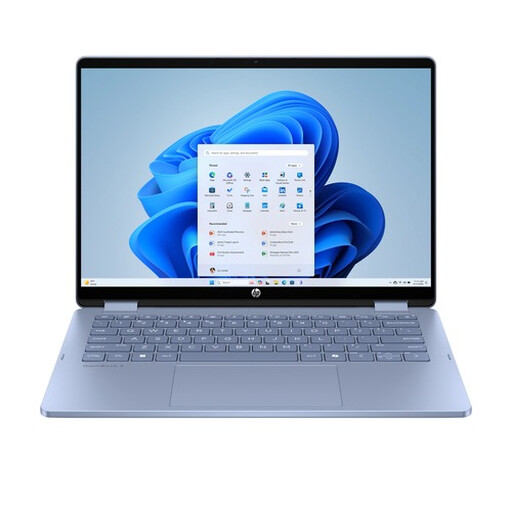 Image unavailable
A Windows 2-in-1 for anyone who wants to create slides on a touchscreen; check beforehand that it works with your files and workstation.
Intel Core 5 120U, 8 GB RAM, 512 GB SSD, 14-inch touchscreen and Windows 11 Home. A compatible USB-C charger isn’t included; the product information specifies a required capacity of 45 W to 100 W.
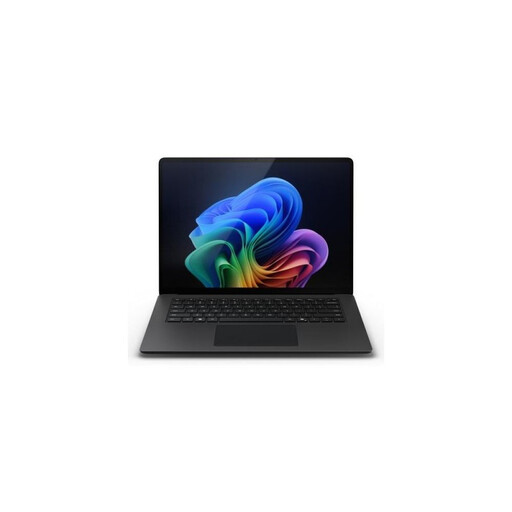 Image unavailable
A Windows laptop for anyone who wants to use the presentation app they need on Windows; check that it can also connect to your shared monitor.
Snapdragon X Elite, 16 GB of memory and 512 GB SSD.
 Image unavailable
A Windows 11 Pro laptop for working on slides; compare the screen size and available connections with your shared workstation.
Intel Core i5-13420H, 16 GB DDR5 and 512 GB SSD.
 Image unavailable
A macOS laptop for anyone whose presentation apps and files work on macOS; check which connection your shared monitor requires.
Starlight colour and QWERTY keyboard.
Yes. Microsoft explains how to access PowerPoint on a Chromebook via the web. Check that the web features are enough for you, as PowerPoint for the web doesn’t include all the features of the desktop app.
You can with certain files if you make them available offline beforehand. Google explains that certain Drive files, including presentations, can be used offline on a Chromebook. Check what works without an internet connection for your account and files.
Compare the laptop’s connections with the monitor, dock and available cables, and check the power supply too. If you’re an employee who works at a screen for more than 2 hours a day, Arboportaal sets out workplace requirements; when using a laptop, a separate monitor or keyboard must be available.
When you buy as a consumer, you’re entitled to a product that works properly; in the Netherlands, there’s no fixed statutory warranty period. The Dutch government states that when you buy from a business at a distance, you’re generally entitled to a 14-day cooling-off period, although exceptions may apply depending on the purchase.