A Windows laptop is a good fit if you want to use Word for Windows or try different writing programmes. A Chromebook suits writing in Google Docs, while a MacBook Air is an option if you prefer macOS. Start by choosing your writing programme and how you want to navigate between chapters, then check the keyboard, screen space and offline access. You won’t necessarily need a more expensive configuration just for text and headings. Remember to factor in any software and charger costs, too.
Who is this laptop guide for?
Writer with lots of chapters
You want to organise stories and sections using heading styles, and quickly jump between parts of your manuscript. Microsoft Support explains how headings in Word for Windows appear in the Navigation pane; Google Docs uses headings to create a document outline.
Writer who compares sources
You often keep source material open alongside your text while writing. So compare the screen space with what you’re comfortable carrying around.
Writer on the go
You also write away from a regular workspace or without an internet connection. Consider the laptop’s size and weight, and set up offline access to your documents in advance. Google Chromebook Help and Microsoft Support explain how to work with files offline.
What should you look for in a laptop for your folklore collection?
First, choose the software you want to use for your chapter outline. Then compare the keyboard, workspace and portability, and finally check storage and any extras you may need.
Windows laptop
A good fit if: you use Word for Windows or want to compare different writing programmes.
Bear in mind: the heading-style navigation described for Word applies specifically to Windows. Also check the keyboard layout and exact configuration.
Chromebook
A good fit if: you mainly write in Google Docs and use its document outline.
Bear in mind: not every app works offline. Check that any specialist writing software you need is compatible with ChromeOS.
MacBook Air
A good fit if: you want to write using macOS in different places.
Bear in mind: check that your writing programme, ports and power supply suit the configuration. The stated battery life isn’t a guarantee of how long you’ll be able to write.
| What to consider |
What should you check? |
Who is this important for? |
| Organising chapters |
Create a sample document with main headings and subheadings, then try the outline in your chosen programme. Check the Navigation pane in Word for Windows or the document outline in Google Docs. |
If I have lots of stories and sections to organise, I want to be able to jump quickly between headings. Around 36% of consumers put chapter structure first. |
| Writing with sources open |
Compare screen size, anti-glare features and the keyboard layout of the exact configuration. |
If I often switch between my manuscript and source material, I want enough workspace on screen and a keyboard that suits the way I type. Around 29% of consumers prioritise typing comfort and comparing sources. |
| Working on the go and offline |
Compare size and weight. Make your sample manuscript available offline in advance, then test whether you can open and edit it without an internet connection. |
If I write in different places, I want to be able to open my manuscript without an internet connection, too. Around 21% of consumers make portability and offline working their top buying priority. |
| Storage and overall cost |
Check the storage, included power supply and any software costs. The Consumers’ Association says 256 GB is enough for everyday office work, and recommends 512 GB or more if you regularly use large files. |
If I mainly store text and sources, I don’t want to pay for capacity I don’t need. Around 14% of consumers put the overall cost first. |
Common mistakes when choosing
-
Assuming every bold title appears in the chapter outline
Word and Google Docs use heading styles or headings for their navigation and outline features.
Before you buy, create a short sample manuscript with heading styles and check the outline in the programme you plan to use.
-
Assuming cloud files are automatically available offline
Offline access needs to be set up in advance for each file and service. Google also notes that some Chromebook apps don’t work offline.
Make your most important files available offline in advance, then test whether you can open and edit them without an internet connection.
-
Assuming every configuration has the same specifications and accessories
Memory, storage, keyboard and included power supply can vary between configurations.
Check the full model number, keyboard layout and what’s included with the specific configuration.
A suitable charger or the writing programme you want may involve additional costs.
Brands compared
Lenovo
The IdeaPad Slim 3 and ThinkPad E14 mentioned here are examples of different Windows configurations.
- Lenovo lists a 14-inch screen, 16 GB of soldered memory and 512 GB of SSD storage for the IdeaPad Slim 3 82XN008RMH.
- This IdeaPad configuration is listed with an English (Euro) keyboard. The ThinkPad E14 21T9001TMH specifications apply to that configuration; check the layout and configuration you want.
Acer
The Chromebook Plus 514 CB514-4HT-36BJ is a ChromeOS option for writing in Google Docs.
- Acer lists a 14-inch anti-glare touchscreen, 8 GB of memory and 128 GB of storage for this model.
- Acer quotes a maximum battery life of 11 hours; this isn’t an independently measured figure for writing. Also check that ChromeOS and the storage capacity suit your programmes and files.
Apple
The 13-inch MacBook Air with M5 we looked at is a compact option if you want to use macOS.
- Apple lists 16 GB of memory and 512 GB of storage for the base configuration we looked at.
- Apple quotes up to 15 hours of wireless web browsing under its own test conditions; this doesn’t guarantee a full day of writing. Check the software, ports and power supply for the configuration you choose.
ASUS
The Vivobook 14 M1407KA is a Windows option to compare for its screen, keyboard and ports.
- ASUS lists a 14-inch anti-glare WUXGA screen, 16 GB of built-in memory, a 512 GB SSD and a backlit keyboard for the M1407KA.
- ASUS warns that the included charger may vary by country, region and model. Check the specific configuration before buying.
Joybuy laptops for writing and organising chapters
This Joybuy selection features Windows laptops, including models for Word for Windows users and configurations with different screen sizes and storage capacities.
 No image available
HP OmniBook 5 Flip 14-fp0075nd C5VM5EA#ABH
A Windows option if you use Word for Windows to navigate using heading styles.
14-inch touchscreen, 1920 × 1200, 16 GB of memory and a 512 GB SSD. The charger isn’t included; the product description specifies a compatible USB-C Power Delivery charger of at least 45 W.
View at Joybuy
 No image available
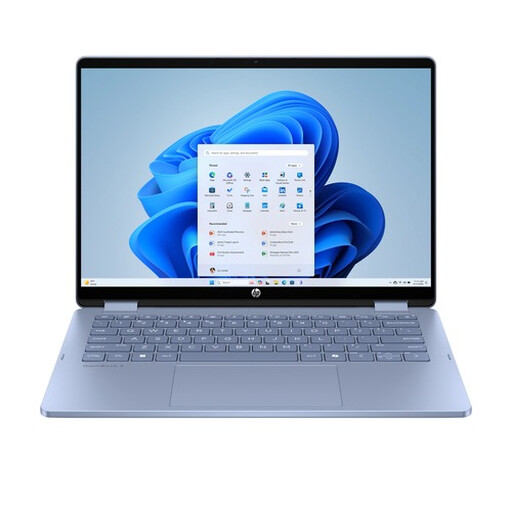
HP OmniBook 5 Flip 14-fp0251ndx 2-in-1
A Windows configuration to consider if you’d like a 14-inch screen with extra vertical space for text and web pages.
Intel Core 5 120U, 14-inch 1920 × 1200 screen with a 16:10 aspect ratio, 8 GB of memory and a 512 GB SSD. The USB-C charger isn’t included; the product description specifies a suitable 45–100 W Power Delivery charger.
View at Joybuy
 No image available
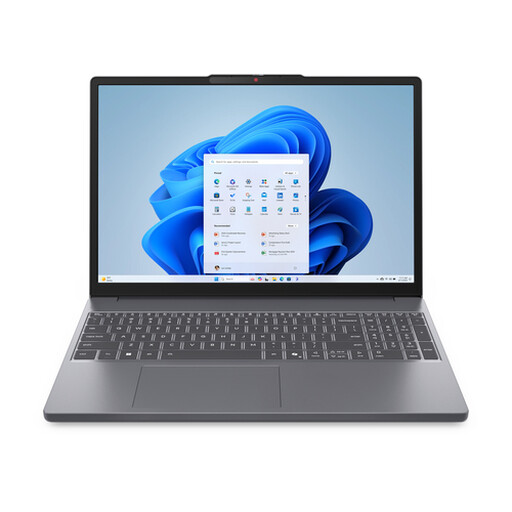
Lenovo IdeaPad Slim 3 15AHP10 15.3", Ryzen 7 8840HS, 16 GB, 512 GB SSD
A Windows laptop with a 15.3-inch screen for viewing your manuscript and source material on a larger display.
WUXGA screen with a 16:10 aspect ratio, 16 GB of memory and a 512 GB SSD. The listed keyboard layout is QWERTY. The charger isn’t included.
View at Joybuy
 No image available
Lenovo IdeaPad Slim 3 14AHP10 14", Ryzen 7 8840HS, 16 GB, 1 TB SSD
A Windows option if you’d like to store more source material locally alongside your manuscript.
14-inch WUXGA IPS screen, 16 GB of memory and a 1 TB SSD. The product description lists a weight of 1.39 kg and a QWERTY keyboard.
View at Joybuy
 No image available
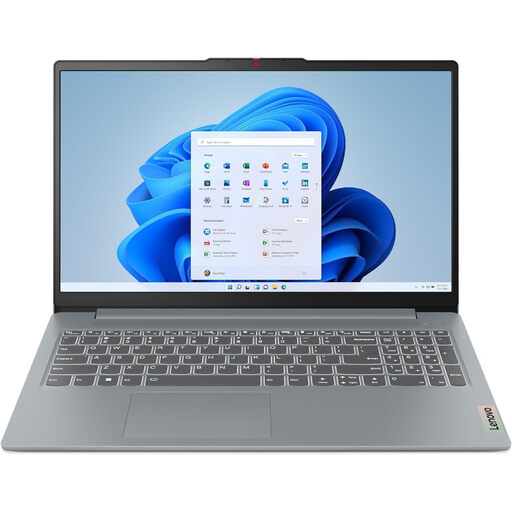
Lenovo IdeaPad Slim 3 15AHP10 15.3", Ryzen 7 8840HS, 16 GB DDR5, 512 GB SSD
A Windows laptop if you want to view text and sources on a larger anti-glare screen.
15.3-inch WUXGA screen with anti-glare coating and a 16:10 aspect ratio, 16 GB DDR5 and a 512 GB PCIe 4.0 SSD. The listed keyboard layout is QWERTY.
View at Joybuy
Frequently asked questions about laptops for writing
How do I create an outline of the sections in my collection?
Apply heading styles to your chapters and stories. Word for Windows displays headings from the main text in the Navigation pane; Google Docs uses headings for the document outline. Try both approaches to see which you prefer before choosing a laptop.
Can I carry on writing without an internet connection?
Yes, if you’ve made the files available offline in advance, but the process depends on the programme you use. Google Chromebook Help explains how to make Drive files available offline on a Chromebook and notes that some apps don’t work offline. Microsoft Support explains offline access to Office files stored locally, as well as the requirements for files in cloud services.
How much storage do I need if I also keep source material?
The Consumers’ Association says 256 GB is enough for everyday office work; for regular use of large files, such as images, it recommends 512 GB or more. Check how much space your scans and other source files take up before deciding whether you need more storage.
What are my rights when I buy a laptop online in the Netherlands?
For qualifying distance purchases by consumers, you’ll often have a 14-day cooling-off period; check the terms that apply to your purchase. You’re also entitled to a product that’s fit for purpose. According to the Dutch Government, the Netherlands has no fixed statutory warranty period. If there’s a fault, contact the seller; a manufacturer’s warranty doesn’t replace your statutory rights.


