Choose a laptop to suit your source footage and editing software: a short HD film has different needs from 4K footage with complex effects. Then weigh up memory, screen, storage and ports against portability and cost. A lightweight Mac and a more powerful Windows laptop won’t suit every student equally well. For Premiere, Adobe recommends more memory for 4K than for HD, while proxy files can make editing easier on less powerful hardware.
Who is this guide for?
Student editing in 4K
You want to edit high-resolution footage or use multiple effects. Compare your software requirements, memory and GPU, and consider whether a proxy workflow suits your project. For Premiere on Windows, Adobe recommends 32 GB of RAM or more for 4K and above. This is not a universal requirement for every editor or setup.
Student editing between classes
You take your laptop with you regularly and want a practical balance between size, ports and room to edit. Think about where you’ll connect your monitor and storage, too.
Student reviewing the tulip footage
You pay particular attention to how the footage looks on screen. Compare the precise screen specification, but don’t treat a screen specification on its own as proof of colour accuracy.
What should you look for when choosing?
Lightweight laptop with integrated graphics
A good fit if: you take your laptop with you often and mainly work on straightforward edits.
Trade-off: compare your software requirements and the space available for source files. Portability doesn’t automatically mean every 4K workflow will run smoothly.
Windows laptop with a dedicated GPU
A good fit if: you need Windows or expect to work with more demanding effects and 4K footage.
Trade-off: GPU, memory, screen and accessories vary by configuration. Check the full model number before comparing.
Larger screen with integrated graphics
A good fit if: on-screen workspace and general study use matter more than demanding effects.
Trade-off: without a suitable like-for-like test, don’t assume integrated graphics are equivalent to a specific dedicated GPU for demanding effects.
| What to consider |
What to check before buying |
Who should pay particular attention? |
| Editing performance |
Compare your editing software’s requirements with the exact RAM capacity and GPU in the configuration. For Premiere on Windows, Adobe lists 16 GB of RAM for HD and 32 GB or more for 4K and above. Proxies can make editing easier; use the original files again for the final export. |
If you need your timeline to run smoothly with 4K footage or effects, make editing performance your priority. Around 33% of consumers put editing performance first. |
| Portability |
Compare screen size and ports with where you edit and how you connect storage or a presentation screen. Apple lists 13- and 15-inch MacBook Air models; ports vary by product. |
If you edit between classes or workspaces, a laptop that’s easier to carry may matter more than extra screen space. Around 27% of consumers make portability their top priority. |
| Reviewing footage |
Check the exact panel in the configuration. ASUS lists a 15.6-inch 3K OLED screen for the Vivobook Pro 15 OLED N6506 described here; screen type or resolution alone doesn’t prove colour accuracy. |
If you want to assess the colours in your tulip footage carefully, look beyond the model name. Around 20% of consumers prioritise screen quality. |
| Cost and storage |
Work out how much SSD space you need for source files, projects and cache. Also check the software licence and whether the power adapter is included with that exact offer. |
If your budget also needs to cover software and essentials, compare the full configuration and what’s included. Around 20% of consumers put cost and storage space first. |
Common buying pitfalls
-
Taking minimum requirements as a recommendation for comfortable 4K editing
Requirements can vary between HD and higher resolutions. A laptop that meets the minimum isn’t automatically the right choice for your files and effects.
Compare the requirements for your own software, operating system and source footage. Also consider whether a proxy workflow suits your editing.
-
Assuming every configuration has the same components
A model range may include different GPU, memory, storage and screen options. The model name alone won’t always tell you which configuration you’ll get for your project.
Check the full model number and the specifications of the configuration on offer.
-
Looking only at the laptop when planning your project
Your editing setup may also depend on the software you need, sufficient storage space and the power adapter supplied.
Before ordering, check which licence your editing software requires, how much space your files will take up and exactly what’s in the box.
Brands to compare
Apple
A portable macOS option to compare if you often travel between classes and your editing space. Check the screen size, memory and storage of the configuration you choose.
- Apple lists hardware-accelerated processing for formats including H.264, HEVC and ProRes on the MacBook Air with M5.
- Check that your files, editing software and preferred export suit the exact configuration. Codec processing isn’t an independent performance guarantee.
Lenovo
The Legion 5 15AHP11 is a Windows range to compare if you’re looking for a dedicated GPU or upgrade options.
- Lenovo lists two memory slots and two M.2 SSD slots for this range.
- GPU, screen and included components vary by model; don’t assume every Legion 5 has the same options.
ASUS
The Vivobook Pro 15 OLED N6506 is a Windows option to compare for its screen and GPU.
- ASUS Netherlands lists a 15.6-inch 3K OLED screen and RTX 4050 for the configuration described.
- This manufacturer information isn’t an independent measurement of colour accuracy or export speed.
Dell
The Dell 16 Plus DB16250 is a larger-screen option to compare for studying and lighter creative work.
- Dell lists Intel Arc graphics and a choice of storage and screen options for the configuration reviewed.
- This information doesn’t show that every configuration is suitable for demanding effects or that all screen options offer the same picture quality.
Joybuy laptops for film editing
These laptop options suit different editing needs, from a lighter, more portable setup to configurations with more memory, storage or screen space. Always check the exact model and software requirements for your project.
 No image available
Lenovo Yoga Pro 9 15N1X11 83SR0032MH — 64 GB RAM, 1 TB SSD
A configuration to compare if you want to edit footage and handle larger project files on the same laptop.
The product name lists 64 GB RAM, 1 TB SSD and NVIDIA RTX Spark N1X. Check the precise software requirements for your editing workflow.
Joybuy
 No image available
Lenovo Yoga 9 16N1X11 83N70020MH — 32 GB RAM, 1 TB SSD
This configuration is worth considering if a larger screen and space for project files are important to you.
The product name lists a 16-inch 2-in-1 OLED laptop, 32 GB RAM, 1 TB SSD and NVIDIA RTX Spark N1X. Compare the configuration with your editing software’s requirements.
Joybuy
 No image available
Apple MacBook Air 15-inch M5 — 16 GB, 512 GB SSD
A portable option to compare if you edit in different locations and are looking for a 15-inch model.
The product name lists an M5 chip, 16 GB memory and 512 GB SSD. This offer states that a USB-C power adapter is required separately.
Joybuy
 No image available
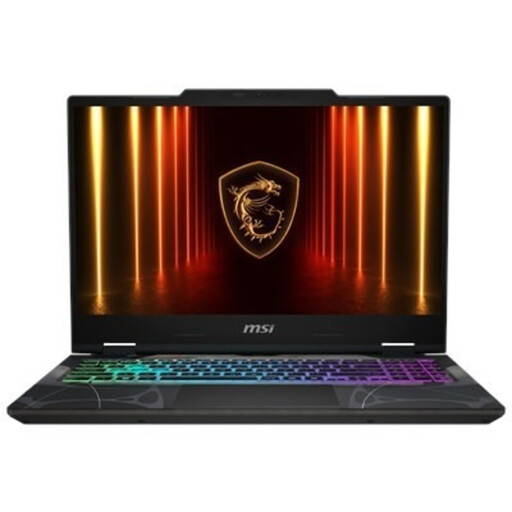
MSI Cyborg A15 AI B2HWGKG-248NL — RTX 5070, 16 GB RAM, 512 GB SSD
A Windows configuration to compare if you’re looking for a dedicated GPU for your editing workflow.
The product name lists a 15.6-inch Full HD screen, RTX 5070 with 8 GB GDDR7, 16 GB DDR5, 512 GB SSD and Windows 11 Home. According to the product information, the charger must be purchased separately.
Joybuy
 No image available
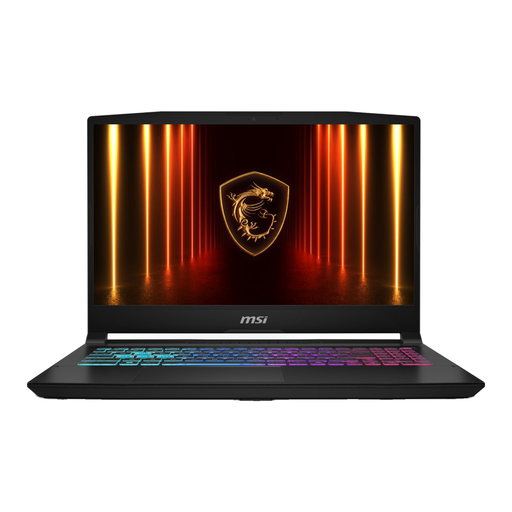
MSI Cyborg 15 B13WFKG-804NL — 16 GB, 512 GB SSD
This configuration is worth comparing if you use Windows and are looking for a laptop with dedicated graphics.
The product information lists an RTX 5060 with 8 GB GDDR7, 16 GB DDR5, a 15.6-inch Full HD screen and Windows 11 Home. According to the product information, the AC adapter must be purchased separately.
Joybuy
Frequently asked questions
Is 16 GB of memory enough for the film?
That depends on your software and footage. For Premiere on Windows, Adobe lists 16 GB RAM for HD and 32 GB or more for 4K and above. Don’t apply this Windows recommendation to a Mac’s unified memory without checking first.
How can I edit 4K footage if my timeline is lagging?
In Premiere, you can use lighter proxy files while editing, then switch back to the original media for the final export. Keep the original files and check that your software supports this workflow.
What extra costs should I check before ordering?
Check which software licence you need, how much storage your project requires and what’s included with the exact configuration. Adobe mentions possible subscription costs; the product information for the MacBook Air mentioned here states that a USB-C power adapter is required separately. This doesn’t tell you what’s included with other offers.
What are my rights when buying online or if a product is faulty in the Netherlands?
As a general rule, when you buy a laptop online, you have a statutory cooling-off period that, according to ACM ConsuWijzer, ends 14 days after delivery; the applicable terms and conditions still matter. According to the Dutch government, the seller must provide a solution if there’s a problem with the product. A manufacturer’s warranty does not replace your statutory rights.


