Who is this laptop guide for?

Manager of linked film files

You want to find the right local files from your film catalogue, and you use or are considering software that supports these links. CLZ describes file linking in Movie Collector; Bolide Software explains how to organise films across drives.

Collector with films on drives

Your source files are stored on one or more drives. Think about your storage setup, connections for your devices and a separate backup. Microsoft Support explains how to back up to an external drive or network location.

Catalogue user who works in different places

You often take your laptop with you and are weighing up how much screen space and direct connectivity you want against portability. Compare the specifications of the exact model with how and where you work.

What should you look for when buying?

Windows laptop with local catalogue software

A good fit if: you use a Windows version of your catalogue software and want to link or organise files locally.

Bear in mind: check that the ports on the exact model suit your existing drives, and plan separate backups.

Mac with a compatible cataloguing setup

A good fit if: your cataloguing setup works on macOS and your existing drives are compatible with the way you need to use them.

Bear in mind: Apple says Disk Utility doesn’t write to NTFS. Also check whether your USB-A devices will work with the available connections.

Web catalogue

A good fit if: accessing catalogue data through a browser matters more to you than the way your existing desktop app works.

Bear in mind: CLZ recommends its web solution to Movie Collector users, but doesn’t confirm that your existing links to local files will continue to work if you switch.

Consideration What should you check? Who is this important for?
Software and file links Check that your catalogue software works with your chosen operating system and that linked files will remain accessible where they’re stored. If you want to open the right local film file from your catalogue, prioritise working links; around 36% of consumers share this priority.
Storage and data protection Decide what will be stored on the laptop and what will remain on external drives. Plan backups of both your catalogue and your source files. If you want enough space for your chosen storage setup and to keep your collection safe, storage and recoverable copies are crucial; around 29% of consumers share this priority.
Connections and drive format Compare your drive connectors with the ports on the exact model, and check whether you need to be able to write to your files. Apple says Disk Utility doesn’t write to NTFS. If you want to use your existing drives directly and edit files when needed, check both the connection and the file system; around 21% of consumers share this priority.
Portability and workspace Compare screen size, weight and ports with how you use your laptop at home and on the go. If you want to update your catalogue in different places, weigh portability against screen space and direct connections; around 14% of consumers put portability first.

Common pitfalls

  • Assuming a large internal SSD solves every storage problem

    Your catalogue, source files and backup are separate parts of your storage setup. Files stored externally need to be accessible when you want to open them.

    Before you buy, decide which files will be stored locally, which will stay on external drives and how you’ll keep a recoverable copy of both.

    An external drive or a separate backup solution may be part of your setup.

  • Looking only for a USB-C connection

    The laptop configurations reviewed differ in their USB-A and USB-C ports. And being able to connect a drive doesn’t automatically mean you can write files to it.

    Compare your drive connectors with the port list for the exact model, and check the file system if you want to edit files.

  • Confusing read access with write access

    Apple says a Mac may be able to read an NTFS drive, but Disk Utility doesn’t write to NTFS.

    Before switching to macOS, check whether you need to write to your existing drives. Don’t erase a drive to change its format without first keeping your data safe.

    Transferring files safely may take extra time and storage space.

  • Assuming the manufacturer’s warranty is the limit of your rights

    ACM ConsuWijzer makes clear that your statutory rights are not the same as a fixed, general time limit or an additional manufacturer’s warranty.

    Compare any additional cover with your statutory rights, and keep your proof of purchase.

Brands to compare

Acer

Aspire Go 15 configurations vary in memory and connections, so compare the full model number.

  • According to Acer, the AG15-72P-58MP has 16 GB of memory, a 512 GB SSD, two USB-A ports and two USB-C ports.
  • According to Acer, the AG15-31P with part number NX.KRPEH.00E has a maximum of 8 GB of memory. These specifications apply to the configurations listed, not the entire range.

Lenovo

The Benelux version of the IdeaPad Slim 3 15IRH10, model 83K100GRMH, is worth comparing if an SD card reader and USB-A alongside USB-C are important to you.

  • Lenovo lists 16 GB of memory, a 512 GB SSD, two USB-A ports, one USB-C port and an SD card reader for this model.
  • According to Lenovo, this configuration has no built-in Ethernet port or optical drive; check how your existing equipment will connect.

HP

The HP 15-fc0670nd is a Windows configuration worth comparing once you’ve confirmed software compatibility and your storage setup.

  • HP lists Windows 11 Home, 16 GB of memory, a 512 GB SSD and a 15.6-inch FHD screen for this configuration.
  • Check the ports on the exact model to see whether your existing drives will connect.

Apple

The MacBook Air with M5 is a macOS option if your cataloguing setup and existing drives are compatible.

  • For the 13-inch base configuration reviewed, Apple lists 16 GB of unified memory, a 512 GB SSD and two Thunderbolt 4 ports with USB-C.
  • Check whether you can connect your USB-A devices, and bear Apple’s information about writing to NTFS in mind. The specifications don’t confirm that specific Windows catalogue software works on macOS.

Joybuy products for cataloguing

This Joybuy selection features Windows laptops with listed SSD storage. Check each model’s storage capacity and ports, and make sure it suits your cataloguing setup.

ASUS V16 FX3607VP-RP061W 16-inch laptop

ASUS V16 FX3607VP-RP061W, 16-inch

An option if you’re looking for Windows 11 Home and internal SSD storage; consider whether 1 TB suits the files you want to keep locally.

Windows 11 Home and a 1 TB SSD. The product information lists two USB-A ports, one USB-C port and HDMI.

Joybuy
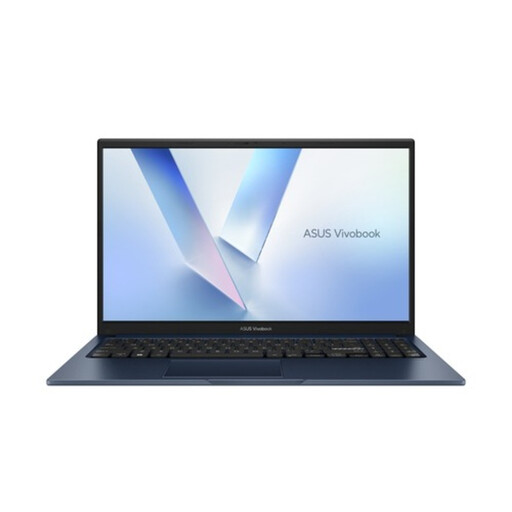
ASUS Vivobook 15 X1504MA-BQ534W, 15.6-inch

ASUS Vivobook 15 X1504MA-BQ534W

A Windows laptop with SSD storage for a cataloguing setup that works with Windows 11 Home.

15.6-inch screen, 8 GB of memory and a 256 GB SSD. The product name specifies a QWERTY keyboard.

Joybuy
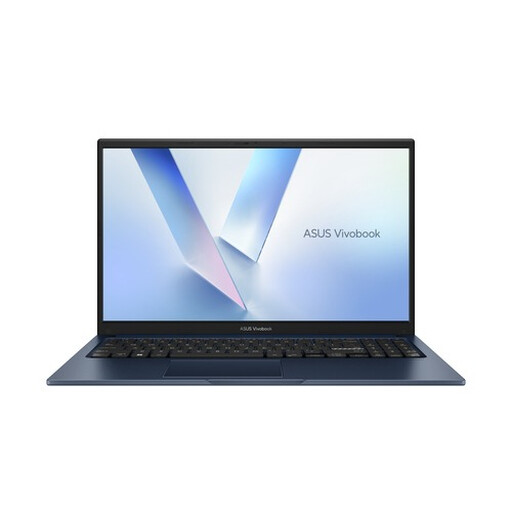
ASUS Vivobook 15 X1504MA-BQ588W, 15.6-inch

ASUS Vivobook 15 X1504MA-BQ588W

A Windows laptop with SSD storage for a cataloguing setup that works with Windows 11 Home.

15.6-inch screen, 8 GB of memory and a 256 GB SSD.

Joybuy

MSI Prestige 16 AI+ C3MG-236NL, 16-inch

MSI Prestige 16 AI+ C3MG-236NL

A Windows configuration worth comparing if you’re weighing up 1 TB of SSD storage and several connections against your own catalogue and drive setup.

Windows 11 Home, 32 GB of memory and a 1 TB SSD. The product information lists two USB-A ports, two Thunderbolt 4 ports and a weight of around 1.5 kg.

Joybuy
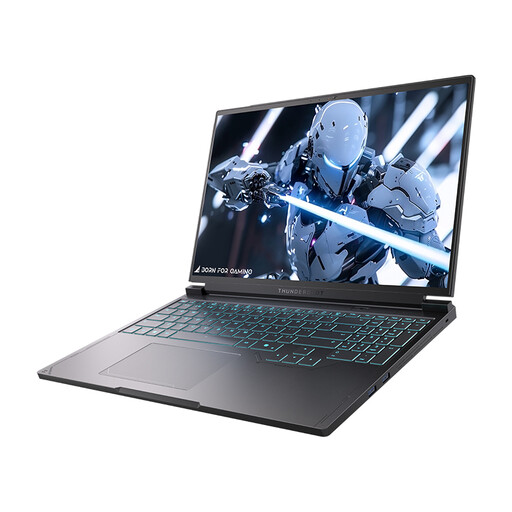
Thunderobot Radiant S16 5060, 16-inch

Thunderobot Radiant S16 5060

A Windows configuration with listed SSD storage and USB-A and USB-C ports; compare the connections with your existing drives.

Windows 11 Home and a 1 TB SSD. The product information lists two USB-A ports, two USB-C ports and a 16-inch QHD+ screen.

Joybuy

Frequently asked questions

Do all my film files need to be on the internal SSD?

No, you can store films on drives too; Bolide Software explains how to organise films across drives. Check that the external drive is accessible when you want to open linked films, and decide separately how much internal storage you need.

How do I back up my catalogue on Windows?

Microsoft Support explains how to use File History with an external drive or network location as the backup destination. Check which folders contain your catalogue and source files, and make sure both are included in the backup.

Can I edit files on my existing NTFS drive using a Mac?

Apple says a Mac may be able to read an NTFS drive, but Disk Utility doesn’t write to NTFS. Check the file system and back up your existing data before considering a change.

Do I need extra cover for my laptop?

Additional cover is not the same as your statutory rights. ACM ConsuWijzer says there is no fixed, general time limit for statutory guarantees in the Netherlands; compare any additional cover with your statutory rights, and keep your proof of purchase.

Can I copy films from DVDs for my catalogue?

Cataloguing film titles is not the same as copying a film. The Dutch Government says bypassing copy protection is not allowed and downloading from an illegal source is prohibited; distributing films without permission is also not allowed.
