First, choose an operating system that works with your cataloguing method. Then test whether film titles, input fields and buttons remain easy to use at your preferred magnification. A 16- or 17.3-inch screen can give you more room to work at home, but a larger laptop is less convenient to carry around. The Consumers’ Association recommends screens of 17 inches or more as an alternative to a desktop PC. Also decide whether you’ll store just catalogue details or large video files as well, as this will partly determine how much storage you need.
Who is this choice relevant to?
Home film cataloguer who needs larger text
You enter lots of film titles and want enough room for lists, details and controls when text is enlarged. Microsoft Support explains how to adjust scaling in Windows; test whether it also works well with your catalogue software.
User with existing catalogue software
You want to keep using a programme or method you’ve already chosen. So check that the software works with your chosen operating system and that the features you need remain easy to use when enlarged.
Collector who wants to keep their data safe
You want to be able to restore your catalogue details if files are lost. Microsoft Support explains how File History can create and restore copies of personal files.
What should you consider when choosing?
Windows laptop
A good fit if: your catalogue software works on Windows and you often enter titles at home.
The trade-off: try the magnification in your own app; a larger screen makes the laptop less convenient to carry around.
Mac laptop
A good fit if: your cataloguing method works on macOS and the text settings suit your needs.
The trade-off: Apple Support explains how to enlarge text in supported features and apps; check the input fields in your programme separately.
Chromebook
A good fit if: you’ve confirmed that your catalogue works in a suitable web or Chromebook app.
The trade-off: Google Chromebook Help distinguishes between page and screen magnification; also check whether your app works offline if you need it to.
| Consideration |
What to look for |
Who should pay particular attention? |
| Ease of reading while entering details |
Test the text size and screen scaling with your own app; also check that input fields and buttons remain visible. |
If I’m entering lots of film titles one after another, I want to be able to read the text without the controls disappearing off screen. Around 36% of consumers say readability is their top priority. |
| Compatibility with your cataloguing method |
Check that the specific app works with the operating system and that any offline feature you need is available. |
If I want to keep using an existing programme, it needs to work with the system before I choose a laptop. Around 29% of consumers put software compatibility first. |
| Storage and recovery |
Decide whether you’ll store just catalogue details or video files as well; also make a separate backup that you can restore. |
If re-entering my data would take a lot of work, I want to know how to restore my catalogue. Around 21% of consumers say keeping their data safe is their top priority. |
| Portability |
Choose a screen size based on where you usually catalogue, and check the weight and connections on the configuration you’ve chosen. |
If I want to work by my film collection or in other places too, I want to be able to move my laptop without giving up too much screen space. Around 14% of consumers put portability first. |
Common pitfalls
-
Choosing based on screen size alone
A larger screen doesn’t guarantee that text, input fields and buttons will all remain easy to read in your catalogue software.
Try your usual workflow with your preferred magnification, then compare screen sizes.
-
Choosing a Chromebook before settling on your catalogue app
ChromeOS magnification features don’t tell you whether your specific catalogue app will work or be usable without an internet connection.
Check the exact app and any offline feature you need before choosing ChromeOS.
-
Confusing storage with a backup
An SSD stores files on your laptop, but it isn’t a separate copy that you can restore if files are lost or damaged.
Decide which files you’ll keep, then set up a separate backup and test it.
You may need extra storage for a separate backup. Bear in mind that making and checking copies takes time too.
-
Buying an extended warranty without comparing the terms
An additional warranty package isn’t automatically the same as your existing rights. According to the Dutch government, if there’s a problem with a product, the seller must provide a solution.
Read what the package adds and check who is responsible for handling a fault under its terms.
Brands to consider
HP
HP describes the OmniBook 3 17-dp0610nd as a configuration with a 17.3-inch screen, worth considering if you’re setting up a dedicated workspace at home.
- According to HP, this configuration has Windows 11 Home, 8 GB RAM, a 512 GB SSD and an FHD screen.
- The screen size doesn’t tell you how your catalogue app will behave when magnified; test the app and its input fields for yourself.
Lenovo
The IdeaPad Slim 3 Gen 10 83K8009YMH is a specific 16-inch Windows model to consider if you’re weighing up screen space against portability.
- Lenovo lists an anti-glare IPS screen with a resolution of 1920 × 1200 pixels, 16 GB RAM and a 1 TB SSD.
- The listed keyboard layout is English (EU); check that it suits the way you enter details.
Dell
The Dell 16 range includes configurable Windows laptops with a 16-inch screen.
- The range offers a screen size you can compare with the workspace you need for cataloguing.
- Dell warns that changing a configuration may affect other specifications. So check the details of the exact model.
Apple
The 15-inch MacBook Air with M5 is a macOS option if your cataloguing method works on that system.
- Apple specifies a 15-inch model; macOS has settings to enlarge text in supported features.
- Check whether your catalogue app and the input fields you use support your preferred magnification.
Joybuy laptops with larger screens
This selection focuses on Windows laptops with larger screens for cataloguing at home with enlarged text. Check each model to make sure your catalogue app works and that the magnification suits the way you enter details.
 No image available
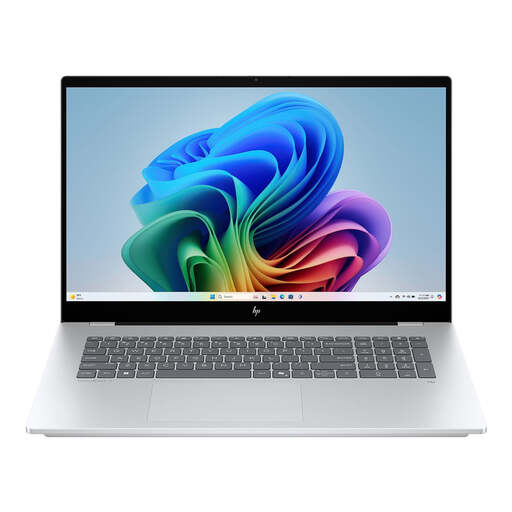
HP OmniBook 7 NG AI PC 17-dc0051nd D75LTEA#ABH
The 17.3-inch screen is an option if you want plenty of room to work while entering details at home.
Listed features: IPS touchscreen, 16 GB memory, 1 TB SSD and Windows 11 Home.
Joybuy
 No image available
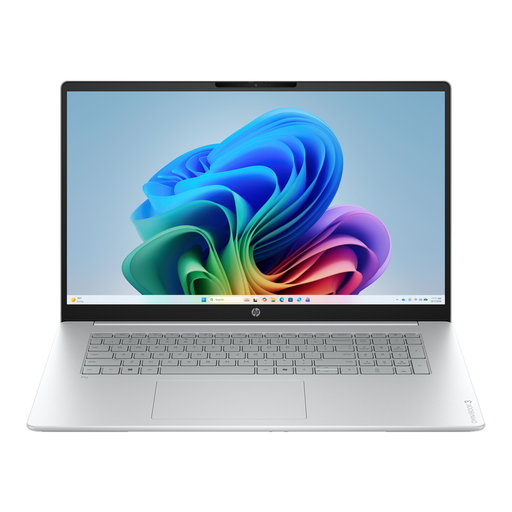
HP OmniBook 3 AI PC 17-dg0005ndx
The 17.3-inch screen could suit you if you want more room to work at home than a more compact laptop offers.
Listed features: Intel Core 3 310, 12 GB RAM, 512 GB SSD, Full HD IPS screen and Windows 11 Home.
The product description states that the mains adapter isn’t included, so you’ll need to buy one separately.
Joybuy
 No image available
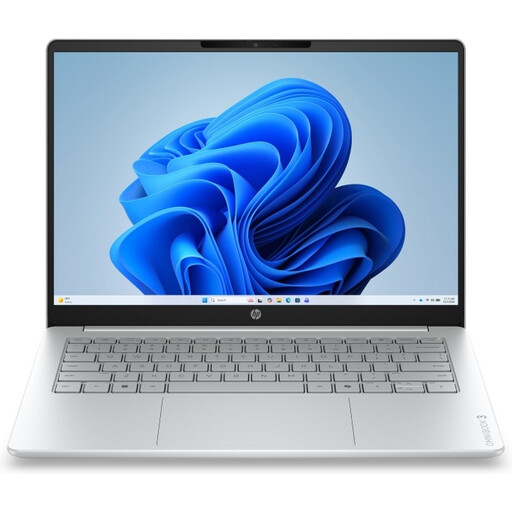
HP OmniBook 3 17-dp0050ndx
The 17.3-inch screen is designed for those who want plenty of room for cataloguing at home.
Listed features: AMD Ryzen 5, 8 GB RAM, 512 GB SSD, Full HD IPS screen and Windows 11 Home.
The product description states that the mains adapter isn’t included.
Joybuy
 No image available
ASUS Vivobook 18 M1807HA-S16512W
The 18.4-inch screen gives you plenty of room to work at a dedicated desk; its listed weight makes it less practical to carry around often.
Listed features: WUXGA screen, Ryzen 7 260, 16 GB memory, 512 GB SSD and Dutch QWERTY keyboard with numeric keypad.
The listed weight is 2.60 kg. The product description states that a mains adapter isn’t included and that you’ll need a suitable USB-C PD charger.
Joybuy
 No image available
ASUS Vivobook S16 S3607QA-SH109W
A 16-inch screen could be a good compromise if you want more room to work without going up to 17.3 or 18.4 inches.
Listed features: WUXGA OLED screen, Snapdragon X processor, 16 GB LPDDR5X, 512 GB SSD and Windows 11 Home.
Joybuy
Frequently asked questions
Do you need to buy a 17-inch laptop straight away to get larger text?
No. First, try your preferred text size, screen scaling or zoom with your usual workflow. A 17-inch screen gives you more room, but is less convenient to carry around; also check separately how your catalogue app works.
How can you enlarge more than just a web page?
It depends on the operating system. In Windows, you can adjust the text size or screen scaling and use Magnifier if needed; macOS has settings for larger text, while ChromeOS offers page and screen magnification, among other options.
Is a larger SSD the same as a backup?
No. An SSD stores files on your laptop; a backup is a separate copy that you can restore if files are lost or damaged. Windows offers File History for copies of personal files, among other options; test that you can restore the files you need.
What are your rights when buying a laptop online in the Netherlands?
According to the Dutch government, distance purchases usually come with a 14-day cooling-off period; terms and exceptions may apply. You’re also entitled to a product that works properly, and the seller must provide a solution if there’s a problem. Read the terms of any additional warranty package and check what it covers.


