What should you look for when choosing?
Windows laptop with HDMI
A good fit if: you work with PowerPoint and want a laptop with a built-in HDMI output. Acer Netherlands lists this connection for the Swift Go 14 SFG14-73-53QC.
Keep in mind: an HDMI port on your laptop doesn’t guarantee that the cable or input at the presentation venue will be compatible.
MacBook Air with presentation software installed locally
A good fit if: you want to use macOS and have your presentation app and files ready in advance. Apple lists video support via Thunderbolt 4 on the 13-inch MacBook Air with M5.
Keep in mind: Apple doesn’t list a built-in HDMI connection for this model. Check which adapter and software licence you may need.
Chromebook for Google Slides
A good fit if: you mainly use Google Slides and make the files you need available offline in advance, following the steps in Google Help.
Keep in mind: you’ll need to set up offline access beforehand. Also check that the file features and screen connection suit your presentation.
The percentages refer to consumers choosing a laptop to prepare presentation slides during a field trip; the first purchase priority is shown for each row.
| What to consider |
What should you check? |
Who is this important for? |
| Portability and working without a plug socket |
Compare the weight and screen size of the exact configuration. Also check whether the charger is included and what the stated battery life is based on. |
If I’ll be walking a lot and can’t rely on having a plug socket, size and power are important to me. Around 33% of consumers put portability and working without a plug socket first. |
| Connecting to a screen or projector |
Ask which input is available at the venue. Compare it with the video output on the exact model and check in advance whether you need a compatible cable or adapter. |
If I want to show my slides on the screen at the venue, the connection needs to work without any surprises. Around 25% of consumers give the connection at the venue top priority. |
| Editing presentation files offline |
Check which app you use, whether the file can be opened and edited locally, and whether offline access needs to be set up in advance. Test it without an internet connection. |
If I can’t count on having a connection while travelling, I want to know in advance whether my files and presentation app will work offline. Around 25% of consumers put offline editing first. |
| Screen space and software features |
Check the screen on the exact configuration and test a representative file in the app you’ll be using. Some features behave differently in a browser than in a desktop app, according to Microsoft Support. |
When editing slides, I want enough screen space and need my files to work as expected. Around 17% of consumers give screen space and file features top priority. |
Microsoft Support explains that PowerPoint for the web handles some features differently from the desktop app. Google Help lists the requirements for working offline in Google Slides, including setting up offline access in advance. So, before you leave, test the app, file and planned screen connection.
Joybuy product picks
These product picks are intended for preparing and showing presentation slides on the go. Compare the screen size and listed configuration with your own software and the connection available at the presentation venue.
 No image available
HP OmniBook 7 AeroNGAI 13-bg1051nd NL Copilot+ 13.3-inch laptop
The 13.3-inch configuration may suit you if you want to prepare slides on a smaller screen while travelling.
The product name lists an AMD Ryzen AI 5 processor.
View on Joybuy
 No image available
HP OmniBook 3 16-by0058ndx, 16-inch
The 16-inch screen may suit you if you want more screen space for editing than a smaller configuration offers.
The product name lists an AMD Ryzen 5 7520U, 8 GB RAM, a 512 GB SSD, a 2K IPS screen and Windows 11 Home. According to the stated limitation, the charger isn’t included.
View on Joybuy
 No image available
HP OmniBook 3 14-hy0058ndx, 14-inch
The 14-inch configuration may suit you if you want to prepare slides on a more compact screen.
The product name lists an AMD Ryzen 5 7520U, 8 GB RAM, a 512 GB SSD and Windows 11 Home. According to the stated limitation, the charger isn’t included.
View on Joybuy
 No image available
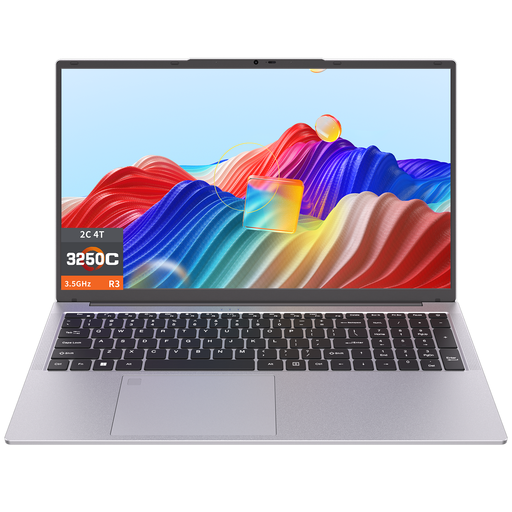
Auusda T173A, 17.3-inch
The 17.3-inch screen may suit you if you want a larger display for preparing slides.
The product name lists a 3250C processor, 8 GB DDR4 RAM and a 512 GB SSD.
View on Joybuy
 No image available
Ruzava 14-inch laptop, 8 GB RAM, 256 GB SSD
This 14-inch configuration may suit you if you want to prepare slides on a smaller screen.
The product name lists an N5095 processor, an FHD screen and a 256 GB SSD that can be expanded to 1 TB. Check that the Mini-HDMI connection is compatible with the screen at your destination.
View on Joybuy
Frequently asked questions
Can you work on slides during a field trip without an internet connection?
Yes, as long as you prepare your app and files beforehand. Microsoft Support explains how to save a PowerPoint presentation locally, while Google Help sets out the requirements for working offline in Google Slides. Test the file without an internet connection before you leave.
Do you need an HDMI port to give a presentation?
Not always: the right connection depends on the input available at the presentation venue. Acer Netherlands lists HDMI for the Swift Go 14 SFG14-73-53QC, while Apple lists video support via Thunderbolt 4 for the 13-inch MacBook Air with M5. Check in advance whether you need a compatible cable or adapter.
What should you install or set up before you leave?
Make sure your presentation app and files are ready, then test a practice presentation using the screen connection you plan to use. Google Slides requires separate setup steps for offline access; Microsoft Support explains how to install Office on a PC or Mac.
What extra items should you check?
Check whether the charger is included, whether you need a cable or adapter for the screen, and what the requirements are for using your presentation software. For example, HP says the charger for the OmniBook 7 Aero 13-bg1694ndx is sold separately; this doesn’t automatically apply to other models.
What returns and warranty rules apply to a laptop bought online in the Netherlands?
ACM ConsuWijzer says that online consumer purchases generally come with a statutory cooling-off period that ends 14 days after delivery, although exceptions depend on the purchase. You’re also covered by the statutory guarantee for as long as you can reasonably expect the product to last; this period isn’t automatically two years. Check the terms and who the seller is for the specific purchase.


