Choose a laptop that runs your study software and existing documents, and make the files you need available offline before you set off. Then compare the weight, keyboard and battery life under the stated test conditions. A lightweight laptop or Chromebook can be handy on the go, but a quoted battery life doesn’t guarantee how long you’ll be able to work on your field trip. A convertible is particularly useful if you also want to annotate directly on the screen.
Who is a laptop for taking notes on the go suitable for?
For anyone who wants to edit notes offline
You want to open and edit existing notes during your field trip without Wi-Fi. Google Help explains how to make documents available offline in advance, while Microsoft Support explains offline access to synced OneDrive files.
For anyone who has to carry their laptop for a long time
You’ll need to weigh portability against screen space and the time between opportunities to charge. Specifications vary by configuration, so check the details of the model you’re considering.
For anyone who wants to type and annotate
You mainly make revisions by typing, but may also want to write directly on documents. Check the keyboard, and confirm touchscreen and pen support for the exact configuration.
What should you look for in a laptop for a field trip?
First, check that your files are available offline and your study software works. Then compare portability, input options and what you’ll need to bring with you.
Compact Windows laptop
Suitable for: a course that uses Windows software or an existing OneDrive workflow.
Keep in mind: weight, battery specifications and configuration can vary between versions.
Chromebook
Suitable for: anyone who mainly works in Google Docs and has checked that their other required software works on ChromeOS.
Keep in mind: enable offline access in advance and make sure the right files are available.
MacBook Air
Suitable for: anyone whose required study software works on macOS.
Keep in mind: quoted battery life is based on specific tests; also check which charging equipment is included.
Convertible with touchscreen
Suitable for: anyone who regularly wants to annotate documents directly, as well as type.
Keep in mind: a touchscreen doesn’t necessarily mean the configuration supports the pen you want to use.
| What to consider |
What to look for |
Who is it for? |
| Offline files |
Check that the document app works offline and that the specific files you need are available on your device in advance. |
If I want to edit my existing notes on the go without Wi-Fi, I’ll make those files available beforehand. Around 36% of consumers make offline access their top priority. |
| Portability and power |
Compare the weight of the configuration you’ll be carrying, and check the test conditions used for the quoted battery life. |
If I’ll be carrying my laptop for a long time or don’t expect to have many chances to charge it, I’ll consider its weight and charging options. Around 29% of consumers prioritise portability and working away from a socket. |
| Typing and annotating |
Assess the keyboard, and check touchscreen and any pen support separately. |
If I’ll be typing lots of revisions or want to write directly on documents, I’ll focus on the input options I’ll actually use. Around 21% of consumers give typing or annotating their highest priority. |
| Software and essentials |
Check that the required software works with the operating system and find out what charging equipment is included. |
If my course requires specific apps or I need a complete set-up, I’ll check compatibility and what’s in the box. Around 14% of consumers prioritise software compatibility or a complete purchase. |
Things to watch out for when choosing a laptop
-
Assuming a cloud document will work offline automatically
Offline editing depends on the settings of the app you use and whether the file is available on your device.
Make the files you need available offline before you set off, then open them once without a network connection to test your set-up. Google Help and Microsoft Support explain the steps for their respective document and sync services.
-
Treating quoted battery life as a guarantee for your field trip
Apple gives separate maximum times for video streaming and wireless internet use. Acer also quotes a maximum battery life for the configuration reviewed, but claims like these don’t tell you how long your note-taking will last.
Compare the test conditions behind the battery figures and take your own usage and charging options into account.
-
Comparing only the device, not the configuration
The keyboard layout or a missing charger can affect how quickly you can start using your laptop.
Before buying, check the keyboard layout, included accessories and charging requirements for the exact configuration you’ve chosen.
If a suitable charger isn’t included, you may need to buy a compatible one separately.
Relevant laptop brands to compare
Lenovo
The 14-inch IdeaPad Slim 5 Gen 9 is an example of a compact Windows laptop worth comparing.
- Lenovo lists a weight of 1,46 kg and two USB-C ports for this product line.
- The line includes several configurations, so check the specifications of the model you choose.
Acer
The Chromebook Plus 514 offers a ChromeOS option for anyone who mainly uses compatible web and Google document apps.
- According to Acer, the configuration reviewed, NX.KV1EH.002, has a 14-inch touchscreen, 8 GB of memory and a maximum quoted battery life of 9,5 hours.
- Acer lists an English keyboard for this configuration, which may not be ideal for typing in Dutch.
Apple
The 13-inch MacBook Air with M5 is a compact macOS option if it runs the study software you need.
- Apple lists 16 GB of memory and up to 15 hours of wireless internet use for the 13-inch configuration.
- Battery life is a manufacturer claim based on specific test conditions; also check whether the offer you choose includes a suitable charger.
HP
The Pavilion x360 line is a convertible option for anyone who wants to combine typing with touchscreen use.
- According to HP, the configuration reviewed, 14-dy0651nd, has an FHD touchscreen, 8 GB of RAM and a 256 GB SSD.
- These specifications apply to the configuration listed, not automatically to other Pavilion models. The listing doesn’t confirm pen support.
ASUS
ASUS discusses the trade-offs between a standard laptop and a convertible with touch or pen input.
- The manufacturer’s guide can help you weigh up different input options for the way you work.
- The guide isn’t an independent test of a specific configuration; suggested preferred sizes or battery specifications aren’t universal minimum requirements.
Laptops at Joybuy for taking notes on the go
These Joybuy models are Windows laptops suited to studying and working on documents on the go. You’ll find both compact laptops and convertibles with touchscreens here; check each configuration for the features and essentials you need.
 Image unavailable
HP OmniBook 5 Flip 14-fp0075nd C5VM5EA#ABH
A convertible for anyone who wants to type revisions and use touch controls too.
No charger is included; the product description specifies a compatible USB-C Power Delivery charger of at least 45 W.
View at Joybuy
 Image unavailable
HP OmniBook X Flip NG AI PC 16-as0050nd D75LQEA#ABH
The convertible design suits anyone who wants to view documents and switch between different modes of use.
View at Joybuy
 Image unavailable
HP OmniBook 5 Flip 14-fp0250ndx 2-in-1
A Windows convertible for anyone who wants to type and use the touchscreen to interact with documents too.
Intel Core 5 120U, 8GB RAM, 512GB SSD, 14-inch 2K touchscreen and Windows 11 Home.
A USB-C charger and stylus pen are not included. According to the product description, a compatible USB-C Power Delivery charger is required.
View at Joybuy
 Image unavailable
HP OmniBook 3 14-hy0058ndx
A compact Windows laptop for anyone who wants to edit notes and other documents on the go.
AMD Ryzen 5 7520U, 8GB RAM, 512GB SSD, 14-inch and Windows 11 Home.
According to the product description, the charger must be purchased separately.
View at Joybuy
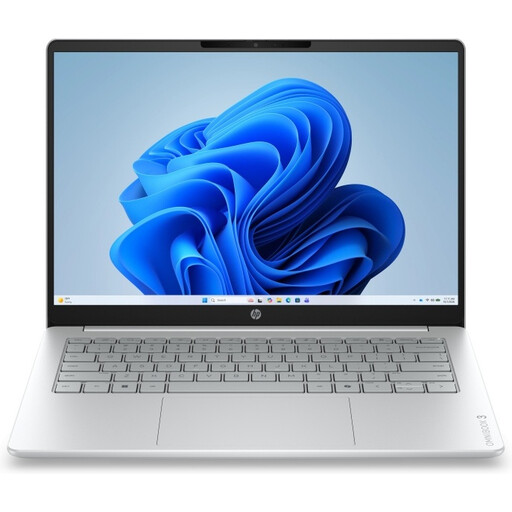 Image unavailable
HP OmniBook 3 14-HY0005NDX
A Windows laptop for anyone who wants to view and edit documents and notes on a 14-inch screen.
AMD Ryzen 5 130, 12GB RAM, 512GB SSD, 2K IPS display and Windows 11 Home.
According to the product description, the charger must be purchased separately.
View at Joybuy
Frequently asked questions about laptops for field trips
Can I edit my documents on a field trip without an internet connection?
Yes, if the app supports offline access and you make the files you need available beforehand. Google Help explains how to enable offline access and choose specific files; Microsoft Support explains offline access to OneDrive files once they’ve synced. Test the documents you need before you set off.
Is a touchscreen enough to write notes with a pen?
Not necessarily: a touchscreen alone doesn’t confirm support for the pen you want to use. Check pen compatibility for the exact laptop configuration.
How can I keep my notes available when I get back?
Once you’re connected again, check that your changes have synced. Microsoft Support explains that changes to synced OneDrive files are updated as soon as you’re back online.
What cooling-off period and warranty apply to an online purchase in the Netherlands?
According to ACM ConsuWijzer, an online purchase generally comes with a 14-day cooling-off period from delivery, although exceptions may apply. This is separate from your statutory rights if a product is faulty: when a product is used normally, the seller must offer an appropriate solution. This doesn’t mean every laptop has a fixed statutory warranty period of two years.


