If you want to write by hand on PDFs during a field trip, choose a 2-in-1 and check that the exact configuration supports your chosen pen and includes the accessories you need. A standard laptop may be enough for highlighting and typed notes; check in advance that your files are available offline and that your app saves changes. ASUS describes pen support for the Vivobook 14 Flip TP3407, while Microsoft, Apple and Google document PDF annotation features in various apps.
Who is this buying guide for?
Readers who annotate by hand
You want to write or sketch on PDFs during a field trip, as well as type longer notes. Check that the pen is compatible with the exact configuration and included with it. ASUS describes pen support for the Vivobook 14 Flip TP3407.
Readers who annotate while travelling
You highlight passages and type comments while carrying your laptop around. Weight, use away from a power socket and access to local files are all important considerations. Apple gives battery details for the MacBook Air based on its own testing; these don’t guarantee how long it will last on a field trip.
Readers who use course software
You need files and software for your course as well as PDF annotation tools. Check that the operating system is compatible with your software and find out how to use your files without an internet connection. Google describes PDF annotation in the Gallery app on Chromebooks.
What should you look for in a laptop for a field trip?
| What to consider |
What should you check? |
Who should give this more weight? |
| Writing by hand |
Check support for the specific type of pen and whether it’s included with the configuration you’ve chosen. A touchscreen alone doesn’t confirm this. |
If I want to write or draw directly on reading materials, my laptop needs to work with my pen. Around 28% of consumers prioritise handwritten annotations. |
| Weight and battery life |
Compare the stated weight of the exact configuration and check battery details under similar usage conditions. |
If you’ll be carrying your laptop for a long time and don’t want to look for a power socket, weight and battery life are key considerations. Around 22% of consumers say this combination is their main buying priority. |
| Offline files |
Save your reading list locally in advance, then test without an internet connection that the PDF opens and the app saves your annotations. |
If the connection might drop, I still want to be able to use my reading list and notes. Offline access is a priority for around 22% of consumers. |
| Reading, typing and software |
Try the screen and keyboard with your documents, and check that the software you need works with the operating system you’ve chosen. |
If you mainly read passages and type longer notes, you’ll want the screen, keyboard and course software to work well together. Around 17% of consumers put this combination first. |
| Accessories you need |
Check what’s in the box for the exact configuration, including any pen or charger you may need, and decide which features are essential for you. |
If I need my laptop fully equipped for annotation work, I want to know in advance which essential accessories are included. Around 11% of consumers focus mainly on what they need to buy overall. |
Things to consider before buying
-
Assuming a touchscreen means an active pen is included
Touchscreen functionality, support for an active pen and what’s in the box are three different things. A touchscreen alone doesn’t tell you whether a specific pen will work.
Check which type of pen is supported with the exact configuration and what’s included in the box.
If a compatible pen isn’t included, you may need to buy one separately.
-
Assuming a synced reading list is ready to use offline
A file synced through a cloud service isn’t necessarily stored locally when your connection drops. Microsoft explains how to make files available for offline use.
Make the files you need available locally before you leave, then test without an internet connection that you can open and annotate them.
-
Assuming every laptop comes with a charger
HP says the recommended 65 W USB-C adapter for the OmniBook 5 Flip 14-fp0600ndx is sold separately. What’s in the box can vary by configuration.
Check which adapter is needed for the exact offer and whether it’s included.
If the adapter you need isn’t included, you may have to arrange one separately.
Brands and models to consider
ASUS
The Vivobook 14 Flip TP3407 is a 14-inch Windows 2-in-1 range for anyone who also wants to annotate on the screen.
- ASUS lists a 360° hinge and support for the ASUS Pen 2.0.
- For the configuration reviewed, ASUS gives a weight of 1,57 kg. Pen support doesn’t confirm that the pen is included.
HP
The OmniBook 5 Flip 14-fp0600ndx is a Windows model with a keyboard, 360° hinge and touchscreen.
- HP lists 16 GB RAM, 512 GB SSD and a 14-inch screen for this configuration.
- HP says the recommended 65 W USB-C adapter is sold separately. Also check whether the pen you want is included with your chosen configuration.
Apple
The 13-inch MacBook Air with M5 is a compact macOS option for typing and annotating PDFs in Preview.
- Apple lists 16 GB memory and 512 GB storage for the base configuration. Preview supports PDF annotation.
- The listed annotation features don’t confirm that you can use an active pen on the laptop screen. Apple claims up to 15 hours of wireless web browsing under its own testing conditions; this isn’t a guarantee of battery life on every field trip.
Acer
The Chromebook Plus Spin 714 CP714-1HN-536W is a ChromeOS 2-in-1 with a touchscreen.
- For this configuration, Acer lists a 14-inch screen, 16 GB RAM, 512 GB SSD and an English keyboard. Google describes PDF annotation in the Gallery app on Chromebooks.
- The listed specifications don’t confirm that a pen is included. Also check that the software and files you need work on ChromeOS.
Lenovo
The Yoga 7 2-in-1 Gen 9 with AMD is a Windows range designed for use with a keyboard or in tablet mode.
- Lenovo describes several usage modes and pen use for this range.
- Check which pen and screen configuration are included with each model. Manufacturer battery figures aren’t real-world measurements for your field trip.
Products at Joybuy
These product picks are designed for carrying reading files and making typed PDF notes; one model also has a touchscreen and 360° hinge. If you want to write on the screen, check separately that a compatible pen works with the configuration you’ve chosen.
 Image unavailable
HP OmniBook 3 16-by0058ndx, 16-inch
This configuration has a keyboard for typing notes, but according to the product description it doesn’t have a touchscreen, so it isn’t designed for writing directly on the screen.
Windows 11 Home, 8 GB RAM, 512 GB SSD and a 16-inch 16:10 screen with anti-glare finish.
The product description says the charger isn’t included.
View at Joybuy
 Image unavailable
HP OmniBook 5 Flip 14-fp0250ndx 2-in-1
The touchscreen and 360° hinge offer different ways to use the laptop; check separately whether a compatible active pen suits the way you work.
Windows 11 Home, 8 GB RAM, 512 GB SSD and a 14-inch 2K touchscreen.
The product description says the stylus and USB-C charger aren’t included.
View at Joybuy
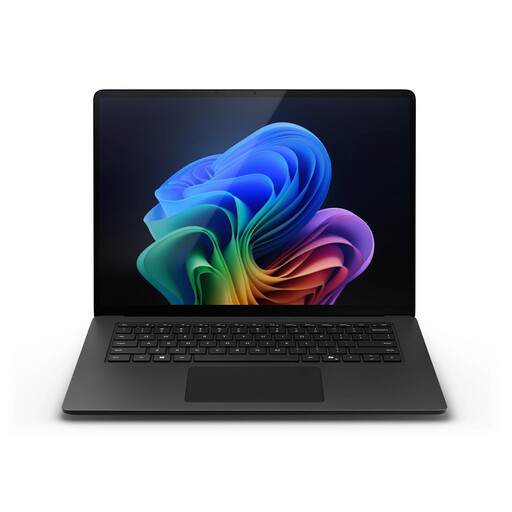 Image unavailable
Microsoft Surface Laptop 7, 13.8-inch
This laptop is an option for making typed PDF notes while you’re out and about; the product description lists Windows 11 Pro and a weight of 1,34 kg.
Snapdragon X Plus, 16 GB memory and 512 GB SSD. The listed screen size is 13.8 inches.
View at Joybuy
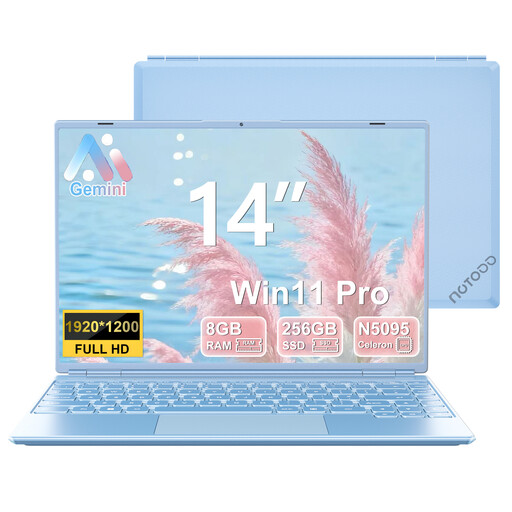 Image unavailable
NOTODD 14-inch laptop, Celeron N5095
A Windows laptop with a keyboard for typed notes and reading files you’ve brought with you. The product title doesn’t confirm that it has a touchscreen.
8 GB RAM, 256 GB SSD, 1920 × 1200 resolution and Windows 11.
View at Joybuy
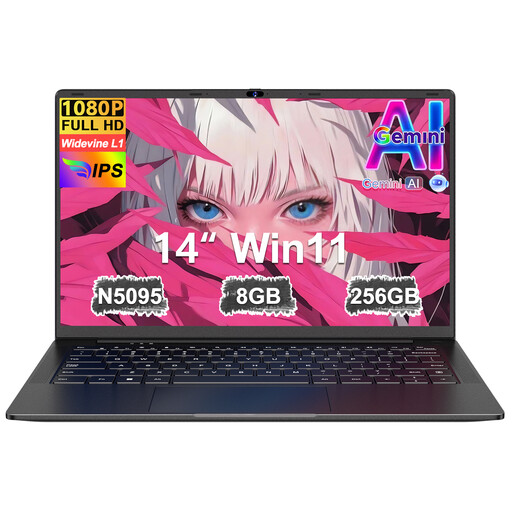 Image unavailable
Ruzava 14-inch laptop, 8 GB RAM, 256 GB SSD
The product title mentions a numeric keypad for anyone who mainly types notes; the product description lists a weight of 1,39 kg.
14-inch FHD IPS screen, 8 GB RAM and 256 GB SSD. The product description lists an N5095 processor.
View at Joybuy
Frequently asked questions
Can I use an active pen to write on a PDF with any touchscreen laptop?
No. A touchscreen alone doesn’t confirm that an active pen will work. ASUS lists support for the ASUS Pen 2.0 with the Vivobook 14 Flip TP3407; also check whether the pen is included with the configuration you’ve chosen. Google describes freehand annotations in the Chromebook Gallery app, but that doesn’t confirm that a specific pen will work with every Chromebook.
How do I get my reading list ready for somewhere without internet?
Make the files you need available locally in advance, then test without a connection that you can open, annotate and save them. Microsoft explains how to change the file status of OneDrive or SharePoint files so you can work offline; syncing alone doesn’t always mean a file is stored locally and ready to use.
Do I need extra software for basic PDF annotation?
Not always. Microsoft describes how to highlight, add text and save changes in Edge; Apple describes annotations in Preview, and Google describes text and freehand annotations in the Chromebook Gallery app. Test that the features work with your file and suit the way you want to save or share your notes.
Who can help if my laptop breaks down too soon during normal use in the Netherlands?
According to ACM ConsuWijzer, the seller is responsible for the statutory guarantee. If the product doesn’t meet what you could reasonably expect and the relevant conditions are met, the seller must resolve the problem free of charge, for example by repairing or replacing it. A commercial guarantee doesn’t replace this statutory right.
Can I try out a laptop I’ve bought online before deciding whether to keep it?
ACM ConsuWijzer says that for a standard online purchase, you generally have a statutory cooling-off period of up to 14 days after delivery. There are exceptions; check the terms for your purchase and what you’re allowed to do with the product before returning it.


