
Regular note-taker
You spend long periods writing up text and want a comfortable keyboard and an easy-to-read screen. Consider your entire workspace setup, not just the laptop; Arboportaal also offers advice on setting up a screen-based workstation.


Start with the keyboard, screen readability and the apps you need to save or share your notes in. A smaller model is easier to move around, while a larger workspace or separate input devices can give you more room during long writing sessions. For confidential notes, also check how to protect your files and connect securely.
You spend long periods writing up text and want a comfortable keyboard and an easy-to-read screen. Consider your entire workspace setup, not just the laptop; Arboportaal also offers advice on setting up a screen-based workstation.
You regularly move your laptop between tables and weigh up size, ports and charging against the screen space you need. Check the specifications and ports of the exact model.
You need to be able to open and share notes in line with your organisation’s policies, possibly without an internet connection or over public Wi-Fi. Google Chromebook Help explains that some Google Drive files can be made available offline; check whether your apps and files support this.
First, check that the writing and sharing apps you need will work. Then weigh up the keyboard and screen, portability, privacy and offline access in light of your workspace.
| What to consider | What should you check? | Who is this important for? |
|---|---|---|
| Comfortable typing and reading | Try the keyboard layout and key feel, and compare screen sizes and glare. For long sessions, separate input devices may be part of your workspace setup. | If I write a lot of notes, I want to type comfortably and read my text back easily. Around 33% of consumers prioritise writing comfort. |
| Carrying and charging | Compare the dimensions and weight of the exact model. Also check how the stated battery life was tested and whether you can charge the laptop at your workspace. | If I often move between tables, I want to carry my laptop easily and avoid relying on a fixed charging point. Around 25% of consumers make portability their top priority. |
| Confidential notes | Check your organisation’s rules for storage and connections, the screen lock and sightlines in the shared workspace. | If my notes are confidential, I want to prevent others from seeing them and know which connections I’m allowed to use. Around 25% of consumers prioritise confidentiality. |
| Apps and offline access | Check that the apps and file formats you need will work. Set up offline access in advance and test whether you can open, edit and sync a representative document. | If I rely on specific apps or sometimes have no internet connection, I want to keep using my notes. Around 17% of consumers prioritise software access. |
The keyboard layout and screen configuration matter too when you’re writing up notes. For long periods of screen-based work, you may also need a separate workstation setup.
Try the keyboard layout and typing for yourself, and compare the screen configurations. Arboportaal states that employees who work at a screen for more than 2 hours a day must not have their screen and keyboard attached to each other.
A suitable setup may also require a separate keyboard, monitor or other workstation equipment.
Not every app or file works without an internet connection. Google Chromebook Help says that some Google Drive files can be used offline if you set up access in advance.
Make the files you need available offline in advance, then test whether you can edit and sync a representative document later.
At a shared table, other people may be able to see your screen. Public Wi-Fi also calls for care when it comes to connection security.
Follow your organisation’s rules for storage and connections, lock your screen when you step away and keep your notes out of view. VeiligInternetten recommends using a VPN on public Wi-Fi.
A commercial warranty does not replace your statutory rights. ACM ConsuWijzer makes clear that your legal guarantee applies alongside any guarantee offered by the retailer or manufacturer.
Consider any additional cover in terms of what extra it offers, and ask the retailer about your legal rights if there’s a problem with the product.
Additional warranty cover could mean unnecessary expense if you assume you would otherwise have no legal rights.
The ThinkPad E14 is a business Windows range to consider if you want a compact setup with an anti-glare screen.
The MacBook Air with M5 is a compact macOS option if your writing software and working environment are compatible with macOS.
The ProBook range is a business laptop option for anyone considering organisation-wide management and support.
The Swift Go 14 is a compact Windows option, particularly if you also view images as well as taking notes.
This selection includes compact and larger Windows laptops, along with a MacBook Air, for writing up notes in changing or shared workspaces.
 No image available
A 14-inch model for anyone who wants to carry a Windows laptop between workspaces.
AMD Ryzen 5 7520U, 8 GB RAM, 512 GB SSD and Windows 11 Home. According to the product information, the charger must be purchased separately.
 No image available
The 15.6-inch model gives you a larger screen for viewing notes and reference material side by side.
FHD screen, Intel Core i5-13420H, 16 GB DDR5, 512 GB SSD, Wi-Fi 6 and Windows 11 Pro.
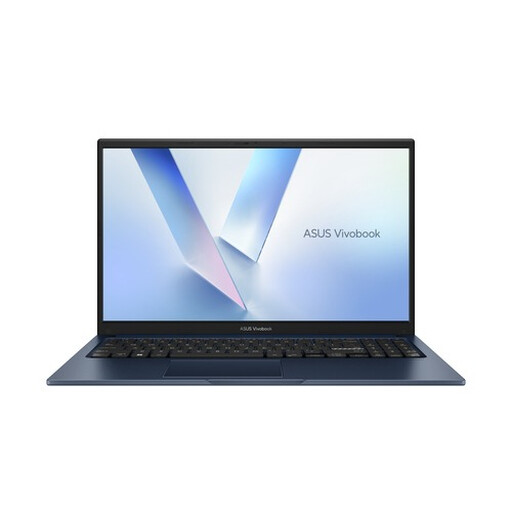 No image available
A 15.6-inch laptop to consider if you want a larger screen for writing up notes.
Core 3 304, 8 GB RAM, 256 GB SSD and QWERTY keyboard.
 No image available
A compact MacBook Air to take with you if your writing software and working environment are suited to macOS.
16 GB of memory, 512 GB SSD, Midnight and QWERTY keyboard.
 No image available
The 15.3-inch size is a good option if you want more screen space for writing than a more compact laptop offers.
Ryzen 5 7535HS, 16 GB of memory, 512 GB SSD and QWERTY keyboard. According to the product information, the power adapter is not included.
Not simply because the workspace is shared. Arboportaal explains that employees who work at a screen for more than 2 hours a day must not have the screen and keyboard attached to each other when using a laptop. In that situation, consider your entire workstation setup too; the same employee requirements do not automatically apply to self-employed people and occasional users.
You can use some files offline if you set up access in advance and check that the files are available. Google Chromebook Help says that not all apps work offline; changes may sync the next time you connect.
First, follow your organisation’s security rules. VeiligInternetten recommends using a VPN on public Wi-Fi; also check how you store your notes and make sure other people can’t read your screen.
No. Any guarantee offered by the retailer or manufacturer applies alongside your statutory rights. ACM ConsuWijzer advises checking what extra protection an additional policy offers; if there’s a problem with the product, you can ask the retailer about your rights.
Before you buy, check which charger, ports and separate workstation equipment you already have and what else you need. Arboportaal describes additional equipment as part of a suitable setup for long periods of screen-based work; what you need depends on your workspace and the equipment you already own.