What should you look for when choosing?
Start with the transcription method and the software it requires. Then compare portability, data protection and how comfortable it is to enter and edit text.
| What to consider |
What to look for |
Who is this important for? |
| Transcription method |
Check the app you use, operating system, Dutch language support, any licence limits and the approved storage location. |
If I want to transcribe existing recordings, the software needs to suit my workflow and storage arrangements. Around 31% of consumers make the transcription method their top priority. |
| Working on the move |
Compare the weight of the exact configuration and the screen size, and check battery tests against your task; a stated maximum doesn’t guarantee how long it will last in use. |
If I travel frequently between client visits, I want to know what I’ll be carrying all day and how I can work without a power socket. Around 25% of consumers put portability first. |
| Data protection |
Check where recordings and transcripts are stored, and discuss access, updates, backups and appropriate security with your organisation. |
If I may handle client information that could identify individuals, I want to review the data flow and approved storage arrangements in advance. Around 25% of consumers make data protection their top priority. |
| Typing and editing |
Try the keyboard layout and assess the screen space and ports; if you’re considering a 2-in-1, check whether a stylus is included if you need one. |
If I do a lot of work myself or edit transcripts, I want to type comfortably and compare the text with the recording. Around 19% of consumers put typing comfort first. |
Joybuy laptops for field notes
This selection from Joybuy includes 2-in-1 laptops for typing and annotating, Windows laptops for working with documents, and MacBook models for a macOS workflow. Before buying, check that your transcription software and storage arrangements are compatible with the model you choose.
 Image unavailable
HP OmniBook 5 Flip 14-fp0250ndx 2-in-1
A 2-in-1 option if you want to use the touchscreen for annotations as well as typing.
14-inch touchscreen with 1920 × 1200 resolution; Windows 11 Home; 8 GB RAM; 512 GB SSD; weighs approximately 1.62 kg.
USB-C charger and stylus not included.
Joybuy
 Image unavailable
HP OmniBook 3 14-hy0058ndx
A Windows laptop for typing and reviewing documents between visits.
AMD Ryzen 5 7520U; 14-inch 1920 × 1200 IPS screen; Windows 11 Home; 8 GB memory; 512 GB SSD; weighs approximately 1.42 kg.
Charger must be purchased separately.
Joybuy
 Image unavailable
Apple MacBook Neo 13-inch A18 Pro 8 GB 256 GB QWERTY
A 13-inch MacBook with a QWERTY keyboard to consider if your workflow and software support macOS.
13-inch screen; 8 GB memory; 256 GB storage; QWERTY keyboard.
USB-C power adapter not included.
Joybuy
 Image unavailable
Apple MacBook Air 15-inch M5 16 GB 512 GB QWERTY
A MacBook Air with a 15.3-inch screen to consider if your existing workflow supports macOS and you’d like more screen space.
16 GB memory; 512 GB storage; two Thunderbolt 4 ports; QWERTY keyboard.
Power adapter not included, but a MagSafe charging cable is listed.
Joybuy
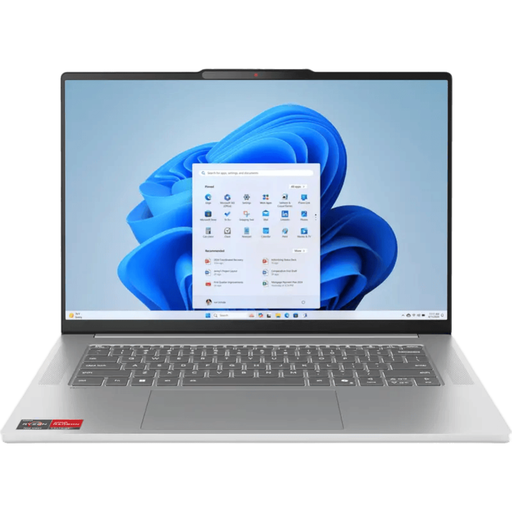 Image unavailable
Lenovo IdeaPad Slim 5 NB IPS5 15ARP10 R7 16G 512G 11H
A laptop for working with documents, with a QWERTY keyboard and a larger screen. Check that this configuration is compatible with your software.
15.3-inch IPS screen with a 16:10 aspect ratio; 16 GB memory; 512 GB storage; weighs approximately 1.49 kg; backlit QWERTY keyboard.
Charger not included and must be purchased separately.
Joybuy
Frequently asked questions
Can I dictate notes in Dutch on Windows while out and about, without an internet connection?
According to Microsoft Support, Windows voice typing requires an internet connection. Microsoft says that Voice Access can work offline after the initial setup, but Dutch isn’t included in the list of supported languages. So don’t assume you’ll be able to dictate in Dutch offline.
How do I transcribe an existing recording in Word?
First check that your account and licence give you access to the feature. Microsoft Support describes how to record or upload audio and then edit the transcript. In this process, the recording is saved to OneDrive, and processing time may depend on your internet speed.
What security measures should I arrange for a laptop containing client data?
Discuss with your organisation which measures are appropriate for the data and how it’s processed. The Dutch Data Protection Authority lists access controls, software updates, backups and encryption as possible measures; not every example will automatically be suitable for every situation.
Which recurring licence limits should I check?
Check the terms that apply to your account and organisation. Microsoft Support lists a limit of 300 minutes of uploaded audio per month for users with a Microsoft 365 subscription, and 30,000 minutes per month for users with a Microsoft Copilot licence.
Can I record client conversations and have them transcribed?
It depends on the specific processing involved; there’s no universal yes or no. The Dutch Data Protection Authority says that collecting and using personal data requires a lawful basis under the GDPR. Consent is one possible basis, but it won’t automatically be the right one in every case. Before recording or processing anything in the cloud, discuss the situation and your organisation’s arrangements.


