For a festival poster using large source files, start by choosing a laptop that suits your design software and offers enough memory and free SSD storage. Adobe recommends 16 GB or more for Photoshop, but this is no guarantee of performance for every project. Next, choose between a larger built-in screen and a more compact model, depending on where you work. And check colour management and bleed requirements with your printer.
Who is this guide for?
Designer working with large image files
If you edit large photos, layers and revisions for a poster, you’ll want to avoid memory or temporary storage slowing down your work. Adobe explains that Photoshop can use storage as a scratch disk when the allocated memory fills up.
Creator of a printed poster
If you review your design on screen before preparing it for print, you’ll need to check colour management and bleed requirements with your printer as well as considering the screen. Adobe describes colour management and bleed as part of print preparation.
Student who designs on the go
If you take your laptop to lectures or meetings, you’ll need to balance a compact size against having enough screen space for your design and tool panels. Lenovo highlights the screen, memory, storage, performance and portability as key considerations for design students.
What should you look for?
Start with the requirements of your design software and source files. Then choose a screen size and level of portability to suit your workspace, and factor in your printer’s file submission requirements.
| Consideration |
What should you look for? |
Who is this important to? |
| Working with large source files |
Check your apps’ requirements, the RAM configuration, SSD capacity and how much free space will remain for projects and temporary files. |
If I edit large images and work with lots of layers, I want enough memory and scratch-disk space to keep my workflow running smoothly. Around 33% of consumers prioritise working with large source files. |
| Colour and print submission |
Check the exact screen specification and ask your printer about the required colour profile, file type and bleed area. |
If I’m preparing a poster for print, I want to know how to supply the file to meet my printer’s requirements. Around 27% of consumers prioritise print preparation. |
| Portability and screen space |
Compare the actual screen size, weight and ports; also check the conditions under which the battery life is quoted. |
If I travel between lectures and my workspace, I need to balance portability against having enough room for my design on the built-in screen. Around 20% of consumers give portability their highest priority. |
| Configuration and total cost |
Compare full model numbers, RAM and SSD specifications, the included power supply and any connection accessories you’ll need. |
If I want to keep the total cost under control, I look for a configuration that suits my software and files without unnecessary extras. Around 20% of consumers prioritise getting the right configuration and cost. |
Avoiding common buying mistakes
-
Assuming a large SSD guarantees plenty of working space
Photoshop can use storage as a scratch disk when the allocated memory fills up, as Adobe explains. Project files and temporary files also take up space.
Check how much storage will be left after installation and saving your source files.
-
Assuming every laptop with the same name has the same configuration
Manufacturers offer different screen, memory and storage options within product ranges. The range name alone doesn’t tell you which configuration you’re buying.
Compare the full model number and the selected screen, RAM and SSD specifications.
-
Assuming an attractive screen means your poster is ready for print
The screen alone doesn’t determine how your poster will print. Adobe treats colour management and bleed as separate parts of the preparation process.
Ask your printer about their submission requirements in advance and check them before exporting the final file.
-
Assuming a paid add-on is your only protection if something goes wrong
According to ACM ConsuWijzer, your statutory guarantee exists alongside any commercial or manufacturer’s guarantee.
Check what an optional warranty or accidental damage plan covers, and bear in mind the difference between this cover and your statutory rights.
Brands to compare
Apple
According to Apple, the MacBook Air with M5 is available in 13-inch and 15-inch versions for macOS users looking for a compact or more spacious screen.
- Apple lists configurations in this range starting at 16 GB of memory and a 512 GB SSD, and specifies a P3 display.
- Check the exact specification and ports; the specifications alone don’t show how large poster files will perform in your workflow.
Dell
The XPS 16 is a Windows option for anyone looking for a larger built-in workspace.
- Dell shows a selected configuration for model DA16260 with 16 GB of memory and a 512 GB SSD.
- Dell notes that other options you select may change the specifications, so check the complete configuration.
HP
The OmniBook 5 range offers Windows laptops in different sizes and with screen options to compare across configurations.
- HP lists optional screens of up to 3K OLED for this range.
- Not every configuration comes with this screen, and the listing alone doesn’t tell you whether a screen is accurately calibrated for your print work.
Lenovo
Lenovo recommends its IdeaPad Slim and ThinkBook ranges as Windows options for design students.
- Lenovo’s guide highlights the need to balance screen size, RAM, storage, performance and portability.
- This is brand advice, not an independent comparison of how every configuration performs with large files.
ASUS
The Vivobook S16 is a larger Windows model; the specified S3607QA-SH109W version uses a Snapdragon X processor.
- For this version, ASUS lists 16 GB RAM, a 512 GB SSD and a 16-inch screen.
- Check that your design apps, plug-ins and peripherals work with your chosen processor and configuration.
Laptops at Joybuy
This selection includes Windows and macOS laptops for poster work, from portable models to configurations with a larger built-in screen.
 No image available
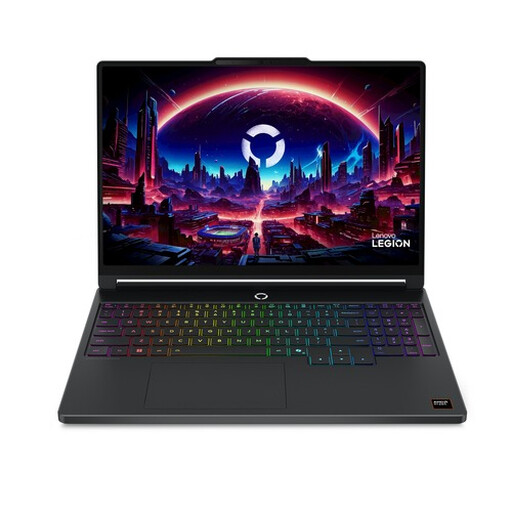
Lenovo Legion 5 15AHP11, 16 GB RAM, 512 GB SSD
A Windows laptop with a 15.3-inch screen for anyone who wants to work on posters using a larger built-in display.
15.3-inch WQXGA OLED, 16 GB DDR5, 512 GB SSD, AMD Ryzen 7 250 and GeForce RTX 5060. It has a Belgian AZERTY keyboard layout, so check it suits you.
View at Joybuy
 No image available
ASUS ProArt P14 H7407BA-SM078X, 128 GB RAM, 1 TB SSD
A 14-inch Windows laptop for anyone looking for a smaller screen to work on while out and about.
128 GB RAM, 1 TB SSD and Windows 11 Pro. It has a QWERTY keyboard layout and the charger is not included.
View at Joybuy
No image available
ASUS ProArt P16 H7607BA-SE181X, 128 GB RAM, 1 TB SSD
A 16-inch Windows laptop for anyone who wants more space on the built-in screen while designing.
4K OLED touchscreen, 128 GB RAM, 1 TB SSD and Windows 11 Pro. It has a QWERTY keyboard layout.
View at Joybuy
 No image available
Apple MacBook Air 15-inch M5, 16 GB, 512 GB SSD
A 15-inch MacBook Air for anyone using macOS who wants to take a larger screen between different workspaces.
16 GB memory, 512 GB SSD and a QWERTY keyboard. The power adapter is not included.
View at Joybuy
 No image available
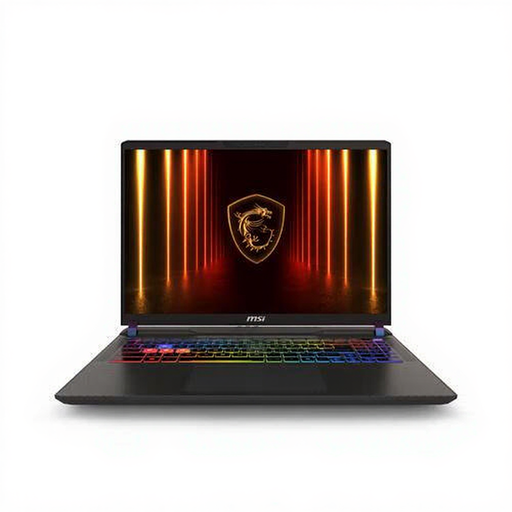
MSI Vector A16 HX A8WIG-025NL, 16 GB RAM, 1 TB SSD
A 16-inch Windows laptop for anyone who wants to work on a larger built-in screen.
Quad HD+ screen, 16 GB DDR5, 1 TB SSD, AMD Ryzen 9 8940HX and NVIDIA GeForce RTX 5080. It has a QWERTY keyboard layout; the charger must be purchased separately.
View at Joybuy
Frequently asked questions
Is 16 GB RAM enough for a large festival poster?
There’s no guarantee it will be enough for every project. Adobe recommends 16 GB or more for Photoshop on Windows computers with Intel or AMD processors. File size, layers, other open apps and available scratch-disk space also play a part.
Should I mainly look for an OLED screen for a printed poster?
No. A screen type doesn’t replace print preparation. Check the exact screen specification and agree colour management and bleed requirements with your printer; Adobe treats these as separate parts of the printing process.
What can I do if Photoshop says the scratch disk is full?
Free up space on the drive being used and check your scratch disk settings. Adobe explains that Photoshop uses storage as temporary space when the allocated memory fills up.
What are my rights when I buy a laptop online in the Netherlands?
For a standard online consumer purchase, you’ll generally have a 14-day cooling-off period after delivery, although exceptions may apply. The retailer is also responsible under the statutory guarantee if the product doesn’t meet what you could reasonably expect under normal use. ACM ConsuWijzer explains these rights; a manufacturer’s guarantee doesn’t automatically determine how long your statutory rights last.


