If you mainly work at home, choose a laptop that lets you view a scanned letter and its index fields side by side once you’ve adjusted the magnification. If you often take your laptop with you, weigh that workspace against its size. Before buying, check that your scanner and indexing software work with the laptop’s operating system and connections. Magnifying a scan doesn’t automatically make it searchable: you’ll need text recognition or a manual index, as the KB explains.
Who is this laptop guide for?
Readers who need high magnification
You want to view letters and index fields at the same time, adjusting the display to make them comfortable to read. Microsoft Support, Apple Support and Google Chromebook Help explain the magnification features available in their operating systems.
Indexers with an existing scanner
You want to digitise paper letters without giving up a working scanner or trusted software. The KB explains how text recognition can make words in scans searchable; when choosing a laptop, also check that your own scanner is supported.
Family archive organisers
You want to find scans, names and dates, and store files separately. The National Archives explains how keywords can make items easier to find; the Library of Congress recommends organising digital files and storing them on a separate drive.
What should you look for?
Start with the magnification and screen layout you need, then check that your scanner and indexing software work with the operating system you choose. Also think ahead about how you’ll organise your scans and keep separate copies.
| What to consider |
What to look for when buying |
Who is this most relevant to? |
| Readability at higher magnification |
Try the magnification you need on a scanned letter and index form; compare screen size and resolution. |
I want to read a letter and its index fields at the same time. Around 36% of consumers put readability at higher magnification first. |
| Scanner and indexing software |
Check support for your exact scanner model and software, as well as the ports you need and any adapters. |
I need to keep using my current scanner and software, even if another screen seems more appealing. Around 29% of consumers prioritise compatibility with their existing scanning set-up. |
| Finding and storing files |
Check that the storage capacity suits your collection and that you can connect external storage for a backup. |
I want to find scans by name and date, and keep my files separately. Around 21% of consumers start with archive management and searchability. |
| Portability and workspace |
Compare the weight and screen space, especially if you work without an external monitor. |
I often take my laptop with me and want to know how much screen space I’ll lose when I’m out and about. Around 14% of consumers put portability first. |
Common mistakes when choosing a laptop and indexing files
-
Assuming a large screen guarantees readability
How much of the letter and index you can see at once also depends on the magnification you need.
Before choosing, try a real scanned letter and its index fields at the magnification you want.
-
Assuming every scanner works with every operating system
Scanner support and connections vary by device and platform, so your existing scanning set-up may not be compatible.
Check the exact scanner model, connection type and software you need. Google explains that Chromebooks can scan with most scanners over Wi-Fi or a wired network, but not via Bluetooth.
-
Assuming scans or text recognition will automatically create a reliable index
A scan isn’t automatically searchable text, and recognition errors can miss names or dates.
Keep the scan, check recognised details against the original, add keywords and make a separate backup. Checking and organising everything takes time.
Brands to consider
HP
HP models with a 17.3-inch screen are worth considering if you want plenty of screen space at home.
- HP lists a 17.3-inch FHD touchscreen, 16 GB RAM and 512 GB SSD for the OmniBook X 17-de0605ndx.
- The listing says a recommended USB-C adapter is sold separately; check what’s included with each model.
Lenovo
The ThinkBook 16 Gen 8 range includes 16-inch models, giving you options to compare screen space and connections.
- Lenovo lists a matt 16-inch IPS screen with a resolution of 1920 × 1200 pixels for one configuration.
- Memory, storage, keyboard and power supply vary by configuration; check the model you’re considering.
Apple
The 15-inch MacBook Air M5 is a macOS option if your scanning and indexing set-up works with it.
- Apple specifies a 15.3-inch screen for the 15-inch M5; macOS offers several ways to magnify the display.
- The configurations reviewed list, among other things, 16 GB unified memory and 512 GB SSD. The laptop has two Thunderbolt 4 ports with USB-C; check whether your peripherals need an adapter.
Joybuy laptops for scans and index fields
This selection focuses on laptops with large screens for working with scans and index fields. Check that each model’s magnification settings, software and scanner connection suit the way you work.
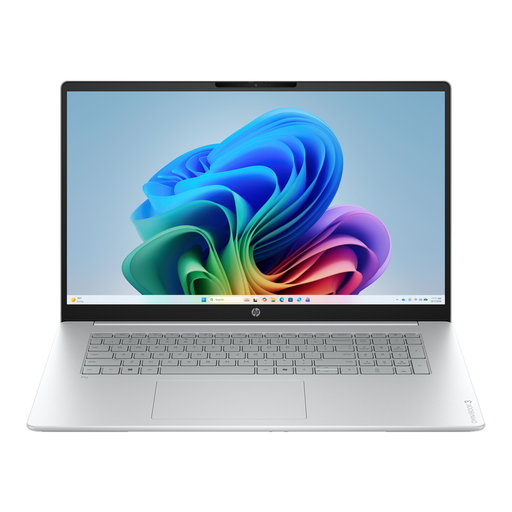 No image available
HP OmniBook 3 AI PC 17-dg0005ndx
The 17.3-inch screen could suit work where you want to view scans and index fields side by side.
17.3 inch, Full HD IPS, Windows 11 Home, Intel Core 3 310, 12 GB RAM and 512 GB SSD.
The mains adapter is not included and must be purchased separately.
View at Joybuy
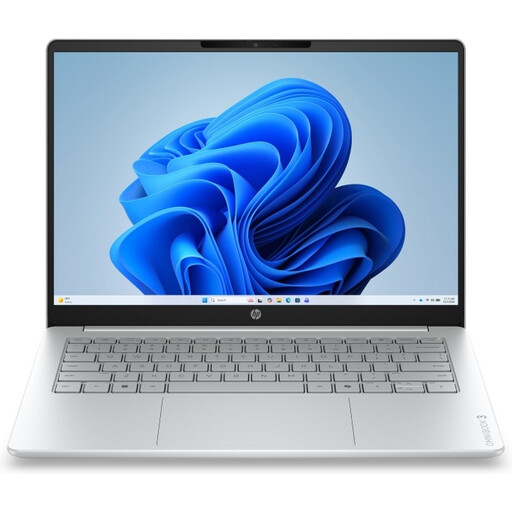 No image available
HP OmniBook 3 17-dp0050ndx
The 17.3-inch screen could suit work where you want to view scans and index fields side by side.
17.3 inch, Full HD IPS, Windows 11 Home, AMD Ryzen 5, 8 GB RAM and 512 GB SSD.
The mains adapter is not included and must be purchased separately.
View at Joybuy
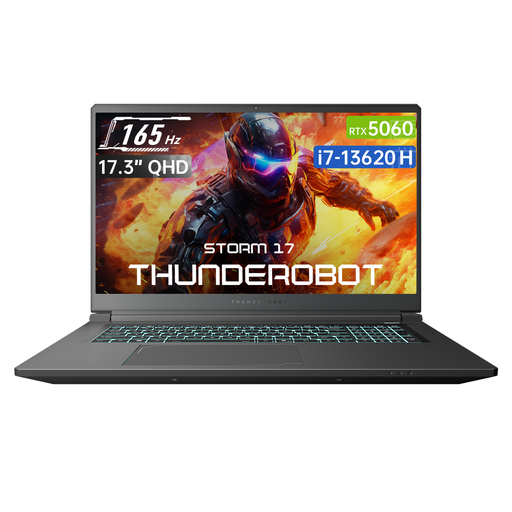 No image available
Thunderobot Storm 17 5060
The 17.3-inch screen could suit work where you want to view scans and index fields side by side.
17.3 inch QHD, 165 Hz, Intel Core i7-13620H, 16 GB DDR5 and 1 TB SSD.
View at Joybuy
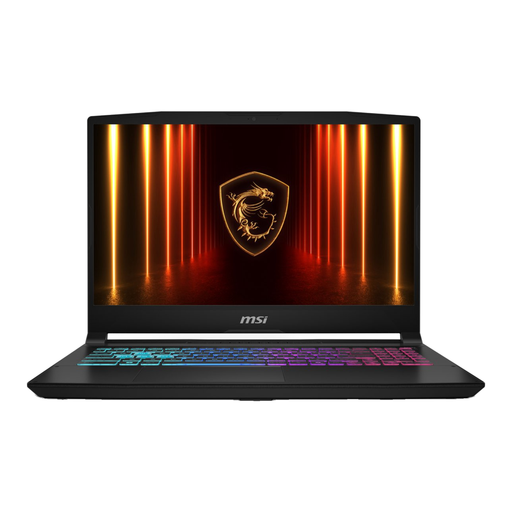 No image available
MSI 17 HX B14WGK-264NL
Compare this model’s screen size and connections with the requirements of your scanner and indexing software.
16 GB RAM, 1 TB SSD and QWERTY keyboard.
The mains adapter is not included and must be purchased separately.
View at Joybuy
 No image available
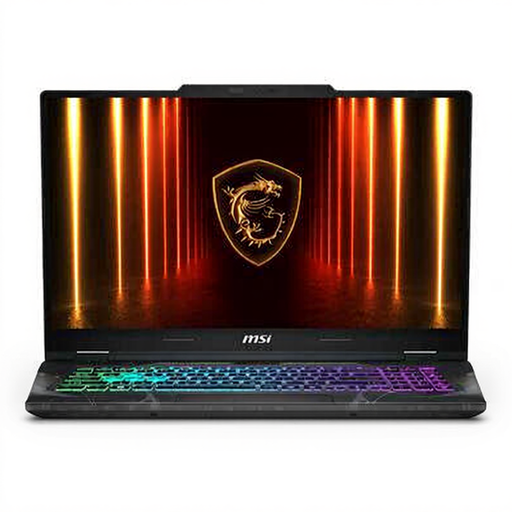
MSI Cyborg 17 B2RWEKG-023NL
The 17.3-inch screen could suit work where you want to view scans and index fields side by side.
17.3 inch, Full HD, 16 GB DDR5, 512 GB SSD, Windows and QWERTY keyboard.
View at Joybuy
Frequently asked questions
Does magnifying a scanned letter also make it searchable?
No. Magnification only changes how the scan is displayed. To search the words in a scan, you’ll need text recognition or a manually created index. Check recognised text, especially when working with difficult-to-read historical material.
Can you use your scanner with a Chromebook?
According to Google Chromebook Help, many scanners can connect over Wi-Fi or a wired network, but scanning via Bluetooth is not supported. Check that your scanner model and network connection are supported.
How can you avoid losing your indexing work?
Organise scans using clear file names and keep a backup on a separate drive. This is archiving advice, not a laptop specification.
What rights do you have when buying online in the Netherlands?
For distance sales, business sellers must provide information about the product and the cooling-off period, according to the Dutch government. In many cases, the cooling-off period is 14 days; check the terms of the specific purchase.
Is a personal index of family letters covered by the GDPR?
That depends on how it is actually used. A personal index and publishing or sharing information outside your private sphere are not automatically the same thing; the Dutch Data Protection Authority explains that the applicable legal basis must be assessed for each processing activity.


