
Indexer working with lots of duplicates
You enter details from letters and want to compare suspected duplicates side by side without deleting records straight away. Microsoft Support explains how filtering and deleting differ.


Start by choosing a laptop that works with your indexing software and scanner. For this task, a clear screen and comfortable keyboard are generally more important than extra graphics power. If you handle lots of scans or keep several windows open, compare screen space, memory, storage and connectivity. Microsoft Support distinguishes between temporarily filtering duplicates and deleting them permanently, so check suspected duplicates in a copy of your index first.
You enter details from letters and want to compare suspected duplicates side by side without deleting records straight away. Microsoft Support explains how filtering and deleting differ.
You link index entries to scans and consider connectivity, file storage and recoverable copies. The National Archives describes quality control as part of the digitisation process.
You’re working with a manageable collection and mainly want a laptop that suits your existing software and workspace. The Consumers’ Association recommends 8 GB of memory and 256 GB of storage as benchmarks for basic everyday use.
Start with your indexing software and scanner, then compare screen space, storage and size with the way you actually work with your letters.
| What to consider | What should you check? | Who should pay particular attention? |
|---|---|---|
| Checking duplicates carefully | Check whether your software can filter by the columns you choose and lets you review changes before applying them. | If you enter details from letters and don’t want similar-looking records to disappear straight away, careful checking should be your priority. Around 36% of consumers say their main concern is checking duplicates safely. |
| Storing and finding scans | Compare the storage you need with the size of your collection, check your scanner’s connection and arrange a separate back-up. | If your scans and index files together make up your family archive, you’ll want to be able to store and restore them. Around 29% of consumers focus mainly on managing scans and keeping recoverable copies. |
| Entering details clearly | Look for enough screen space to view a scan and your index side by side, and check that the keyboard layout suits you. | If you enter lots of names, dates and references, a comfortable combination of screen and keyboard can make a difference. Around 21% of consumers prioritise comfortable data entry. |
| A suitable basic configuration | Match memory, storage and size to your software, collection and workspace. | For a simple index and a compact workspace, there’s no need to choose specifications without a clear reason. Around 14% of consumers are mainly looking for a suitable basic configuration. |
Which rows count as duplicates depends on the comparison columns you select. A match in a few fields doesn’t prove that two references relate to the same letter.
Keep a copy of your index and check suspected duplicates against the relevant scans before removing them.
Files stored on the laptop itself don’t automatically give you a separate copy you can restore from.
Include a separate, recoverable back-up in your process and check regularly that you can restore files. Microsoft Support explains how to use File History in Windows.
You may need a separate storage device or another back-up solution.
Having the right connection isn’t enough: your scanner and the required software must also work with the operating system you choose.
Make a note of your scanner’s exact model and check its connection and support before choosing a laptop.
The IdeaPad Slim 3 14AHP10 is a Windows range worth comparing if scanner connections and data entry are important to you.
According to HP, the HP OmniBook 3 range includes compact 14-inch and larger 16-inch models for everyday use.
The MacBook Air M5 is a macOS option, available in 13-inch and 15-inch sizes, for anyone whose existing indexing and scanning process works on macOS.
This selection includes Windows laptops and a MacBook for indexing family letters. Before choosing, check that your indexing software and scanner work with the model you’re considering.
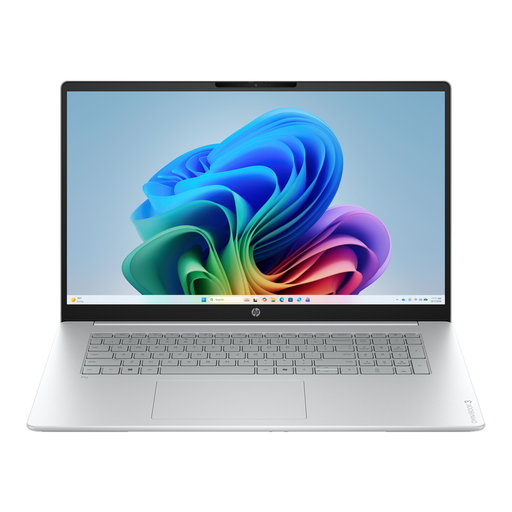 Image unavailable
The 17.3-inch screen may suit you if you want to view a scan and your index side by side.
Intel Core 3 310, 12 GB memory, 512 GB SSD, Full HD IPS screen and Windows 11 Home.
The mains adapter isn’t included and must be purchased separately.
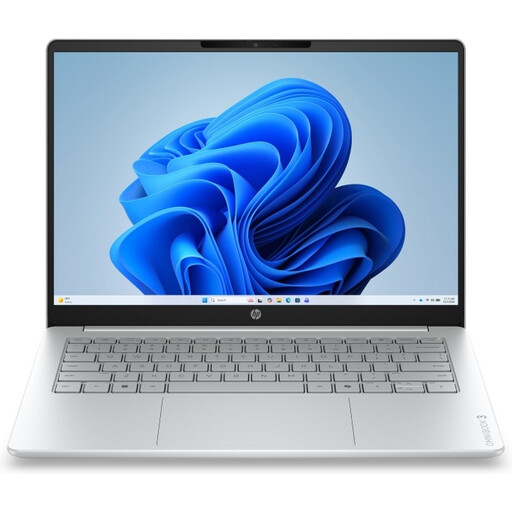 Image unavailable
The 17.3-inch screen may suit you if you want a spacious workspace for viewing documents and scans.
AMD Ryzen 5, 8 GB memory, 512 GB SSD, Full HD IPS screen and Windows 11 Home.
The mains adapter isn’t included and must be purchased separately.
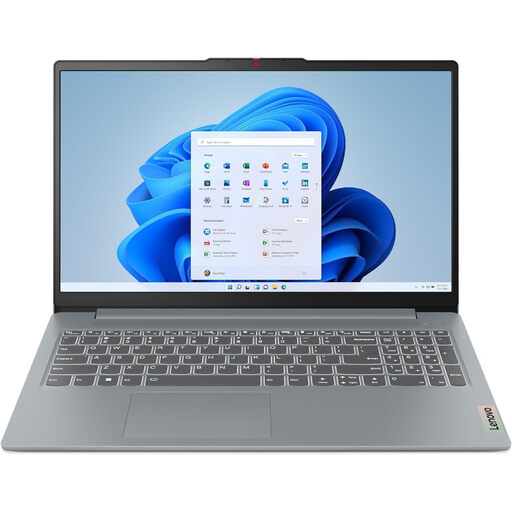 Image unavailable
The 15.3-inch 16:10 screen may suit you if you’d like more vertical space for document work.
Ryzen 7 8840HS, 16 GB DDR5 memory, 512 GB PCIe 4.0 SSD, WUXGA screen and Windows 11 Home.
 Image unavailable
The 16-inch WUXGA screen may suit you if you want to view scan details and your index side by side.
Intel Core Ultra 5 135H, 16 GB DDR5 memory, 512 GB SSD, anti-glare IPS screen and Windows 11 Pro.
 Image unavailable
This model may suit you if your existing indexing and scanning process works on macOS and you’d like a larger screen.
M5 chip, 16 GB memory, 512 GB SSD and a 15.3-inch screen.
If your scanner uses USB-A, you may need an adapter. The USB-C power adapter isn’t included.
No. Check suspected duplicates first, and only delete them once you’re sure the entries refer to the same letter. Microsoft Support distinguishes between temporarily filtering and permanently deleting; in Power Query, the comparison depends on the columns you select.
Check both the connection and software support for your exact scanner model. Lenovo lists USB-A and USB-C among the connections on the IdeaPad Slim 3 14AHP10; Apple lists Thunderbolt 4 via USB-C for the MacBook Air M5 reviewed. Google explains how to scan on a Chromebook using the Scan app, provided you have a compatible scanner.
No. Make a separate, recoverable copy of your files as well. Microsoft Support explains how to use File History to protect and restore personal files in Windows; choose a back-up method that suits your operating system.
No. ACM ConsuWijzer distinguishes between statutory warranty and a warranty offered by the seller or manufacturer under its own terms. If a product breaks sooner than you could reasonably expect during normal use, ACM says the seller must provide an appropriate solution free of charge.
According to the Dutch Data Protection Authority, processing carried out purely for personal or household purposes is not covered by the GDPR; a file containing the addresses of family and friends is one example. Don’t assume this also applies to publishing the information or using it on behalf of an organisation: assess those uses separately.