First decide how you want to draw your façades. If you want to sketch directly on the screen, choose a convertible with confirmed support for the pen you want to use. For vector work with a mouse, trackpad or separate graphics tablet, a conventional laptop may be enough. Then check the screen, how it connects to the presentation display, and which pen, adapter and charger come with the exact configuration. Extra graphics power is mainly relevant if you also do more demanding 3D work.
Who is this laptop guide for?
Illustrator who sketches on screen
You want to draw façade shapes on your laptop with a pen and perhaps make changes with the client. Check that the pen is compatible with the exact convertible configuration. Lenovo lists a canvas mode and Yoga Pen Gen 2 among the features of the Yoga 9i 2-in-1 Gen 11.
Vector illustrator who gives presentations
You mainly work with lines and details, and want to review your work and show it on an external screen. In that case, the display and the connections you need are important considerations. Apple lists a P3 display and two Thunderbolt 4 ports for the 15-inch MacBook Air with M5.
Mobile creative working beyond 2D
You take your laptop to meetings and may combine illustration with more demanding creative work. Compare its size, power supply and full configuration against those extra requirements. For example, ASUS lists an RTX 4060 Laptop GPU for the ProArt PX13 HN7306WV-LX006X configuration.
What should you look for when choosing?
First decide whether you’ll draw directly on the laptop screen or use a separate input device. Then check the display and the connection you’ll need for presentations, and weigh these against what you want to carry when you’re out and about.
| What to consider |
What to look for when buying |
Who it matters most to |
| Assessing detail and colour |
Compare screen size, resolution, colour gamut and calibration information separately. If the screen is glossy, also consider reflections. |
If I want to assess fine façade details and blocks of colour alongside my tools, display quality is my main concern. Around 29% of consumers give assessing the display their highest priority. |
| Connecting to the presentation display |
Find out which input the display or projector has, then check the video output, cable and any adapter needed for the exact model. |
When I want to show a design to a client, I want to know in advance whether I can connect my laptop to the display available. Around 29% of consumers prioritise this presentation connection. |
| Drawing on screen with a pen |
Check that the exact model supports the active pen you want to use, and whether the pen is included with your chosen configuration. A touchscreen alone doesn’t confirm this. |
If I want to sketch façade outlines directly on the laptop screen, I look for a suitable combination of screen, pen and working mode. Around 21% of consumers give drawing directly with a pen their highest priority. |
| Carrying your laptop and accessories |
Compare size and weight, and check which power supply, charger and any adapter you need and whether they’re included with the configuration. |
If I travel between my workplace and client meetings, I want to know how easy it is to carry my laptop and the equipment I need. Mobility is the top priority for around 21% of consumers. |
Common buying mistakes
-
Assuming a touchscreen is a complete drawing system
A touchscreen doesn’t prove that the device works with the active pen you want to use. Check the pen type and support for the full model number.
Also check whether the pen is included with the configuration. Otherwise, you may need to buy a compatible pen separately.
-
Assuming a wide colour gamut means accurate colours
RTINGS.com notes in its graphic design guide that wide colour coverage alone doesn’t guarantee accurate colour reproduction; calibration also matters.
Check the calibration information and, where possible, also assess the screen your client will use to view the design.
-
Treating a model range as one fixed configuration
Specifications can vary between configurations in the same range. For example, ASUS lists different PX13 configurations, while HP says a recommended USB-C adapter for the OmniBook Ultra 14-kd0672nd is sold separately.
Compare full model numbers, connections and included items rather than relying on the range name or a maximum specification.
Brands worth considering
Lenovo
The Yoga 9i 2-in-1 Gen 11 is a convertible worth considering if you want to sketch directly on the screen.
- Lenovo lists a canvas mode and Yoga Pen Gen 2 for the configuration described.
- The Dutch configuration shown has a glossy screen and an English (EU) keyboard; check the configuration you choose.
Apple
The MacBook Air could suit vector work, editing and presentations if drawing directly on its built-in screen with a pen isn’t essential.
- Apple lists a 15.3-inch P3 display and two Thunderbolt 4 ports for the 15-inch MacBook Air with M5.
- Check how the exact laptop connects to the presentation display; support for drawing directly on screen with an active pen hasn’t been confirmed here.
ASUS
The ProArt PX13 is worth a look if you want a convertible that can also handle more demanding creative work.
- ASUS describes pen support for the PX13 and lists an RTX 4060 Laptop GPU for the Dutch HN7306WV-LX006X configuration.
- Specifications vary by configuration, and a dedicated GPU isn’t automatically necessary for 2D façade illustration.
HP
The OmniBook Ultra 14-kd0672nd is a compact Windows option for editing and presentations.
- HP lists a 14-inch 3K OLED touchscreen, 16 GB RAM and a 512 GB SSD for this Dutch configuration.
- Active pen support hasn’t been confirmed for this configuration. HP lists a recommended USB-C adapter, sold separately.
Dell
The Pro Precision and Pro Max ranges are worth comparing if you use more demanding professional applications as well as illustration software.
- Dell positions these ranges for advanced creative applications.
- That positioning isn’t an independent performance assessment, nor does it determine which configuration or screen quality is right for your work.
Joybuy laptops for illustration and presentations
Below are Joybuy laptops with features that may suit illustration and presentations. For each configuration, pay particular attention to the screen, pen support, connections and included accessories.
 No image available
HP OmniBook X Flip NG AI PC 16-as0050nd D75LQEA#ABH
Tablet and tent modes may be useful if you want to use your laptop in different setups for illustration and presentations.
This model has a 16-inch IPS touchscreen with a resolution of 1920 × 1200 pixels and a 360-degree hinge. Thunderbolt 4 supports DisplayPort, but this doesn’t confirm support for an active drawing pen.
Joybuy
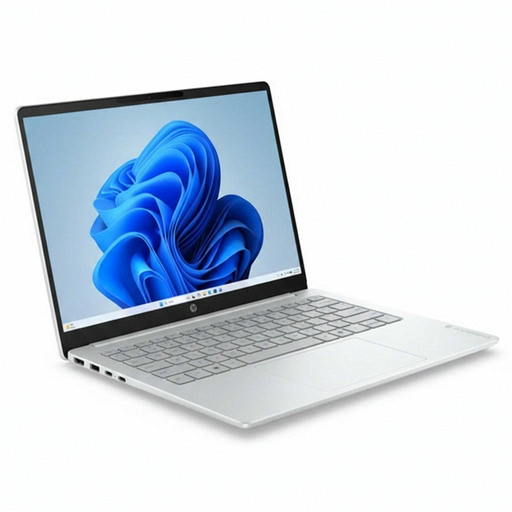 No image available
HP OmniBook 3 AI PC 14-ht0013nd
This 14-inch model could be a good fit if you’re looking for a compact laptop to edit illustrations and present them on an external screen via HDMI.
The IPS screen has a resolution of 1920 × 1200 pixels. This configuration lists an Intel Core 3 304 processor, 8 GB RAM, a 512 GB SSD and Windows 11 Home; HDMI output is also listed.
Joybuy
 No image available
HP OmniBook 3 14-hy0058ndx
The listed HDMI and USB-C connections are useful to know about if you want to connect your laptop to an external screen for a presentation.
This model has a 14-inch IPS screen with a resolution of 1920 × 1200 pixels, an AMD Ryzen 5 7520U processor, 8 GB RAM and a 512 GB SSD. The product description says the charger must be bought separately.
Joybuy
 No image available
Auusda T156A
The 15.6-inch screen could be appealing if you’d like more screen space for illustration and want to present via HDMI.
The product name lists 16 GB DDR4 RAM and a 512 GB SSD. The description mentions a 15.6-inch FHD IPS screen and HDMI.
Joybuy
 No image available
ASUS ProArt P16 H7607BA-SE030X
This model may suit screen-based illustration work: the description lists a touchscreen and stylus support. Check which stylus is compatible with the exact configuration.
The description lists a 16-inch 4K OLED screen, 100% DCI-P3 and factory calibration. The product name lists 64 GB RAM, a 1 TB SSD and Windows 11 Pro.
Joybuy
Frequently asked questions
Do I need a laptop with a touchscreen to illustrate façades?
No, not if you use a mouse, trackpad or separate graphics tablet. If you want to draw directly on the built-in screen, check that it supports an active pen and whether the pen is included with your chosen configuration. A touchscreen alone doesn’t confirm this.
What should I prepare before showing a design to a client?
Find out in advance which connection the display or projector has, and check your laptop’s video output. Test the cable or adapter you need with your presentation materials. Adobe Illustrator can save or export files as PDFs if that suits your workflow.
Which accessories should I check before buying?
Check the full model number to see whether a compatible pen, charger and any display adapter are included with the configuration. This will help you work out what else you’ll need for drawing and presentations.
Do I always have a 14-day cooling-off period when buying online in the Netherlands?
No. According to the Dutch government’s guidance, consumers have a statutory 14-day cooling-off period for certain purchases, including online purchases. This doesn’t automatically apply when you buy as a business. If you’re placing a business order, check the terms that apply to that purchase.
Who should I contact if the laptop has a fault?
According to the Dutch government, the seller must provide a solution if there’s a problem with a product. Any manufacturer’s warranty is separate from the statutory rights that apply to a consumer purchase.


