What should you consider when choosing?
Compact laptop with an external monitor
A good fit if: you also use your laptop on the go and want more room for your calendar at your desk. Apple says the MacBook Air M5 supports external displays via Thunderbolt 4.
Trade-off: a separate screen and input devices take up extra space and may require a suitable connection or dock.
Laptop with a larger built-in screen
A good fit if: you want to work on your calendar without an external monitor. For example, compare a 15-inch MacBook Air with the space available on your desk and what you want to carry when travelling.
Trade-off: a larger screen takes up more room; you’ll still need to consider screen height, input position and varying your posture.
Windows laptop with a design-focused screen
A good fit if: you use Windows software or want to see lots of detail on your laptop screen. The Lenovo Yoga Slim 7 Gen 10 configuration reviewed has a 14-inch OLED screen with a resolution of 2880 × 1800 pixels.
Trade-off: Lenovo describes this screen as glossy and the keyboard layout as English (EU); check that this configuration suits your workspace and typing preferences.
The priorities for a laptop for this task vary from person to person. Weigh up the points below based on your own software, desk and working style.
| What to consider |
What should you look for? |
Who is this important for? |
| Screen space and readability |
Compare the screen size and resolution of the exact model. Also consider how reflections affect the screen in your workspace lighting, and whether you can connect an external display. |
If you want to assess calendar elements side by side, the space on the built-in screen matters a lot. That’s why around 31% of consumers put screen layout first when making this choice. |
| Sit-stand desk setup |
Work out how you’ll position the screen, separate keyboard, mouse and any monitor. Check that the ports are suitable for your setup. |
If you want to position the screen and input devices separately as you change posture, your workspace setup is an important part of the decision. Around 31% of consumers prioritise this. |
| Compatibility with design software |
Make a note of your programmes and file requirements, then check their current compatibility with the operating system and configuration you’re considering. |
If you use specific design software or existing files, first check that they’ll work on the laptop you have in mind. Around 25% of consumers prioritise software compatibility. |
| Portability and reconnecting |
Compare laptop sizes and check which ports, cables or adapters your monitor and peripherals require. |
If you travel between locations and want to reconnect at your desk afterwards, size and connectivity matter. Around 13% of consumers prioritise portability and reconnecting. |
Laptop picks at Joybuy
These picks focus on laptops with a generous built-in screen for viewing calendar details. For each model, also check software compatibility and the connections you’ll need for your desk.
 No image available
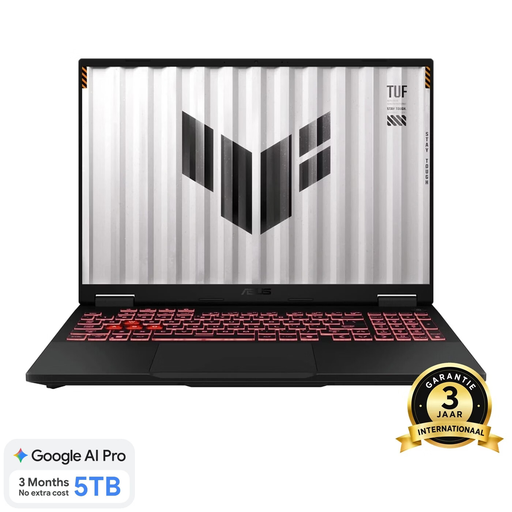
ASUS TUF Gaming A18 FA808UP-S8011W, 18-inch
The 18-inch WUXGA model may suit you if you want to view lots of calendar details on the built-in screen; check that its ports match your monitor.
Ryzen 7 260, RTX 5070, 16 GB of memory, 1 TB SSD, Jaeger Gray and QWERTY keyboard. According to the product information, the charger is sold separately.
View at Joybuy
 No image available
ASUS Vivobook S16 S3607QA-SH109W, 16-inch
A 16-inch WUXGA OLED screen with a 16:10 aspect ratio gives you built-in screen space for viewing calendar elements.
Snapdragon X processor, 16 GB LPDDR5X, 512 GB SSD, Windows 11 Home and Cool Silver.
View at Joybuy
 No image available
MSI Prestige 16 AI+ C3MG-236NL Copilot+ PC
The 16-inch 2.8K OLED model is worth comparing if you want to see lots of detail on the built-in screen.
Intel Core Ultra X7 358H, 32 GB LPDDR5x, 1 TB SSD, 120 Hz, Windows 11 Home and Platinum Grey.
View at Joybuy
 No image available
HP OmniBook Ultra Next Gen AI 16-bk0004nd
The product title lists a 16-inch 3K OLED touchscreen, which may suit you if you’re looking for a larger built-in screen. Check that the model works with your software and working style.
128 GB RAM, 2 TB SSD, 120 Hz, Eclipse Gray and Windows 11 Pro. The title also lists a QWERTY keyboard.
View at Joybuy
 No image available
MSI Venture 16 AI A2HMG-068NL
The 16-inch model may suit you if you want to view your calendar on a larger built-in screen. For a desk setup, check that your monitor connects to the configuration you choose.
Intel Core Ultra 7 255H, 32 GB DDR5, 512 GB SSD, 1920 × 1200 screen with 144 Hz, Windows 11 Pro and Solid Gray. According to the product information, this model is supplied without a power adapter.
View at Joybuy
Frequently asked questions
Is the laptop screen and keyboard alone enough for a sit-stand desk?
It depends on how you use it and your employment status. For an employee who spends more than two hours a day doing screen-based work, Arboportaal outlines workplace requirements stating that the screen and keyboard must not be attached to each other; when working on a laptop, it must be possible to use a separate screen or keyboard. Arboportaal also recommends changing posture regularly. This isn’t a general legal requirement for every private laptop buyer.
Can you use a glossy OLED screen by a window?
Check how reflections look in your own workspace before you choose. The Lenovo Yoga Slim 7 Gen 10 model reviewed is described as glossy. A quoted peak HDR brightness doesn’t guarantee that reflections won’t affect you during everyday use.
Do you need a dedicated graphics card to design an event calendar?
You can’t tell from the task description alone. First check the current requirements of your design software and the files you use; these determine which configuration is right for your work.
How can you vary your posture during long design sessions?
Adjust your workspace to suit you and regularly change your posture and activities. For screen-based work, Arboportaal recommends not staying in the same position for more than an hour and suggests using a separate keyboard and mouse when working on a laptop.
Do laptops in the Netherlands automatically come with exactly two years of statutory warranty?
No. The Dutch government says there is no fixed statutory warranty period in the Netherlands; what you can expect depends, among other things, on the product and the circumstances of purchase. If a product is faulty, contact the seller. A manufacturer’s warranty is separate from your statutory rights.


