Choose a laptop with a keyboard that’s comfortable to type on, and check that your writing software and most-used keyboard shortcuts work with the operating system you’ve chosen. If you often write away from home, also consider screen reflections, portability, the conditions used to measure the stated battery life and offline access to your documents. You don’t necessarily need a more powerful processor for everyday writing.
Who is this guide for?
Writers who type for long stretches
If you write a lot and want to navigate documents without a mouse, it’s worth checking the keyboard and the shortcuts in your writing app. The Consumers’ Association highlights the importance of the keyboard, while Microsoft Support and Google Docs Help explain the shortcuts available in their respective apps and on different platforms.
Writers who work on the go
If you take your laptop with you to write on the go, or occasionally outdoors, compare screen reflections, portability and how battery life is measured. Also check whether your files will be available without an internet connection.
Editors organising chapters and materials
If you’re bringing together chapters, notes and perhaps images, consider screen space and storage. Work out how much local storage you need based on your files, rather than assuming you’ll need extra processing power.
What should you look for?
Start with the keyboard and writing app you use every day. Then compare the other features that could make a difference to where you write. Microsoft Support lists keyboard shortcuts by platform, and Google Docs Help provides platform-specific combinations.
| What to consider |
What to check |
Who should consider this? |
| Typing comfort and keyboard shortcuts |
Try out the key layout and keyboard. Test the commands you use most in your writing app and on the operating system you plan to use. |
If I write long pieces and want to use the mouse as little as possible, I want typing and navigation to feel natural. Around 33% of consumers put typing comfort and keyboard shortcuts first. |
| Writing away from home |
Compare screen reflections and portability, and assess battery figures in light of the stated test conditions. |
When I write in different places, I want to be able to see the screen clearly and avoid running out of power. Around 27% of consumers give mobile writing and screen readability top priority. |
| Files and offline working |
Check that your writing app works on the system, and set up offline access to the documents you need in advance. |
If I want to work on chapters or notes somewhere without an internet connection, my files and writing software need to be ready to use. Around 27% of consumers prioritise workflow, files and offline working. |
| Purchase and aftercare |
Check what’s included with the exact model and whether your writing software will involve any extra costs. |
When I buy a laptop, I want to know in advance what else I’ll need and who to contact if something goes wrong. Around 13% of consumers focus mainly on purchase costs and aftercare. |
What to watch out for
-
Assuming the manufacturer’s battery life means guaranteed writing time
Apple claims up to 15 hours of wireless web browsing and 18 hours of video streaming for the 13-inch MacBook Air M5. These figures relate to those activities, not to writing while you’re out and about.
Compare battery figures only when the test conditions match how you’ll use the laptop, and think about how you’ll keep it charged.
-
Only discovering the screen finish or keyboard layout after you’ve bought it
The ASUS Zenbook configuration described has a glossy screen. The Acer Chromebook model mentioned has a matt screen, but an English keyboard without backlighting. These features could affect where you write and how you type.
Check the screen finish and full keyboard layout for the exact model. If you can, try the keys and shortcuts you use regularly.
-
Assuming keyboard shortcuts work the same way on every system
Microsoft Support explains that keyboard shortcuts can be customised in Word for Windows, and makes clear that the steps and options may differ in Word for Mac and the web version. Shortcuts can also vary by app and keyboard layout.
Check your most important commands in the version of the writing app you’ll actually use.
Brands to compare
Lenovo
ThinkPad E models are a Windows option worth comparing if you’re looking for a business-style keyboard layout and an anti-glare screen.
- Lenovo Netherlands lists a 14-inch anti-glare IPS screen with a resolution of 1920 × 1200 and stated brightness of 400 nits for the ThinkPad E14 Gen 8 configuration 21Y8CTO1WWNL3.
- These configuration details don’t, on their own, tell you how comfortable the keyboard is to type on or how easy the screen will be for you to read in bright light.
Apple
The MacBook Air is an option worth comparing if you use macOS and want a compact laptop for writing.
- Apple Netherlands lists a 13.6-inch screen for the 13-inch MacBook Air M5.
- Apple claims up to 15 hours of wireless web browsing and 18 hours of video streaming. These tests don’t predict how long you’ll be able to write while out and about.
Acer
The Chromebook Plus 514 is a ChromeOS option to consider if Google Docs fits your writing workflow.
- For model CB514-4HT, manufacturer code NX.KV1EH.002, Acer lists a matt 14-inch IPS screen and a 512 GB SSD.
- According to Acer, this model has an English keyboard without backlighting. Check that the layout works for your keyboard shortcuts and typing in Dutch.
ASUS
The Zenbook 14 OLED is a compact Windows option worth comparing if you also want to view images on screen.
- For the Zenbook 14 OLED configuration reviewed, ASUS lists a glossy 14-inch OLED screen, 32 GB of memory and a 1 TB SSD.
- The glossy finish is worth considering if you write in bright surroundings. ASUS states that this configuration doesn’t include a power adapter.
Joybuy laptops for writing
These laptops are options to compare for essays, documents and writing with keyboard shortcuts. For each model, check that the operating system, keyboard layout and included accessories suit the way you work.
 Image unavailable
HP OmniBook 3 14-hy0058ndx
A Windows 11 Home model to compare if you use Word for Windows.
14-inch screen; AMD Ryzen 5 7520U; 8 GB RAM; 512 GB SSD. According to the product description, the charger must be purchased separately.
View at Joybuy
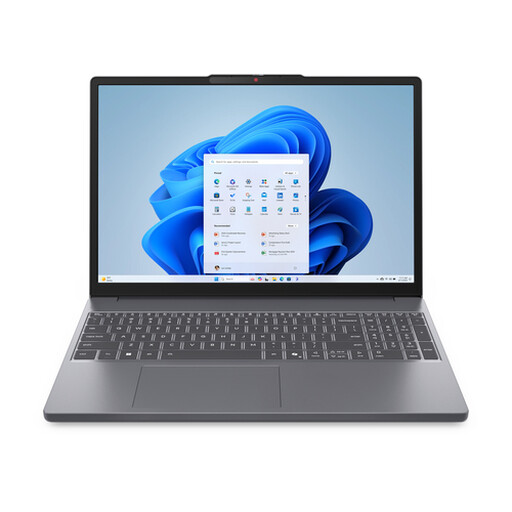 Image unavailable
Lenovo IdeaPad Slim 3 15AHP10
A model to consider if you’re looking for a larger screen and a QWERTY keyboard. Check that the layout suits your keyboard shortcuts.
15.3-inch screen; AMD Ryzen 7 8840HS; 16 GB of memory; 512 GB SSD. The product description specifies an English QWERTY keyboard and a charger sold separately.
View at Joybuy
 Image unavailable
ASUS Vivobook S16 S3607QA-SH109W
An option to compare if you’d like a larger screen for organising chapters and other materials.
16-inch WUXGA OLED screen; Snapdragon X processor; 16 GB LPDDR5X; 512 GB SSD; Windows 11 Home.
View at Joybuy
 Image unavailable
Auusda T156A
A model to compare if a backlit keyboard would be useful where you write.
16 GB DDR4 memory; 512 GB SSD; 3050E processor; fingerprint unlocking and backlit keyboard.
View at Joybuy
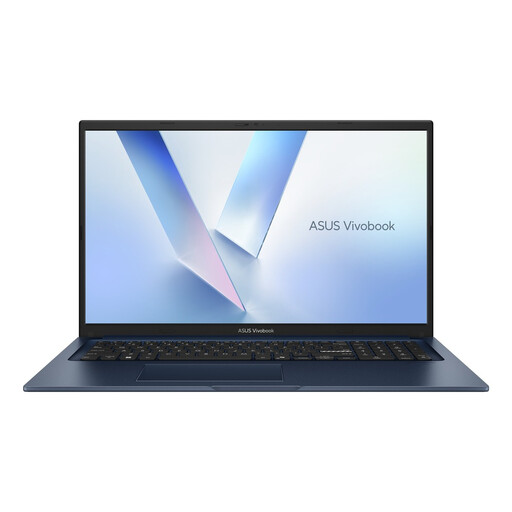 Image unavailable
ASUS Vivobook 17 X1704MA-AU153W
A large screen could suit working on documents in one place. Factor in the size if you plan to carry the laptop around often.
17.3-inch screen; Intel Core 5 320; 8 GB RAM; 256 GB SSD; QWERTY keyboard. The stated weight is 2.10 kg.
View at Joybuy
Frequently asked questions
How can you check keyboard shortcuts before choosing a laptop?
Try the commands you use regularly in a test document, using the app and version you actually work with. Microsoft Support explains how to customise keyboard shortcuts in Word for Windows; the steps and options may differ in Word for Mac and the web version. In Google Docs, open the keyboard shortcuts list on Windows and ChromeOS with Ctrl + /, or on Mac with ⌘ + /. Some shortcuts vary by language or keyboard.
Can you work on your essays in Google Docs without an internet connection?
Yes, if you set up offline access in advance by following Google’s instructions and make the files you need available offline. Before you leave, check that the document you want to edit opens without a connection.
Are you always entitled to exactly two years’ legal guarantee on a laptop in the Netherlands?
No. According to ACM ConsuWijzer, there’s no fixed period for the legal guarantee in the Netherlands. It depends on how long you can reasonably expect the product to last under normal use. The seller is your point of contact for these legal rights; a manufacturer’s guarantee is separate.
Can you return a laptop bought online if you don’t like the keyboard?
When you buy from a business at a distance, you’ll often have a 14-day cooling-off period. Check the applicable terms and exceptions. The Dutch government states that purchases made online from a private seller aren’t covered by these distance-selling rules.


