For planning an essay, with word processing and sources open side by side, a standard laptop with an easy-to-read screen and comfortable keyboard is a sensible starting point. You won’t necessarily need extra processing power for demanding tasks. First, choose an operating system based on the software you actually need. Then weigh up screen space at the table against portability, and check how you’ll access your files when you’re offline.
Who is this guide for?
Writers working with lots of sources
You plan your essay at the table while referring to sources and notes. That makes screen space and comfortable typing important. The Consumers’ Association discusses laptops for everyday office work, while HP describes larger screens as a way to get more room to work.
Budget-conscious writers
You mainly use a browser and word processor, and don’t want to pay for processing power you don’t need for light writing tasks. The Consumers’ Association suggests 8 GB RAM and an entry-level processor as benchmarks for basic office work.
Writers with specific software requirements
You need to use a prescribed programme or a specific version of Word. So start by choosing an operating system that works with that software. Microsoft Support, for example, distinguishes between Microsoft 365 on the web and the desktop versions for Windows and Mac, which can’t be installed on a Chromebook.
What should you look for?
Start with the software you need. Then decide how much screen space you want at the table, and whether you’ll often take your laptop with you or use it offline.
| What to consider |
What should you look for? |
Who is this important for? |
| Screen and writing comfort |
Compare the screen size and type of the exact configuration, and think about how much space you have on the table. The Consumers’ Association suggests 14-inch Full HD IPS as a benchmark for everyday use. HP describes 15.6–16 inches as offering more workspace for multitasking. |
If you want to view sources and notes alongside your document, having plenty of room to read at the table matters; around 36% of consumers give screen and writing comfort top priority. |
| Cost and performance |
Match the memory and storage to your programmes and files. The Consumers’ Association suggests 8 GB RAM and 256 GB storage as benchmarks for light, everyday work, not as a requirement for every buyer. |
If you mainly use a word processor and browser, you won’t want to pay for capacity you won’t use; around 29% of consumers put purchase cost first. |
| Software and working offline |
Check that your required programmes and features work on the system you choose. The Windows and Mac desktop versions of Microsoft 365 can’t be installed on a Chromebook; make Google Drive files available offline in advance if you want to work without an internet connection. |
If your course requires a particular programme or version of Word, compatibility is crucial; around 21% of consumers give software compatibility top priority. |
| Portability and workspace |
Think about how often you’ll work away from the kitchen table, and compare the size, weight and ports of the exact configuration. |
If you regularly take your laptop with you, a more compact model may matter more than extra screen space; around 14% of consumers make portability their top priority. |
Common buying mistakes
-
Choosing a Chromebook without checking which version of Word you need
You can access Word on a Chromebook through Microsoft 365 on the web, but the Windows and Mac desktop versions can’t be installed on it.
Before choosing an operating system, check which version of the software and which features your assignment requires.
-
Assuming more processing power makes writing easier
Planning an essay is usually a light office task; power for demanding creative work won’t necessarily help with word processing.
Start with your document, sources and the programmes you use at the same time. Choose higher specifications only if you need them for other tasks.
-
Assuming every Chromebook receives updates for the same length of time
The update end date depends on the specific device, and doesn’t reset on the day you buy it.
Before buying, check the update end date for the exact Chromebook model.
-
Treating a model name in a ranking as proof of the exact configuration
In the Students’ Guide student laptop list, the model codes in a listing’s heading and description don’t always match. So its position in the list doesn’t, on its own, confirm the configuration.
Compare the full model code and specifications of the configuration you’re considering.
Brands to consider
Lenovo
The IdeaPad Slim 3 is a Windows option for everyday writing. For configuration 82XN008RMH, Lenovo Netherlands lists a 14-inch Full HD IPS screen, 16 GB RAM and a 512 GB SSD.
- The configuration listed combines a 14-inch screen with 16 GB RAM and a 512 GB SSD.
- Lenovo states that the memory in configuration 82XN008RMH is soldered. Don’t assume the memory is upgradeable on this configuration or across the range.
Acer
The Chromebook Plus Spin 514 is a ChromeOS option. For configuration NX.KYQEH.004, Acer Store Netherlands lists a 14-inch touchscreen, 8 GB RAM and a 256 GB SSD.
- The convertible screen could be useful if you want to view your notes in different positions.
- Check that your required web apps are compatible; the specifications listed don’t apply to every Spin 514.
Apple
A 13-inch MacBook Air is a macOS option for anyone looking for that system and a more compact screen. For the M5 configuration reviewed, Apple Netherlands lists a 13.6-inch screen and two Thunderbolt 4 ports.
- The screen and port details listed can help you decide whether the configuration suits your workspace and peripherals.
- These are manufacturer specifications, not the results of an independent test. Check the software compatibility and ports on the exact configuration; the stated battery life won’t tell you exactly how long you can write for.
HP
HP offers laptops with 14-inch screens, among other options. HP Netherlands describes a Dutch OmniBook X Flip configuration with 16 GB RAM, a 512 GB SSD and a 14-inch touchscreen.
- HP describes 13–14 inches as a size for working on the go, and larger screens as an option that gives you more room for multitasking.
- The touchscreen and specifications of the OmniBook configuration mentioned aren’t automatically shared by other HP laptops.
ASUS
The Students’ Guide lists the ASUS Chromebook CM1402FM2A-EC0215 as a Chromebook option for writing.
- The listing can be a starting point for exploring ChromeOS as an option.
- Check the full model code, compatibility with your software and the device’s update end date. Don’t assume it shares features with other ASUS models.
Joybuy laptops for writing
This selection of Joybuy products includes Windows laptops and a compact MacBook for word processing and checking sources.
 No image available
HP OmniBook X Flip NG AI PC 16-as0050nd
The 16-inch screen with a 16:10 aspect ratio gives you room for documents and web pages; Windows 11 Home suits anyone who needs Windows desktop software.
16 GB memory; 512 GB SSD; 1920 × 1200 resolution; touchscreen; QWERTY keyboard; weight 1.88 kg; 360° hinge.
View at Joybuy
 No image available
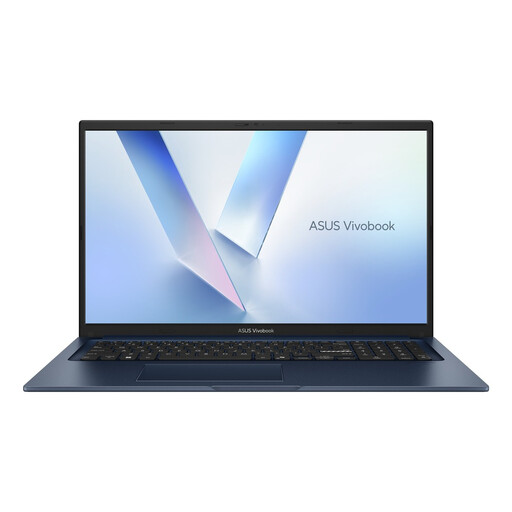
ASUS Vivobook 17 X1704MA-AU153W
The 17.3-inch Full HD screen gives you a large workspace for viewing a document and sources side by side; Windows 11 Home suits anyone who needs Windows software.
Core 5 320; 8 GB RAM; 256 GB SSD; QWERTY keyboard; weight 2.10 kg.
View at Joybuy
 No image available
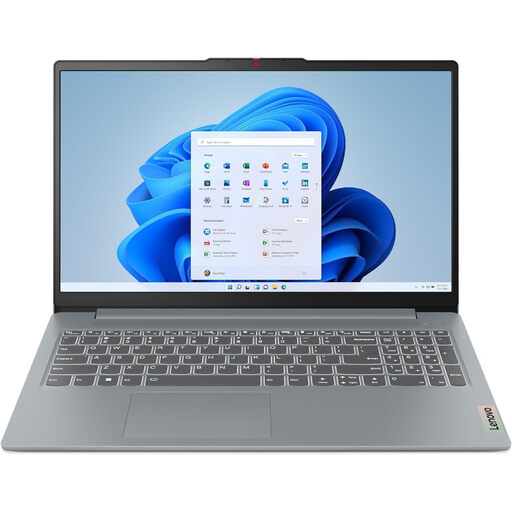
Lenovo IdeaPad Slim 3 15AHP10
The 15.3-inch WUXGA screen with a 16:10 aspect ratio gives you extra vertical space for documents and web pages; Windows 11 Home is suitable for Windows software.
Ryzen 7 8840HS; 16 GB DDR5; 512 GB PCIe 4.0 SSD; IPS screen with anti-glare finish; 1920 × 1200 resolution; Wi-Fi 6; QWERTY keyboard; approximately 1.63 kg.
View at Joybuy
 No image available
MSI Modern 14 F1MG-867NL
This 14-inch configuration has a Full HD IPS screen with an anti-glare finish and Windows 11 Home for anyone who uses Windows apps.
Intel Core 7 150U; 16 GB DDR4; 512 GB SSD; backlit keyboard; Wi-Fi 6E; weight 1.40 kg; 180° hinge.
View at Joybuy
 No image available
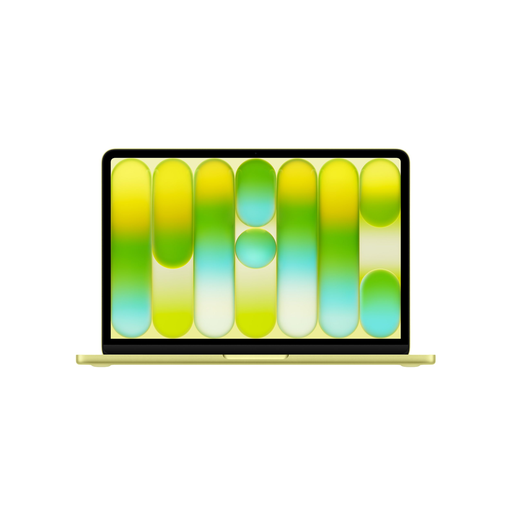
Apple MacBook Neo 13-inch A18 Pro
This compact 13-inch macOS laptop is an option for word processing if its operating system works with your software; its screen offers less room for viewing a document and sources side by side than larger sizes.
8 GB RAM; 256 GB storage; Liquid Retina screen; weight 1.23 kg. No mains adapter is included; charging requires a USB-C adapter that supports USB Power Delivery and provides at least 20 W.
View at Joybuy
Frequently asked questions
Can you use a Chromebook if you need Word for your essay?
Yes, you can access Word on a Chromebook through Microsoft 365 on the web. The Windows and Mac desktop versions can’t be installed on it, so check which version and features your assignment requires.
How can you make sure your essay plan is available offline?
On a Chromebook, make the Google Drive files you need available offline in advance, and check that they’re marked as available. Google says changes will sync the next time you’re connected; not every app works offline.
Is a larger screen always better for writing at the kitchen table?
No. A larger screen gives you more room to view sources alongside your document, while a 13–14-inch laptop may be more practical if you take it with you often. Consider both places where you’ll use it and how much space you have at the table.
How do you choose between a laptop with 8 GB and one with 16 GB RAM?
Match the memory to your programmes and how you work. The Consumers’ Association suggests 8 GB RAM as a benchmark for light, everyday office work; consider more if you keep lots of programmes open at once, and check whether the memory in the exact configuration is upgradeable.


