
Making a simple lesson video
You’re cutting footage and adding teaching materials. You want to choose a suitable laptop without paying for graphics capability that you won’t use in your workflow.


For a Dutch-language lesson video to show at a community event, choose a laptop based on your editing software and source footage. Basic cutting calls for a different setup from complex 4K editing. Microsoft recommends at least 8 GB of RAM for Clipchamp, with 16 GB or more preferred; a dedicated GPU is not necessarily needed for basic editing. Also check the subtitles and connections, and test the exported video on the venue’s equipment.
You’re cutting footage and adding teaching materials. You want to choose a suitable laptop without paying for graphics capability that you won’t use in your workflow.
You want to add accurate subtitles to spoken Dutch and check the text before showing the video. The options available also depend on the software and account you choose.
You work with larger video files or effects and want to compare memory, storage and graphics hardware across different configurations.
Start with your editing software and the size of your source footage. Then compare the laptop’s configuration with the presentation equipment you’ll use at the event.
| What to consider | What should you check? | Who is this important for? |
|---|---|---|
| Enough performance | Check your editing software, the size of your source files, and the exact RAM and GPU configuration. | If I’m mainly cutting footage and adding teaching materials, I don’t want to choose capacity my workflow won’t use. Around 33% of consumers put basic editing at the top of their list of buying concerns. |
| Speech and subtitles | Check that the software and account support the subtitle feature you want; read and listen to the final export. | If there’s a lot of spoken explanation, I want to be able to check the Dutch subtitles before showing them. Around 27% of consumers prioritise clear explanations and checking subtitles. |
| Showing the video at the venue | Ask what video connection and file format the venue uses, and test the export on the equipment you’ll be using. | Before the event, I want to know that the video will work with the screen and equipment at the venue. Around 20% of consumers put reliable playback first. |
| Capacity for demanding editing | Compare the RAM, SSD and GPU configuration with the requirements of your chosen software and the size of your projects. | If my project contains large video files or effects, I want to compare options with enough memory, storage and graphics capability. Around 20% of consumers make capacity for demanding editing their main buying concern. |
The performance you need also depends on the size and complexity of your project. A dedicated GPU isn’t automatically necessary for basic editing.
First, decide on your software, source resolution and editing tasks. Then compare the specifications of the exact laptop configuration.
Microsoft says that personal Clipchamp accounts can export videos for free at up to 1080p; 4K exports are subject to different subscription terms.
Check what resolution the event requires and which export options are included with your Clipchamp account.
Having a file ready on your laptop doesn’t mean it’s been tested with the venue’s connection and playback equipment.
Test the export, subtitles, audio and physical connection in advance using the equipment you’ll use at the event. If you’re connecting to an HDMI screen, you may need a suitable adapter if your laptop doesn’t have a built-in HDMI port.
Allow extra time for preparation and check in advance whether you’ll need a suitable adapter.
The examples below apply to the product lines and configurations listed. Check the specifications of the exact variant; a brand mention doesn’t indicate that a model is available.
The HP OmniBook X Flip 14-kc0600ndx is a Windows option to compare for portable, less demanding editing.
The 13-inch MacBook Air with M5 is a macOS option if you’re looking for a compact laptop and prefer that software environment.
The Dutch Vivobook Pro 15 OLED N6506 configuration is worth comparing if you’re looking for dedicated graphics hardware and a larger screen.
The IdeaPad Pro 5 16AHP9 shows why you should check the memory for each configuration.
These laptops are suited to both basic editing and more demanding video work. Compare their connections and configurations with your editing software and the venue’s presentation equipment.
 No image available
An option to compare for basic editing and presenting via HDMI.
14-inch Full HD screen; Intel Core 7 150U; Intel Graphics; 16 GB DDR4; 512 GB SSD; HDMI.
 No image available
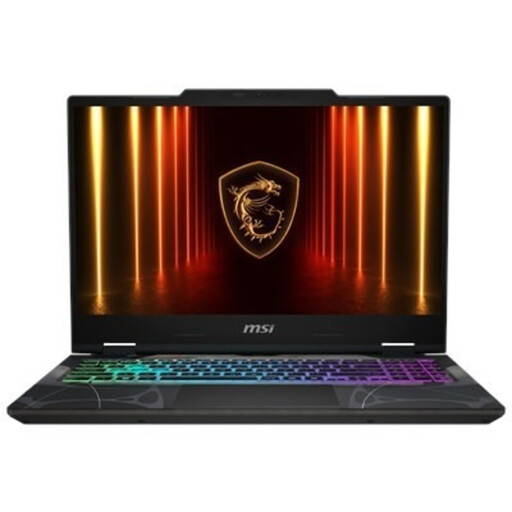
Compare this configuration if you want to tackle editing projects with more demanding graphics tasks.
15.6-inch Full HD 144 Hz screen; AMD Ryzen 9 270; RTX 5070 with 8 GB GDDR7; 16 GB DDR5; 512 GB SSD; HDMI 2.1.
 No image available
The 32 GB of RAM is one feature to consider when comparing editing projects and presentation connections.
16-inch screen with a resolution of 1920 × 1200 and 144 Hz; Intel Core Ultra 7 255H; 32 GB DDR5; 512 GB SSD; integrated Intel Arc graphics; HDMI 2.1.
According to the product information, the power adapter isn’t included.
 No image available
A macOS configuration to compare if you want to edit using that software environment.
M5 chip; 16 GB of memory; 512 GB of storage; two Thunderbolt 4 ports and a MagSafe connection.
The product information says that a power adapter isn’t included. If you’re connecting to an HDMI screen, check what adapter you’ll need.
 No image available
A configuration to compare for editing and taking teaching materials to an event.
15.3-inch screen; Ryzen 5 7535HS; 16 GB of RAM; 512 GB SSD; integrated Radeon 660M graphics; WUXGA IPS screen.
The product information says that the USB-C power adapter must be purchased separately.
Not simply because you’re working with video. Microsoft also links Clipchamp’s performance to the size and complexity of the project. First, choose your editing software and source footage; for demanding effects or large projects, also compare laptops with a dedicated GPU.
Clipchamp offers automatic captions for video and audio clips containing speech. Check the language settings in your account, then correct the generated text before showing the lesson.
Export a test version and try the file on the equipment you’ll be using. Check the picture, sound and physical connection; the connection you need depends on the laptop and the equipment at the venue. Clipchamp can export a video as an MP4.
Your statutory warranty is separate from any manufacturer’s warranty. For a consumer purchase, the seller is responsible if the product doesn’t meet what you could reasonably expect. According to ACM ConsuWijzer, online purchases usually come with a 14-day cancellation period, subject to legal exceptions.
This depends on who appears in the footage and who processes or publishes it. The Dutch Data Protection Authority states that a lawful basis is needed to use identifiable footage from an event; consent is often the appropriate basis. The specific rule requiring parental consent for pupils under 16 applies to footage in an educational setting and doesn’t automatically apply to every community event.