
On-location sketcher
You want to capture dune shapes on the spot with a pen, then finish your work later on the same laptop. Check the screen, pen and exact configuration as a combination: a touchscreen alone doesn’t mean it supports an active pen.


If you want to sketch directly on your laptop screen, choose a convertible and confirm that pen support is available for the exact configuration. If you prefer to use a separate drawing tablet, a standard laptop may be a better fit. Also check your drawing software’s requirements, and bear in mind that screen specifications alone cannot guarantee that the colours on screen will match your prints.
You want to capture dune shapes on the spot with a pen, then finish your work later on the same laptop. Check the screen, pen and exact configuration as a combination: a touchscreen alone doesn’t mean it supports an active pen.
You finish illustrations to display or print, and want to assess colours and details carefully. For printed work, the output profile, printer and paper type also matter, as Adobe explains in its guidance on colour management in Photoshop.
You mainly draw at a desk or already own a tablet. Check that the tablet’s connection, operating system and driver work with your laptop and drawing software.
First decide whether you want to draw directly on the screen or use a separate drawing tablet. Then consider how you’ll finish and present your illustrations, and what you’ll need to take with you.
| What to consider | What to look for | Who it matters most to |
|---|---|---|
| Pressure-sensitive drawing | Check pen support for the exact configuration and that it works with your drawing software. Krita describes pressure-sensitive input using a compatible tablet pen. | If I want to sketch directly on the screen, the pen needs to work with both my laptop and drawing software. Around 36% of consumers give top priority to drawing directly on screen. |
| Colour and detail | Compare the screen configuration and available workspace. For printed work, ask about the output profile for the printer and paper type; a screen specification alone won’t predict how a print will look. | If I’m finishing illustrations for a community presentation, I want to assess the details and colours carefully. Around 29% of consumers prioritise the final colour reproduction and presentation. |
| Taking it to a sketching spot | Weigh screen space against size and carrying weight. Also consider whether you’ll need to take a charger and, potentially, a separate tablet. | If I want to sketch outdoors, how much equipment I need to carry in addition to my laptop matters. Around 21% of consumers give portability top priority. |
| Software and existing equipment | Check the requirements for the software version you use, as well as the connection and driver for your existing tablet. This will help you work out which parts of your drawing setup you can continue to use. | If I already own a pen or tablet, I want to know whether it will still work with the laptop I choose. Around 14% of consumers give top priority to their existing equipment and any additions they need. |
Touch controls or a standard stylus don’t prove that a laptop supports pressure-sensitive pen input. The pen and drawing app you use need to be compatible with the exact configuration.
Before you buy, check which pen is supported, whether it’s included and whether it works with your drawing software.
You may need to buy a separate compatible pen to draw directly on the screen.
An OLED screen or stated colour gamut doesn’t guarantee that a print will show the same colours. For predictable results, Adobe recommends using colour management with profiles suited to the screen, printer and paper.
Ask your printer about the output settings, and consider ordering a proof print before presenting your work.
Depending on your presentation, a proof print may be part of the preparation.
A standard laptop may need a separate drawing tablet, while drawing directly on a convertible depends on pen support for the specific configuration. The two setups may therefore require different extra equipment and preparation.
Compare the complete drawing setup, and factor in any tablet, cable or adapter you already own.
A separate tablet setup may require extra accessories and installation.
The Yoga 7i 2-in-1 Gen 10 configuration 83JQ00A0MH is designed for convertible use and features a 14-inch OLED touchscreen and a Lenovo Linear Pen.
The Galaxy Book5 360 NP750QHA-KA1NL is a 15.6-inch convertible. Samsung describes it as compatible with an S Pen.
The MacBook Air M5 is a standard laptop option for anyone who wants to use a separate, compatible drawing tablet. Apple lists 13- and 15-inch configurations.
ASUS describes the ProArt PX13 HN7306 as a convertible with a 13-inch OLED touchscreen and support for ASUS Pen 3.0.
The HP OmniBook X Flip 14-kb0636ndx features a 14-inch touchscreen, 32 GB of RAM and a 1 TB SSD.
These product options include standard laptops for use with a separate drawing tablet, and convertibles for anyone who wants to work on the laptop screen. Check that pen input works with your drawing software for each configuration.
 No image available
A standard laptop option for creating illustrations with a separate drawing tablet; this configuration isn’t designed for drawing directly on the laptop screen.
18.4-inch screen; Ryzen 7 260; 16 GB memory; 512 GB SSD; QWERTY keyboard.
 No image available
This 2-in-1 may suit you if you’re looking for a convertible to work on your illustrations. Check pen support and what’s included with the exact configuration before relying on it for drawing directly on screen.
16-inch 2-in-1; 32 GB RAM; 1 TB SSD; NVIDIA RTX Spark N1X and NVIDIA Blackwell RTX GPU; QWERTY keyboard.
 No image available
A standard laptop option for creating illustrations with a separate drawing tablet. Check that your tablet, connection and driver are compatible with your configuration.
M5; 16 GB memory; 512 GB storage; Starlight; QWERTY keyboard.
 No image available
A standard laptop option for working on illustrations or pairing with a separate drawing tablet. Check beforehand that your chosen tablet works with the laptop and your drawing software.
15.3-inch screen; Ryzen 5 7535HS; 16 GB memory; 512 GB SSD; Cloud Grey; QWERTY keyboard.
 No image available
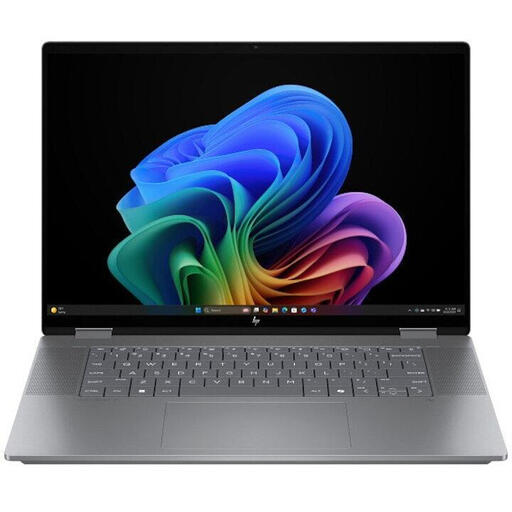
A convertible to consider if you want different working modes for illustration and presentation. Check separately whether this configuration supports the pen you want to use.
No. A touchscreen alone doesn’t confirm pressure-sensitive pen input. Check that the exact laptop supports a compatible active pen and that it works with your drawing software. Krita distinguishes between pressure-sensitive tablet input and basic styluses.
Check your tablet settings and, if necessary, install the tablet manufacturer’s driver. Krita also points out that the input settings you use can make a difference; seeing a line appear doesn’t automatically mean pressure sensitivity is working properly.
Ask about the output settings for the printer and paper type you intend to use. For printing from Photoshop, Adobe describes colour management using profiles suited to the screen, printer and paper. Screen specifications alone can’t guarantee the result.
Agree with the organisation on how it may use the work. According to Business.gov.nl, a creator can grant permission or a licence to display, distribute or reproduce their work while retaining copyright. If your illustration includes other people’s work, you may need to make separate arrangements.
Check the operating system requirements, connection and driver for your exact tablet model. Also check that your drawing software supports the pen input you want to use. A tablet’s compatibility with a computer doesn’t automatically mean every configuration will work in the same way.