Vandaag of morgen in huis

Kwaliteit gegarandeerd

Welkomstaanbiedingen ontgrendelen: GRATIS bezorging | Tot 80% korting | Gratis 30 dagen JoyPlus-proefperiode
Download de app
By: Joybuy Product Recommendation Officer | Last Updated: 05-07-2026
Does this sound familiar? You arrive at your workspace, at home or in the office, and the daily ritual begins: the power cable for your laptop, the HDMI cable for your monitor, a USB dongle for your mouse and keyboard, and the network cable for a stable internet connection. Before you know it, your desk is a tangle of cables, and you've wasted precious time.
A laptop docking station puts an end to this. With a single cable, you can instantly connect all your peripherals and charge your laptop at the same time. The result? A tidy, efficient workspace where you can get straight to work.
But the market is flooded with options. Which one is right for your setup? In this guide, we'll help you make the right choice by breaking down the specifications, without the marketing jargon. We'll provide practical tips and highlight some popular choices.
Before you make a choice, it's helpful to know which specifications are important for you. Here are three key points to consider.
Most modern docking stations use a USB-C connection. This is the current standard for many laptops. A USB-C docking station is often an excellent choice for most users.
Do you have a powerful laptop (like a recent MacBook Pro, Dell XPS, or HP Spectre) with a Thunderbolt 4 port? Then a Thunderbolt 4 dock might be worth considering. This technology offers higher bandwidth (up to 40 Gbps), which is especially useful if you want to connect multiple 4K monitors or other demanding peripherals. Always check which port your laptop has.
One of the main reasons to use a docking station is to connect multiple monitors. Think about how many screens you want to use. Are you looking for a docking station for 2 monitors or even a docking station for 3 monitors?
Look not only at the number but also at the supported resolution and refresh rate. For example, many docks support two 4K displays at a 60 Hz refresh rate. The specifications usually state this clearly, mentioning ports like HDMI and DisplayPort.
A laptop dock with power delivery, also known as Power Delivery (PD), charges your laptop via the same USB-C or Thunderbolt cable. This is incredibly practical. Check the wattage (W) the dock can supply. For most laptops, 60-65W is sufficient, but more powerful models sometimes require 90-100W.
Additionally, take stock of which ports you use daily. Do you need USB-A ports for your keyboard and mouse? An Ethernet port for a stable internet connection? An SD card reader? A universal docking station with a wide selection of ports offers the most flexibility, especially in an environment where different laptops are used.
Based on functionality and specifications, we have selected a few models suitable for different users.
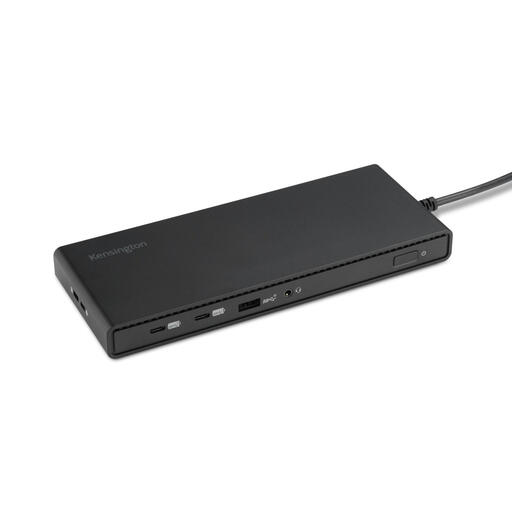
Why This Model Stands Out This Kensington docking station stands out for two reasons: its support for three Full HD monitors and its focus on sustainability. According to the manufacturer, the housing is made of 73% post-consumer recycled (PCR) plastic. It's a plug-and-play solution that works without needing to install drivers on modern Windows laptops.
Pros
Who is this for? This is an excellent choice for professionals and remote workers with a Windows laptop who want to set up a three-screen configuration. The simple installation and powerful charging make it a practical all-rounder for a productive workspace.
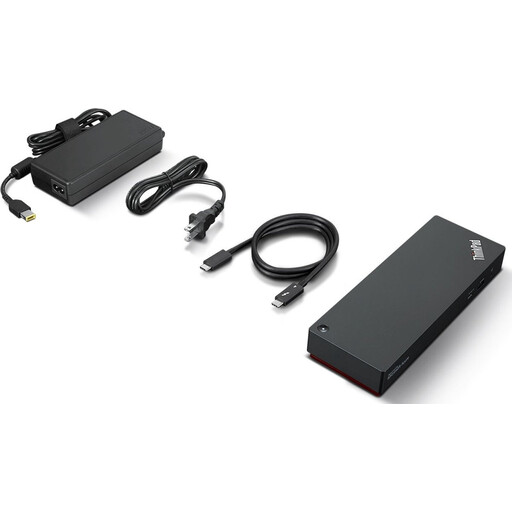
Why This Model Stands Out The name says it all: this is a Thunderbolt 4 dock. This model from Lenovo is designed for maximum performance. It offers a transfer speed of 40 Gbps and, according to its specifications, can drive up to four external displays, making it a powerhouse for demanding tasks.
Pros
Who is this for? This docking station is aimed at the power user: creative professionals, data analysts, and developers who work with Thunderbolt laptops and need the highest possible performance and screen real estate. If you want to get the most out of your high-end laptop, this is a serious contender.
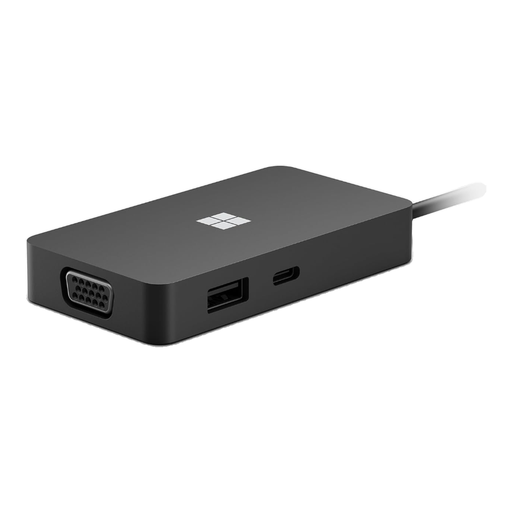
Why This Model Stands Out Strictly speaking, this isn't a full-fledged docking station, but a 'travel hub'. This model from Microsoft is designed for one purpose: maximum portability. It's small, lightweight, and provides the most essential ports for when you're on the go.
Pros
Who is this for? This is the perfect solution for the hybrid worker or the professional who travels frequently. It's not intended as a permanent work-from-home docking station with multiple screens, but as a handy companion to stay connected anywhere, anytime.
These recommendations cover some common scenarios, but there are many more possibilities. Are you looking for a model with specific ports, a different design, or in another price range?
Check out our full range of laptop accessories for more options.
A USB-C hub is typically smaller, more portable, and offers a limited number of ports (like the Microsoft Travel Hub). A docking station is a more robust solution for a fixed workspace, usually offering more ports, supporting multiple monitors, and often supplying power to the laptop.
Not always. Most universal docking stations work with laptops that support "DisplayPort over USB-C" (also known as Alt-Mode). For Thunderbolt docks, you need a laptop with a Thunderbolt 3 or 4 port. Always check the specifications of both your laptop and the docking station to ensure compatibility.
Many modern docking stations are 'plug-and-play' and require no extra software, especially on Windows 10/11 and macOS. Some models, particularly those using DisplayLink technology to drive more screens than the laptop natively supports, do require a driver installation. This is usually clearly stated in the product information.