
Marking for long periods at one desk
You read and type for extended periods and want to position your screen and input devices to suit your workspace.


First, choose a laptop that works with your school’s marking software and device policy. Then decide whether you mainly need more screen space at one desk or often take your laptop with you. If you mark work for long periods, also consider whether you can position the screen and input devices separately.
You read and type for extended periods and want to position your screen and input devices to suit your workspace.
You want to view assignments and feedback side by side. Screen space and readability matter more to you than having the most compact laptop.
You take your laptop between locations and consider battery use, connections and your school’s device policy.
First, check that the laptop is compatible with your school’s software and requirements. Then compare the screen space with your workspace and consider how often you’ll move the device.
| What to consider | What should you check? | Who is this important for? |
|---|---|---|
| Adjustable workspace | Check whether you can connect an external screen and separate input devices to the laptop, and find out which connections you’ll need. | If I’m marking work at the same sit-stand desk for a long time, I want to position the screen and keyboard separately. Around 33% of consumers say an adjustable workspace is their top priority. |
| Reading assignments and feedback | Compare screen size and resolution, and check the layout of the marking software you use. | If I want to view assignments and feedback side by side, usable screen space is the deciding factor for me. Around 27% of consumers put readability first. |
| School software and device management | Ask your school to confirm which operating systems, software and management settings are supported. | If I need access to the school environment and work with pupil data, I want to know the device policy in advance. Around 20% of consumers say school compatibility is their top priority. |
| Taking your laptop with you and charging it | Balance screen size against portability, and check the battery specifications and what’s included with the exact configuration. | If I move between classrooms and workspaces, I want to know how I’ll carry and charge my laptop. Around 20% of consumers put portability and power supply first. |
A laptop has a fixed screen and keyboard, so you can’t position them separately. Arboportaal sets out requirements for employees who work at a screen for more than two hours a day, including being able to position the screen and keyboard separately.
Decide in advance how you want to position your screen and input devices at your sit-stand desk, then check which connections the laptop needs.
Separate input devices, a stand or a monitor may require extra equipment and space.
Manufacturers’ measurements for activities such as video streaming or browsing wirelessly don’t reflect a combination of documents, a browser and feedback software.
Only compare battery specifications when the test conditions are the same. If you’re planning a long session away from a power socket, also check where you can charge your laptop.
Dell states that a charger isn’t included with one of its featured PB14250 configurations; what’s in the box may vary between versions.
Check the contents for the exact configuration. Compare any extra warranty cover with the terms and your existing rights rather than assuming you need an additional package.
If a charger isn’t included, you may need to buy one separately.
A school list for the 2024/2025 academic year excludes Chromebooks, but that requirement doesn’t automatically apply to other schools or current school systems.
Before choosing a laptop, ask your IT department about current requirements for the operating system, marking software, device management and connections.
The MacBook Air is a compact macOS option. The product range mentioned here includes versions with 13-inch or 15-inch screens.
The Dell Pro 14 Plus PB14250 is an example of a business Windows laptop available in several configurations.
The HP EliteBook 8 G1i 14-inch A26ZMEA#ABH is an example of a business Windows laptop with a 14-inch screen.
These laptops are suited to marking work with extra screen space on a single device. Check whether each model’s software compatibility, connections and workspace setup meet your needs.
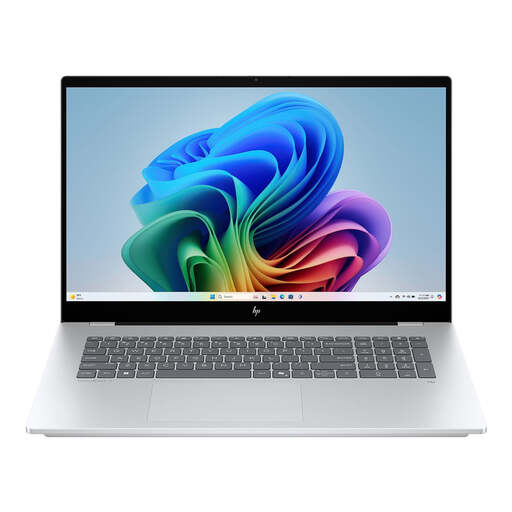 No image available
The screen size suits marking work when you want more space on a single laptop screen.
17.3-inch Full HD IPS touchscreen, 16 GB RAM and 512 GB SSD. The listed connections include USB-C with DisplayPort and HDMI.
You may also need a separate solution for positioning the screen or input devices at an adjustable workstation.
 No image available
This 16-inch model is worth considering if you want to view assignments and feedback on a larger laptop screen.
16-inch WUXGA OLED screen, Snapdragon X processor, 16 GB LPDDR5X memory, 512 GB SSD and Windows 11 Home.
Check that Windows 11 Home and the connections you need meet your school’s requirements.
 No image available
The listed 16-inch screen size may suit you if having plenty of room to read is important when marking work.
16-inch IPS screen with a resolution of 1920 × 1200, Intel i3 1000NG4 processor, 16 GB DDR4 RAM and 1 TB SSD. Listed connections include USB-C and mini-HDMI.
Check that the connections work with any external screen and other equipment in your workspace.
 No image available
The 16-inch display is worth considering if you want more room on your laptop screen while marking work.
16-inch screen with a resolution of 1920 × 1200, Intel Core Ultra 7 255H, 32 GB DDR5 RAM, 512 GB PCIe 4.0 SSD and Windows 11 Pro. The description lists HDMI 2.1 and USB-C with DisplayPort.
According to the product description, this configuration doesn’t include a power adapter. Also check that Windows 11 Pro meets your school’s policy.
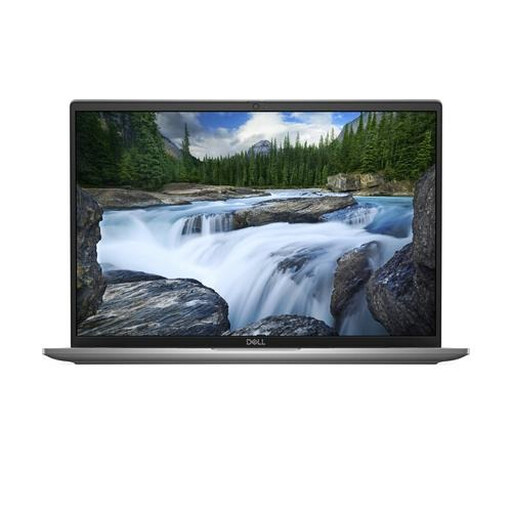 No image available
This 16-inch model suits marking work where screen space for documents matters.
16-inch anti-glare IPS screen with a resolution of 1920 × 1200, Intel Core Ultra 7 155U, 16 GB LPDDR5x, 512 GB SSD and Windows 11 Pro. Listed connections include Thunderbolt 4 with DisplayPort and HDMI 2.1.
The product description states that the power adapter must be bought separately. Check that the QWERTY keyboard layout suits your preference.
For employees who work at a screen for more than two hours a day, Arboportaal sets out requirements for being able to position the screen and keyboard separately. Ask your employer to assess which workstation setup is suitable for your situation; this isn’t a general purchasing requirement for every private buyer.
No. Arboportaal advises changing position regularly and not staying in the same position for longer than an hour. Use your adjustable desk to alternate between sitting and standing.
Ask your IT department which operating systems, browsers, management settings and connections are supported in your school environment. A school list for 2024/2025 excluded Chromebooks, but that requirement doesn’t automatically apply to other schools or current academic years.
Check whether the exact configuration includes a suitable charger and what other equipment your workspace requires. According to the Dutch government, there is no fixed statutory warranty period in the Netherlands; if a product is faulty, the retailer is your point of contact. Whether consumer rules apply depends, among other things, on who buys the laptop.
That depends on your school’s current policy. The Dutch Data Protection Authority points out that schools must comply with the GDPR when using digital teaching tools. Check the rules on personal devices, access and storing pupil data in advance.