What should you look for?
Let your school’s workflow determine which operating system will work for you. Then check the connections, the approved way to handle pupils’ data and any pen support you might need.
| What to consider |
What should you check? |
Who should prioritise this? |
| Compatibility with your marking workflow |
Using your school account, test the whole process: signing in, opening pupils’ work, filling in rubrics, saving feedback and returning marks. Also check which other programmes are required. |
I want to make sure my school account and required programmes work before buying. Around 28% of consumers put compatibility with their marking workflow first. |
| Ergonomics and connections |
Check which monitor, keyboard and mouse connections are available, and test the laptop with the dock provided. TNO and Arboportaal explain the importance of setting up the monitor and keyboard separately. Arboportaal refers to employees who work at a screen for more than 2 hours a day. |
If I mark work for long periods, I want to be able to arrange the screen and input devices to suit the desk. Around 28% of consumers say their desk setup is their main concern when buying. |
| Keeping pupils’ data confidential |
Ask your IT administrator which devices, accounts, storage locations and security settings are approved. The Dutch Data Protection Authority highlights the risk of unauthorised people accessing sensitive pupil data. |
I want to handle pupils’ work only through the systems and settings approved by my school. Around 22% of consumers prioritise protecting pupils’ data. |
| Moving between desks |
Compare the weight of the exact configuration and check that its connections or adaptors will work at the different desks. |
If I take my laptop between desks, I want to connect it easily to the equipment available at each one. Around 11% of consumers prioritise portability and reconnecting their devices. |
| Handwritten feedback |
Check pen compatibility, whether a pen is included and whether you can annotate and return a test file in the required application. |
I want to write comments directly on assignments, so I need my marking app to support pen input. Around 11% of consumers give pen input top priority. |
Joybuy products for digital marking
The Joybuy products below are Windows laptops, including both 2-in-1 models and conventional laptops. Before buying, check that the exact configuration is compatible with your school’s software and desk equipment.
 No image available
HP OmniBook 5 Flip 14-fp0075nd C5VM5EA#ABH
A 2-in-1 option to consider if you need Windows and want to use the screen in different positions. Check that your marking software supports the pen annotations you need.
Windows 11 Home; 14-inch touchscreen with 1920 × 1200 resolution; HDMI 2.1 and USB-C with DisplayPort. USB-C charger and stylus are not included.
View on Joybuy
 No image available
HP OmniBook X Flip NG AI PC 16-as0050nd D75LQEA#ABH
A Windows 2-in-1 with a larger screen to compare if you want to use the device in different positions. Check software compatibility and pen support separately.
Windows 11 Home; 16-inch OLED touchscreen; laptop, tablet, tent and stand modes; Thunderbolt 4 with DisplayPort support.
View on Joybuy
 No image available
HP OmniBook 5 Flip 14-fp0250ndx 2-in-1
A 14-inch Windows 2-in-1 to consider if you want to connect an external monitor and use the device in other positions too.
Intel Core 5 120U; 8 GB RAM; 512 GB SSD; 14-inch 2K touchscreen; HDMI 2.1 and USB-C with DisplayPort. USB-C charger and stylus are not included.
View on Joybuy
 No image available
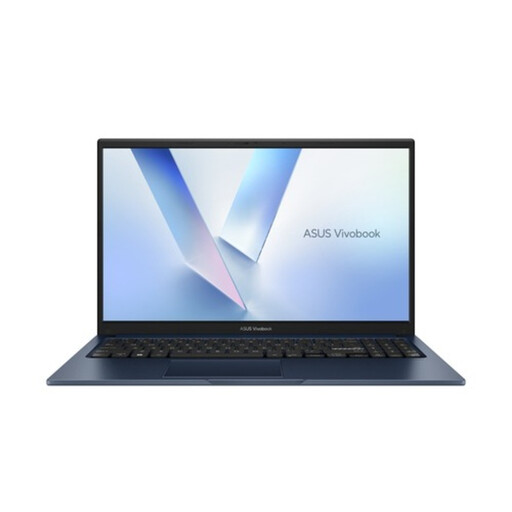
ASUS Vivobook 15 X1504MA-BQ534W
A conventional Windows laptop to compare if you mainly work with a keyboard and screen at your desk. Check that its connections are compatible with the dock provided.
15.6-inch Full HD screen; Intel Core 5 320; 8 GB RAM; 256 GB SSD; QWERTY keyboard; Windows 11 Home.
View on Joybuy
 No image available
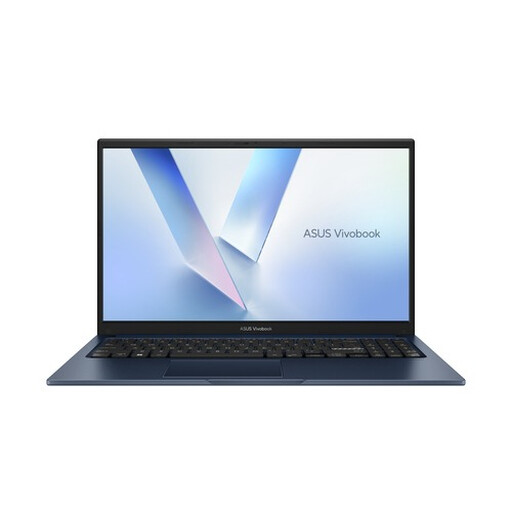
ASUS Vivobook 15 X1504MA-BQ588W
A conventional Windows laptop to compare for marking at a desk. Check that the screen and connections suit your workspace.
15.6-inch Full HD anti-glare screen; Intel Core 3 304; 8 GB RAM; 256 GB SSD; Windows 11 Home.
View on Joybuy
Frequently asked questions
Do I need to buy a Chromebook for Google Classroom?
No. Google explains how to mark work using rubrics in Classroom on a computer. First check that your school’s complete workflow and any other required software work on the operating system you choose.
What should I connect at a shared desk?
Check the monitor, keyboard, mouse and dock available, then test them with the exact laptop. Arboportaal outlines requirements for setting up a monitor and keyboard separately for employees who work at a screen for more than 2 hours a day; check whether these apply to you.
How can I keep pupils’ data safe while marking?
Follow your school’s approved systems and security arrangements, and ask your IT administrator how to use the device in a shared workspace. The Dutch Data Protection Authority points out that unauthorised people could gain access to sensitive pupil data.
What should I look for in a Chromebook for long-term use?
Check the update support for the exact device. Google says that certain Chromebooks released before 2021 are eligible for the option of receiving a total of 10 years of automatic updates from the platform’s release date.


