
Illustrator who sketches on screen
You want to draw directly on your laptop and use the same device for your portfolio. Lenovo lists a Yoga Pen Gen 2 for the Yoga 9i 2-in-1 Gen 11; check whether the pen is included with the version you choose.


Choose a 2-in-1 with confirmed pen support if you want to draw the panorama directly on the screen. If you use a separate graphics tablet, you could also consider a conventional laptop. Then match the memory and storage to your software and files, and check the exact screen specification and included accessories. A stated colour gamut alone does not guarantee that colours will look the same on another screen or on paper.
You want to draw directly on your laptop and use the same device for your portfolio. Lenovo lists a Yoga Pen Gen 2 for the Yoga 9i 2-in-1 Gen 11; check whether the pen is included with the version you choose.
You may work with lots of visual assets and need plenty of memory, storage and screen space. Compare the configuration with the requirements of your own software and files; Adobe recommends 16 GB of memory or more for Photoshop, among other things.
You can draw using a separate input device, but want to take your work with you and review it on different screens. Adobe points out that colours can vary between screens and printers, making a suitable colour profile important.
Start by deciding how you want to draw: directly on a convertible screen or with a separate input device. Then you can match the configuration, colour management and presentation setup to your work.
Choose this if: you want to sketch the panorama directly on the screen and switch between drawing and laptop modes.
Keep in mind: check pen support and what’s included for the exact version; a touchscreen alone does not confirm that the pen you want will work.
Choose this if: multiple layers, visual assets and a larger screen matter more to you than portability.
Keep in mind: ASUS lists the tested ProArt P16 configuration as weighing 1,85 kg and not including a power adapter.
Choose this if: you don’t need to draw on the laptop screen and mainly want to finish and present files.
Keep in mind: you’ll need a separate input device. Apple lists P3 display support for the MacBook Pro, but this does not prove that colours will match on another screen or in print.
| What to consider | What to look for | Who should pay particular attention? |
|---|---|---|
| Drawing and pen compatibility | Check pen support, included accessories and the drawing mode you want for the complete model number. | If I want to sketch directly on the screen, I want to know in advance that the pen works with the version I choose. Pen compatibility is the main concern for around 33% of consumers. |
| Assessing colour | Check the screen variant and colour profile. Adobe explains that colours can vary between screens and printers. | For my portfolio, I want to assess colours carefully and know in advance how the work will look on the presentation screen. Colour management is the main priority for around 27% of consumers. |
| Memory, storage and workspace | Match the configuration to your software, file type and number of layers. Adobe recommends 16 GB of memory or more for Photoshop. | When I work with large or layered files, I want to be able to check the configuration against my own software and files. That’s the main consideration for around 20% of consumers. |
| Portability and presenting | Check what’s included in the box and test the connection to the screen at your review in advance. | If I present my work at a venue, I want to have the necessary power supply and connections ready in advance. A complete, mobile presentation setup is the main concern for around 20% of consumers. |
A touchscreen alone doesn’t tell you whether the active pen you want will work with the version you choose.
Ask for confirmation of pen compatibility for the complete model number and check whether the pen is included in the box.
You may need a separate compatible pen or graphics tablet.
Adobe explains that screens and printers can display colours differently. Without a suitable screen profile, you may make unnecessary colour adjustments.
Check the colour profile and preview the file on your presentation setup. Adobe recommends calibration for colour-critical work.
Colour management can take extra time and, depending on how you work, may require calibration equipment.
The tested ASUS ProArt P16 configuration does not list a power adapter; HP says a charger is sold separately for the tested OmniBook X Flip.
Check what’s included with the exact version and work out in advance which accessories you’ll need.
If a suitable power adapter isn’t included, you’ll need to arrange one separately.
The examples below apply to the product lines and versions named; they don’t, on their own, indicate the availability or suitability of every model from a brand.
A 2-in-1 option for anyone who wants to draw directly on a convertible laptop screen.
The tested ProArt P16 H7606 configuration is a larger Windows option for illustration work where screen space matters.
A conventional macOS option for drawing with a separate input device and reviewing work on the built-in screen.
The tested OmniBook X Flip 14-fm0602ndx is a compact Windows 2-in-1 for flexible working and presenting.
This Joybuy selection includes laptops for a larger digital workspace, a 2-in-1 setup and a conventional laptop for use with a separate input device.
 No image available
If you’re looking for a large digital workspace, the product information lists a 16-inch 3K OLED touchscreen.
The product name specifies 128 GB of RAM, a 2 TB SSD and a 120 Hz refresh rate.
 No image available
If you want to sketch directly on the screen, the product information lists pen input and a 360-degree hinge.
According to the product information, this 2-in-1 has a 16-inch OLED touchscreen with a 2880 × 1800 resolution, 32 GB of RAM and 1 TB of storage.
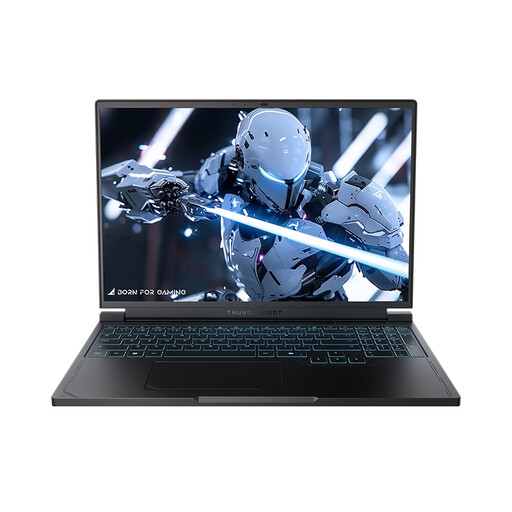 No image available
If you’re looking for a 16-inch digital workspace, the product title lists a QHD+ screen with a 240 Hz refresh rate.
The product title specifies 16 GB of DDR5 RAM and a 1 TB SSD.
 No image available
If you use a separate input device and want to present from your laptop, this version has 24 GB of memory and 1 TB of storage.
Apple lists P3 display support for the MacBook Pro M5 Pro configuration. The laptop screen isn’t a touchscreen, so drawing directly on it isn’t the input method described here.
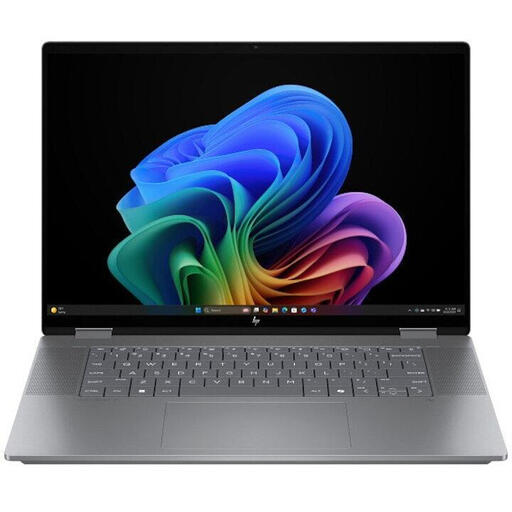 No image available
If you’re looking for a convertible laptop, the product information lists a 360-degree hinge and a 16-inch 3K OLED touchscreen.
The product information specifies 24 GB of memory, 1 TB of storage and a stated colour gamut of 100% DCI-P3. This colour gamut alone is not a measure of colour accuracy.
No, the width of the subject alone doesn’t determine that. First decide whether you work with vectors or large raster files, then check the requirements of your own software; Adobe lists separate requirements for memory, storage and graphics hardware for Photoshop.
Use a suitable screen profile, work in stable lighting conditions and check how the file looks on the presentation screen. Adobe explains that screens and printers display colours differently and recommends calibration for colour-critical work.
Check whether the power supply and pen you want are included with the exact version. The tested ASUS ProArt P16 configuration doesn’t list a power adapter; the charger for the tested HP OmniBook X Flip is sold separately. Whether you need a compatible graphics tablet or pen depends on the input method you choose.
If you buy online as a consumer from a business, you’ll generally have a 14-day cooling-off period after receiving your order, subject to legal exceptions. You’re also entitled to a product that meets what you could reasonably expect; in the Netherlands, there is no fixed general period for the statutory guarantee. If you buy from a foreign seller, the applicable rules may depend on the specific purchase.