
Sit-stand desk user
You regularly create diagrams at a sit-stand desk and want to position your screen and input devices appropriately. The Arboportaal advises alternating between sitting and standing.


First, choose a laptop that works with your diagram software. Then decide whether you’ll mainly use a mouse and keyboard with an external screen, or sketch directly on the laptop screen. A convertible is worth considering if you’ll actually use the pen; a laptop form factor or 360° hinge alone won’t give you a well set-up workstation.
You regularly create diagrams at a sit-stand desk and want to position your screen and input devices appropriately. The Arboportaal advises alternating between sitting and standing.
You edit shapes, labels and files in vector software, and want to check in advance that the operating system and file workflow are right for you. Inkscape lists Windows, macOS and GNU/Linux as supported platforms.
You want to draw directly on the screen, so you’ll need to check the pen and screen specifications of the exact model. For example, Lenovo lists a pen for configuration 83JQ00G7MH.
Good for: anyone who mainly uses a mouse and keyboard and switches between sitting and standing at their workstation.
Bear in mind: an external screen and separate input devices take up space and may mean extra purchases.
Good for: anyone who regularly sketches by hand or adds annotations while creating diagrams.
Bear in mind: a touchscreen can be reflective. A pen and 360° hinge don’t replace a suitable setup for extended screen work.
Good for: anyone who mainly uses BioRender, which describes its service as supporting desktop and laptop use.
Bear in mind: BioRender recommends the latest version of Chrome and notes limitations with some other browsers. Also check the requirements for any locally installed software.
| What to consider | What should you check? | Who is this important for? |
|---|---|---|
| Sit-stand workstation setup | Check the video ports on the exact configuration and whether there’s room for an external screen and separate input devices. | If I switch between sitting and standing, I want to position the screen and input devices appropriately. Around 33% of consumers put workstation setup at the top of their buying priorities. |
| Software compatibility | Make a note of your programmes, operating system and required import and export formats. For browser-based services, check the recommended browser too. | I want to know in advance whether my diagram software and file workflow will work on the laptop. Around 27% of consumers put software compatibility first. |
| Visibility of lines and labels | Compare the screen specifications for the exact configuration and assess reflections in the light conditions at your desk. | When editing, I want to see lines and labels clearly, especially if I’m not using an external screen. Around 20% of consumers give visibility of diagram details top priority. |
| Portability and sketching | Compare the size and weight with how you plan to carry it. For a convertible, check that the exact configuration includes the pen you want. | If I want to take my laptop with me and sketch directly on the screen, I look for portability and pen input. Around 20% of consumers put these needs first. |
Reflections can make it harder to work on diagrams. Lenovo says the Yoga 7i configuration 83JQ00G7MH has a reflective screen.
Assess the screen at the sitting and standing heights you plan to use, and check the screen specification for the exact model.
What’s included varies by configuration: Lenovo lists a pen with model 83JQ00G7MH, while HP says an adapter is sold separately for the OmniBook X Flip 14-fm0601ndx reviewed here.
Before ordering, check what’s in the box and the full product code, not just the series name.
If a pen or adapter isn’t included, you may need to buy one separately.
ACM ConsuWijzer explains that your statutory guarantee applies alongside any retailer or manufacturer’s warranty, and that the retailer is responsible for faulty products.
Compare the terms of an additional plan separately with your statutory rights.
A paid plan could add costs for protection that’s already covered by your statutory rights.
The MacBook Air M5 is a conventional macOS option to consider if you want to work with an external screen.
The Yoga 7i 2-in-1 Gen 10 range includes Windows configurations with touch input to compare if you want to sketch with a pen.
The OmniBook X Flip 14 is a Windows convertible to compare if you want a touchscreen and several ways to use your laptop.
The XPS 16 is a larger, configurable alternative to consider if you mainly work on the laptop screen.
This Joybuy selection includes Windows laptops with a range of screen sizes and, on some configurations, touch input. Check that your software is compatible and consider how you want to position the screen and input devices at your sit-stand desk.
 Image unavailable
Could suit you if you’re looking for a Windows laptop with a large touchscreen and several ways to use it.
16-inch 3K OLED touchscreen with a 16:10 aspect ratio; Windows 11 Home; four modes: laptop, tent, tablet and reverse.
 Image unavailable
Could suit you if you want a compact convertible with a touchscreen and don’t need a pen, or are happy to buy one separately.
Intel Core 5 120U; 8 GB RAM; 512 GB SSD; 14-inch IPS touchscreen with 1920 × 1200 pixels and a 16:10 aspect ratio; Windows 11 Home.
The charger and stylus pen aren’t included. The memory is onboard and can’t be upgraded.
 Image unavailable
Could suit you if you want to work on the built-in 16-inch screen and use Windows for your diagram software.
16-inch WUXGA OLED screen with a 16:10 aspect ratio; Snapdragon X processor; 16 GB LPDDR5X; 512 GB SSD; Windows 11 Home; weight 1.70 kg.
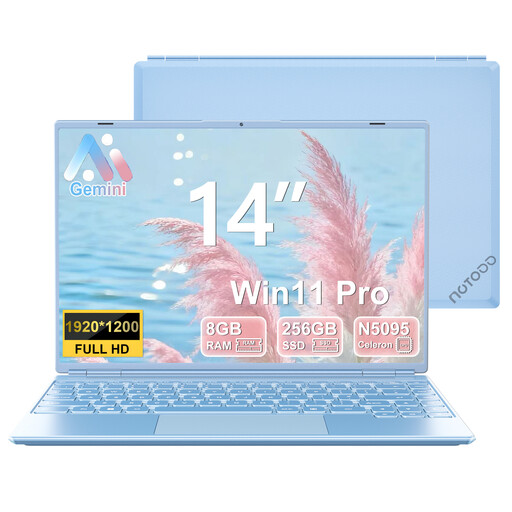 Image unavailable
Could suit you if you’re looking for a Windows laptop with a listed Mini HDMI port. Check which cable and connection you’ll need for your external screen.
14-inch screen with 1920 × 1200 pixels; Celeron N5095; 8 GB RAM; 256 GB SSD; Windows 11; Mini HDMI.
 Image unavailable
Could suit you if you want to sketch diagrams directly on a touchscreen and need several ways to use your laptop.
16-inch OLED touchscreen with 2880 × 1800 pixels; pen input; 360° hinge; Windows 11 Home; 32 GB RAM; 1 TB SSD.
You can’t tell from the type of diagram alone. Check the requirements of the programmes you actually use: Inkscape is vector software for desktop platforms, while BioRender describes its service as available on desktop and laptop. Don’t assume you need a dedicated graphics card just because the work is ‘scientific’.
Make sure your screen and input devices are positioned comfortably for both sitting and standing. The Dutch Arboportaal advises alternating between sitting and standing; having a laptop or sit-stand desk alone doesn’t guarantee a suitable screen setup.
Check what’s included with the exact configuration: HP lists an adapter as sold separately for the 14-fm0601ndx reviewed here, while Lenovo lists a pen for the 83JQ00G7MH reviewed here. For purchases by consumers in the Netherlands, statutory guarantee rights are separate from any manufacturer’s warranty. The retailer is your point of contact if the product doesn’t meet reasonable expectations during normal use.
According to the Arboportaal, for employees who work at a screen for more than 2 hours a day, the screen and keyboard must not be attached to each other. When using a laptop, it must therefore be possible to use a separate screen or keyboard. Employers must also ensure screen work is regularly alternated with other work or a break. This requirement applies to that working situation and isn’t a general product specification.