What should you look for when choosing?
Windows laptop with a suitable HDMI port
A good fit if: you want to use your laptop screen alongside one HDMI monitor and a direct connection is important to you.
Consider: an HDMI port alone doesn’t prove that two external monitors will work at the same time; check the exact configuration.
MacBook Air with M5
A good fit if: macOS suits your other apps and you’re looking for a compact laptop with documented support for external displays.
Consider: Apple lists Thunderbolt/USB-C ports, but no built-in HDMI port; choose a cable or adapter to suit your monitor.
Laptop with a larger built-in screen
A good fit if: you mainly edit routes on the go and only use a second monitor occasionally.
Consider: a larger laptop screen isn’t a substitute for two separately arranged screens, and the laptop may be less convenient to carry.
Start with the screen layout you actually want to use, then check the laptop’s ports and available workspace.
| What to consider |
What should you check? |
Who is this important for? |
| Display connection |
Check the video output on the exact configuration, your monitor’s input and the cable you’ll need. If you’re not counting the built-in screen, check separately whether two external monitors are supported. |
I want to keep the map on one screen and view extra information on the other; around 33% of consumers prioritise a working connection for their own monitor. |
| Workspace and windows |
Compare the laptop’s screen size and resolution. Also check the memory in the specific configuration; the Consumentenbond recommends 16 GB for running several programmes at once. |
If I keep the route map and other windows open while planning, I want to switch between them easily; around 25% of consumers prioritise an overview and working with multiple windows. |
| Portability |
Check the weight, dimensions and screen size. Consider the stated battery life in light of the conditions under which it was measured, which may not match route-planning use. |
I take my laptop with me and plan routes without a fixed monitor, so the built-in screen and overall size matter; around 17% of consumers prioritise portability. |
| Complete setup |
Make a note of which monitor, cables or adapters you already have, and check what’s included with the specific configuration. |
When I want to use my existing equipment, I want to know what else I need to get the setup working; around 25% of consumers focus mainly on the complete setup. |
Brands to compare
Ports and display support can vary by model and configuration. Check the specifications for the version you’re considering, rather than relying on the brand name alone.
Apple
The MacBook Air with M5 is a macOS option for anyone looking for a compact laptop that supports external displays.
- Apple Netherlands lists support for using the built-in screen alongside up to two external displays on this model.
- The listed ports are Thunderbolt/USB-C. Check which cable or adapter you’ll need for an HDMI monitor.
Dell
The Dell Pro 14 PC14250 is a 14-inch Windows business range; specifications depend on the version you choose.
- Dell Netherlands lists 16 GB of memory and a 14-inch FHD+ screen for the configuration shown.
- For the exact version, check the video output, support for the number of monitors you want and any included accessories.
HP
The ProBook 4 G1i 14 series includes Windows configurations for anyone comparing 14-inch laptops with features such as HDMI.
- The HP page for configuration B9YJ3ET#ABH lists HDMI, two USB-C ports, 16 GB RAM and a 512 GB SSD.
- HP’s page lists this configuration as unavailable from HP. The presence of USB-C ports alone doesn’t confirm that both support video output.
Lenovo
The ThinkPad E14 Gen 7 is a 14-inch business range worth comparing if you’re looking for a specific version for your setup.
- Lenovo lists HDMI and, depending on the Intel version, USB-C or Thunderbolt ports.
- Ports vary by version; check the full model number and the keyboard layout you want.
Joybuy product picks
These laptops are options to compare for route planning using the built-in screen, with the option of adding an external monitor. For each exact version, check that the video output matches your monitor and screen layout.
 No image available
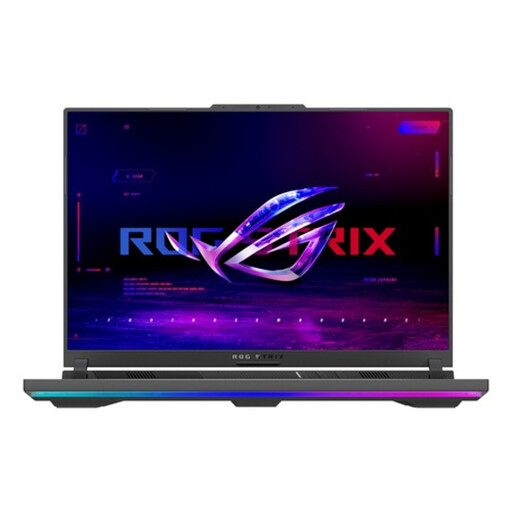
ASUS ROG Strix G16 G614PP-S5032W
A gaming laptop worth comparing for route planning; check that the ports on this version are suitable for your monitor.
Joybuy
 No image available
Lenovo ThinkBook 16 G8 IAL 21SK00EBMH
The 16-inch screen gives you space to view the map on your laptop; check the video output before connecting an extra monitor.
16-inch WUXGA screen, Intel Core Ultra 5 135H, 16 GB DDR5, 512 GB SSD and Windows 11 Pro.
Joybuy
 No image available
HP OmniBook Ultra Next Gen AI 16-bk0001nd
The 16-inch screen could be useful if you also want to view the map on your laptop; check the video output for your monitor.
16-inch 3K OLED touchscreen, 32 GB RAM and 1 TB SSD.
Joybuy
 No image available
HP OmniBook Ultra Next Gen AI 16-bk0004nd
The 16-inch screen could be useful if you also want to view the map on your laptop; check the video output for your monitor.
16-inch 3K OLED touchscreen, 128 GB RAM and 2 TB SSD.
Joybuy
 No image available
Lenovo Yoga 9 16N1X11 83N70020MH
The 2-in-1 design could suit anyone who wants a flexible built-in screen; check the video output before connecting a monitor.
16-inch 2-in-1 laptop, 32 GB RAM and 1 TB SSD.
Joybuy
Frequently asked questions
By two screens, do you mean a monitor alongside your laptop, or two separate monitors?
These require two different checks. For a laptop with one monitor, check that you have one suitable video connection. For two separate monitors, check whether the exact version supports both external screens at the same time; don’t count the built-in screen as an external monitor.
How do you spread the route map and other windows across the screens?
Connect the monitor, then set up the screen layout and display mode in Windows. Microsoft Support explains how to identify and arrange screens, and how to detect them again if needed.
Will every USB-C port work with a monitor?
No, not automatically. Check whether the laptop’s USB-C port supports video, for example through DisplayPort Alt Mode or Thunderbolt, and choose a connection that matches your monitor’s input.
Do you need a laptop for demanding graphics work to use a route-planning website?
Not just because you’re planning a route on a website. Komoot describes route planning in its web interface; the Consumentenbond recommends higher specifications for tasks such as complex video editing and 3D work. Other programmes you use at the same time may still influence your choice.
What if a laptop bought online doesn’t work properly?
According to the Government of the Netherlands, the seller must offer a solution if a product is faulty; there is no fixed statutory warranty period in the Netherlands that applies to all products. The cancellation period for an eligible online consumer purchase is a separate arrangement and is generally 14 days. Check the terms that apply to your purchase.


