
Occasional tutorial maker
You make a short cooking video now and again and mainly want to trim clips and add titles, without paying extra for hardware you don’t need.


Choose your laptop based on the resolution of your footage and the editing software you use. You may not need a powerful creator laptop for a short, simple tutorial, while multiple 4K tracks or advanced effects can require more processing power. Then compare the exact model’s screen, storage and ports to make sure it suits the way you import and present your video.
You make a short cooking video now and again and mainly want to trim clips and add titles, without paying extra for hardware you don’t need.
You work with 4K, multiple video layers or more extensive post-production, and want to match your setup to your editing software.
You take your laptop to shoots or presentations and weigh portability against screen space and ports.
Start with your editing software and the resolution of your footage. Then compare the screen, storage and ports based on how you make and present your tutorial.
| What to consider | What should you check? | Who is this important for? |
|---|---|---|
| Editing performance | Make a note of your software, version and source resolution. Adobe recommends 16 GB RAM for HD and 32 GB or more for 4K in Premiere’s system requirements. These are recommendations for that programme, not general minimum requirements for every laptop. | If your main priority is making sure your chosen software works well with your footage, put your workflow first. Around 31% of consumers in this comparison give editing performance top priority. |
| Total cost | Compare the full configurations and check whether your editing software requires a paid version or recurring licence fees. | If you mainly make short videos and don’t want to pay for performance you won’t use, cost matters. Around 25% of consumers put an affordable total cost first. |
| Reviewing footage | Compare screen size and the specifications of the exact model. If you colour-grade, check that the screen or an external monitor suits your workflow. | If you want to review the timeline and preview on your laptop screen, screen space and the specific screen configuration matter. Around 19% of consumers prioritise reviewing footage. |
| Storage and transfer | Compare SSD capacity with the space your source footage, project files and exports will need. Also check whether the laptop has a card reader or the right port for your camera and storage devices. | If you want to store footage and transfer it without unnecessary extra steps, available storage and the right ports matter. Around 13% of consumers prioritise media storage and transfer. |
| Portability | Check the weight, screen size and power supply of the exact model. Weigh a more compact screen against the space you need when editing. | If you take your laptop between the shoot and presentation, portability is a separate consideration alongside screen space. Around 12% of consumers give portability top priority. |
Adobe’s system requirements distinguish between HD and 4K. A minimum requirement for installing the software doesn’t automatically tell you which configuration will work well with your footage, layers and effects.
First, make a note of your software, version and source resolution, then compare these with Adobe’s relevant recommendations. These recommendations depend on the programme and workflow.
A laptop range can include different processors, graphics cards and screens. The range name alone doesn’t tell you which configuration you’re actually buying.
Compare the full model code and check the RAM, SSD, screen and graphics card for the specific model.
Your editing workflow may also require software, external storage or an adapter. The ports you need will depend on your camera, storage and presentation setup.
Before you buy, make a list of your software, files and required ports, then check that any software costs, storage or adapters fit your budget and requirements.
The 14-inch MacBook Pro with M5 is a macOS option to compare if your footage uses H.264, HEVC or ProRes. Apple describes hardware acceleration for these formats.
The ProArt PX13 is a compact Windows range for creators, but specifications vary by model code.
The Yoga Pro 9i Gen 11 Aura Edition is a larger Windows option if built-in screen space matters to you while editing.
The Katana 15 HX B14W range is a Windows alternative to compare if the graphics configuration is a major consideration.
These models range from laptops for occasional editing and use on the go to configurations for more demanding Windows workflows. Compare the specifications with your software, source footage and preferred screen and storage space.
 No image available
A Windows laptop to compare if your editing software makes use of the listed graphics card.
The product name lists an Intel Core 7 240H, RTX 5070 with 8 GB, 16 GB DDR5, a 1 TB SSD and a 144 Hz WUXGA screen. The screen is rated at 45% NTSC, so bear this in mind if accurate colour grading matters to you.
 No image available
A 14-inch model to consider if you’re looking for a laptop for creative work and want plenty of memory in your configuration.
The product name lists 128 GB RAM, a 1 TB SSD and Windows 11 Pro. The product description says that the charger isn’t included.
 No image available
This model is suited to occasional, straightforward editing and taking with you. Check that macOS and your editing software suit your workflow.
The product name lists an M5 chip, 16 GB memory and a 512 GB SSD. According to the product description, a 35 W or higher USB-C power adapter isn’t included.
 No image available
This configuration is worth comparing for an intensive editing workflow where plenty of built-in screen and storage space is important.
The product name lists an 18-inch UHD+ Mini LED screen, Intel Core Ultra 9 285HX, 64 GB DDR5, a 6 TB SSD and RTX 5090 with 24 GB memory. Its quoted weight is 3.6 kg, which may make it less practical to take to shoots or presentations.
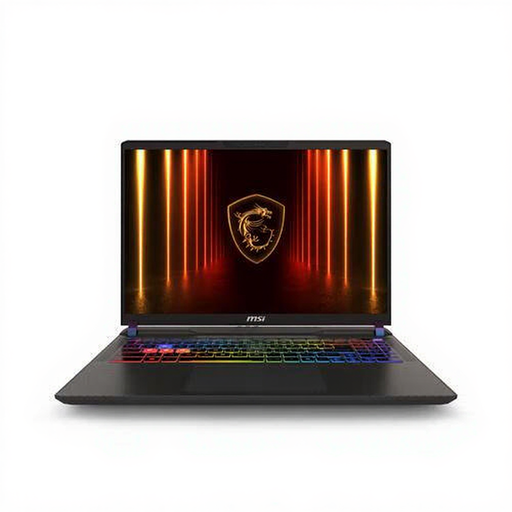 No image available
A 16-inch Windows model to compare if you’re weighing up built-in screen space and graphics performance for editing.
The product name lists an AMD Ryzen 9 8940HX, 16 GB DDR5, a 1 TB SSD and an RTX 5080. According to the product description, the adapter must be bought separately and the laptop weighs 2.7 kg.
No, not as a general rule. Adobe recommends 16 GB RAM for HD and 32 GB or more for 4K in Premiere’s system requirements. Match your choice to the software and footage you actually use.
Compare your camera’s memory card format and the connection on your presentation screen with the ports on the exact laptop model. Apple lists SDXC and HDMI for the MacBook Pro mentioned here. For other models, check their own ports and those available in your presentation setup.
Allow for source footage, project files and exports, and keep a separate copy of irreplaceable footage. Adobe recommends a fast drive for media and cache in Premiere; work out the capacity you need based on your own files.
For eligible online consumer purchases, ACM ConsuWijzer says you generally have a statutory cooling-off period of up to 14 days after delivery. You’re also entitled to a statutory guarantee if the product doesn’t perform as you could reasonably expect under normal use; the seller is your point of contact. A manufacturer’s guarantee doesn’t replace this right.
Yes, check the terms for the editing software and version you plan to use in advance. Adobe says that activating the Premiere versions reviewed requires an internet connection and an Adobe ID, and that additional or subscription fees may apply.