Who is this choice relevant to?

Anyone reading construction drawings by a bright window

You review plans while daylight falls on or behind the screen. The screen configuration and your workstation position matter more to you than maximum processing power. Arboportaal advises positioning your line of sight parallel to the window.

Anyone reviewing large sets of PDF drawings

You browse and annotate extensive construction PDF files. Check that the laptop suits your chosen PDF software and file sizes; Bluebeam provides separate guidance for large drawing sets in Revu 21.

Anyone also working locally in Revit on drawings

You also edit models on your laptop. Check the requirements for your version of Revit and the size of your models; for Revit 2026, Autodesk specifies Windows and different memory configurations depending on the workload.

What should you look for when choosing?

Mainly reading and annotating PDF drawings

Choose this if: you mainly view and edit drawings in a PDF programme; check the software's requirements and the screen configuration.

Trade-off: extra graphics capability isn't necessarily needed for this use, while a larger screen can make the laptop less convenient to handle.

Also working locally in Revit 2026

Choose this if: you edit models on your laptop and the configuration meets the Windows and hardware requirements for the size of your models.

Trade-off: more memory or graphics capability won't automatically make the screen easier to read by a bright window.

MacBook within a macOS workflow

Choose this if: the drawings and applications you use work on macOS, and you select the specific screen option with that in mind.

Trade-off: don't assume Revit 2026 or Bluebeam Revu 21 will work locally on macOS; the requirements we reviewed specify Windows.

What to consider What should you check? Who is it for?
Readability in daylight Check the anti-glare finish and stated brightness of the exact configuration; don't treat an HDR peak brightness as the standard screen brightness. Position your line of sight parallel to the window, as advised by Arboportaal. When daylight falls on or behind the screen, I want to be able to read drawings without reflections obscuring every detail. Around 36% of consumers prioritise readability in daylight.
Large PDF sets Check the operating system and the requirements of your specific PDF programme. Bluebeam specifies Windows for Revu 21 and provides separate advice for large drawing sets. For large PDF sets, I want to know whether my chosen programme and laptop configuration suit the work I do. Around 29% of consumers give reviewing large PDF sets top priority.
Local BIM models Check that Windows, memory and graphics hardware meet the requirements for your version of Revit and the size of your models. For Revit 2026, Autodesk specifies 16 GB RAM for a typical session with one model of around 300 MB on disk. For a balanced configuration with a model of around 600 MB, Autodesk specifies 32 GB or more. If I edit models locally, I want to match the configuration to the size of the models I actually work with. Around 21% of consumers put local BIM work first.
Taking it between workstations Weigh screen size against portability and check that the configuration you choose has the connections you need at your workstations. When I move between workstations often, I want enough room for drawings without having to carry unnecessary bulk. Around 14% of consumers prioritise portability.

Common buying mistakes

  • Assuming an HDR peak brightness guarantees readability

    Maximum HDR brightness doesn't automatically indicate how bright the screen is when displaying standard PDF drawings. ASUS lists a maximum HDR brightness of 1600 nits for the ProArt P16 mentioned here; bright sunlight can also make a screen harder to read.

    Check the screen configuration of the exact model, and consider the light and layout of your workstation too.

  • Assuming a model name means it's ready to use

    The Lenovo ThinkPad P14s Gen 6 AMD configuration 21QL0073MH doesn't specify an operating system, while the requirements we reviewed for Revu 21 and local use of Revit 2026 specify Windows.

    Before buying, check the full configuration number, the operating system supplied and the requirements of your own software. If necessary, factor in installing a suitable operating system.

  • Choosing a MacBook without checking the software you use

    The requirements we reviewed for Bluebeam Revu 21 and local use of Revit 2026 specify Windows. Choosing a particular screen option doesn't change those software requirements.

    Check whether macOS is supported for each application and workflow before choosing based on your screen preference.

Brands to consider

Lenovo

The ThinkPad P14s Gen 6 AMD configuration 21QL0073MH is an example of a compact mobile workstation with a specified anti-glare screen.

  • Lenovo lists a 14-inch WUXGA IPS screen with 400 nits and 32 GB RAM for this configuration.
  • This configuration doesn't specify an operating system. Check what's needed to run your Windows software.

Apple

The 14-inch MacBook Pro with M5 Pro is a macOS option for buyers whose drawings and applications work on that system.

  • Apple lists nano-texture as a screen option for this model.
  • Nano-texture isn't standard on every unit. The requirements we reviewed for local use of Revit 2026 and Bluebeam Revu 21 specify Windows.

ASUS

The ProArt P16 H7607 is a larger Windows laptop to consider if you need the capabilities of this product range as well as a device for drawings.

  • ASUS lists a 16-inch OLED screen with an anti-reflective coating for the configuration mentioned.
  • The stated 1600 nits is the maximum HDR brightness, not a measure of standard PDF display or readability by a window.

HP

The EliteBook 8 G1i 14 configuration A26ZMEA#ABH is a business Windows laptop with a specified 14-inch WUXGA screen.

  • HP lists 32 GB RAM and three years of on-site support for this offer.
  • HP marks this specific configuration as unavailable. Check current availability and assess how readable the screen is in your own workstation.

Joybuy laptops for construction drawings

This selection focuses on laptops for viewing and annotating construction drawings in PDF format. Check the screen features and software requirements for each configuration.
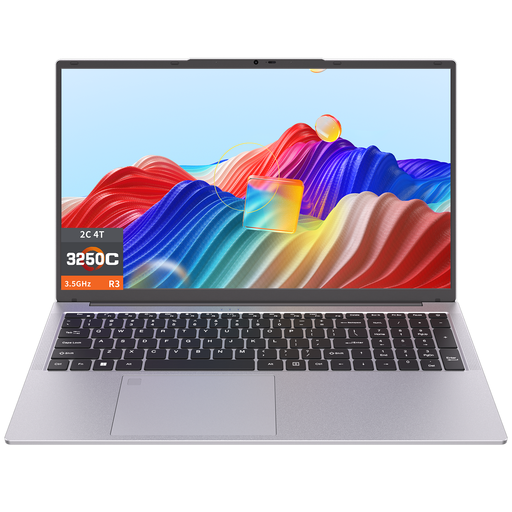
Auusda T173A laptop

Auusda T173A, 17.3-inch, 8 GB RAM, 512 GB SSD

When reviewing construction drawings in PDF format, you can weigh the stated screen size against the space and portability you need.

The product title lists a 17.3-inch screen, a 3250C processor, 8 GB DDR4 RAM and a 512 GB SSD.

View at Joybuy

ASUS ProArt P16 H7607BA-SE181X

ASUS ProArt P16 H7607BA-SE181X

For construction drawings in PDF format, it's worth checking the screen configuration of this exact model and factoring in the software requirements of your workflow.

The product title lists a 16-inch AI workstation, 128 GB RAM, a 1 TB SSD, Windows 11 Pro and a QWERTY keyboard.

View at Joybuy

HP OmniBook Ultra Next Gen AI 16-bk0001nd

HP OmniBook Ultra Next Gen AI 16-bk0001nd

When reviewing drawings, compare the screen on this specific configuration with your software requirements and the light in your workstation.

The product title lists a 16-inch 3K OLED touchscreen with 120 Hz, 32 GB RAM, a 1 TB SSD, Windows 11 Pro and a QWERTY keyboard.

View at Joybuy
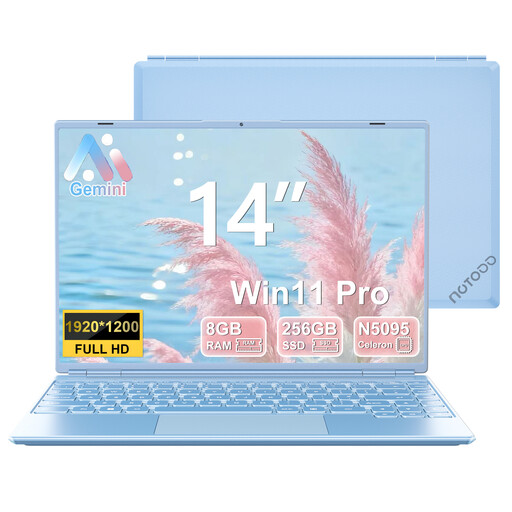
NOTODD laptop with Celeron N5095

NOTODD laptop, 14-inch, Celeron N5095, 8 GB RAM, 256 GB SSD

If you review construction PDFs, weigh the stated screen size against the screen space you need and check the software requirements.

The product title lists a 14-inch screen with a resolution of 1920 × 1200, a Celeron N5095, 8 GB RAM, a 256 GB SSD and Windows 11.

View at Joybuy

Frequently asked questions

Is an anti-glare screen enough if the sun shines directly on your workstation?

Not necessarily. Arboportaal advises positioning your screen workstation parallel to the window, moving it further from the window if necessary, and using suitable blinds or other sun protection. You should also check the laptop's screen configuration.

Do I automatically need a Revit workstation to read construction PDFs?

No. First work out which programme you actually use. Bluebeam provides separate guidance for large drawing sets in Revu 21; Autodesk has different requirements for local use of Revit 2026, depending on the model.

What should I check before installing drawing software?

Check the operating system on the exact configuration. The Lenovo 21QL0073MH doesn't specify an operating system, while the requirements we reviewed for Revu 21 and local use of Revit 2026 specify Windows.

Are there Dutch workplace rules for prolonged laptop use?

For employees, Arboportaal sets out rules for screen work. If they work at a screen for more than two hours a day, they must be able to use a separate monitor or keyboard, among other things. This is a conditional workplace rule, not a uniform minimum specification for every laptop buyer.

Can I return a laptop bought online if the screen isn't suitable by my window?

For distance purchases, a 14-day cooling-off period applies in many cases, according to the Dutch government; conditions and exceptions may apply. This is separate from your rights if a product is faulty.
