
Layout editor at a shared desk
You regularly connect your own laptop to the monitor and peripherals at a shared workstation. Check in advance that the connections and keyboard layout on the configuration you choose are suitable for that setup.


Start with the layout software you use, then check that the laptop is compatible with the connections at the shared desk. If you usually work with an external monitor, a more compact built-in screen may be enough. If you also want to review pages without a monitor, more screen space on the laptop itself may be more practical. Check the keyboard layout and what’s included for power with each configuration, too.
You regularly connect your own laptop to the monitor and peripherals at a shared workstation. Check in advance that the connections and keyboard layout on the configuration you choose are suitable for that setup.
You edit text and images, then supply a file that meets the printer’s requirements. Your choice of layout software and export settings will help determine what your laptop needs to handle.
You take your laptop with you and sometimes review pages without an external screen. You’ll need to weigh portability against the space offered by the built-in screen.
First, check your software and the connections available at the shared desk. Then consider how often you work without an external monitor. This will help you decide how important the built-in screen size is to you.
| Consideration | What should you check? | Who should pay particular attention? |
|---|---|---|
| Connecting to the shared desk | Compare the ports on the exact configuration with the monitor, dock and power supply; check the keyboard layout, too. | If you often connect your laptop to the existing workstation, you’ll want to know whether the whole setup will work. Around 40% of consumers prioritise connectivity. |
| Layout software and readability | Compare your software’s requirements with the operating system, memory and screen on the configuration you’ve chosen; ask the printer which export file they need. | If you need to review text and images on pages closely, you’ll want your software and workspace to be up to the task. Around 30% of consumers prioritise layout and readability. |
| Moving between workstations | Decide how often you work without an external monitor and compare the screen sizes of the configurations you’re considering. | If you regularly take your laptop with you and review pages on the go, weigh portability against the space available on the built-in screen. Around 30% of consumers prioritise working between different locations. |
A connection mentioned in the product name doesn’t automatically mean the laptop will work with the monitor, peripherals and power supply at the shared desk.
Compare the ports on the exact configuration with those on the screen and any dock you use.
You may need a compatible adapter or dock for your existing setup.
According to the Dutch Arboportaal, for employees who spend more than 2 hours a day working with a screen, the screen and keyboard must not be attached to each other.
For this type of work, check whether the shared workstation can accommodate a separate screen or keyboard.
You may need a separate keyboard, an external screen or another workstation component.
A manufacturer’s warranty is not the same as your statutory rights against the seller. In the Netherlands, there is no fixed statutory warranty period that applies to all products.
Consider any additional warranty separately; ACM ConsuWijzer explains statutory guarantees alongside manufacturer’s warranties.
What’s in the box can vary by configuration and offer. The Joybuy product page checked for a MacBook Air M5 did not list a charger; this does not automatically apply to other models or offers.
Before buying, check what’s in the box and what power supply the configuration you’ve chosen requires.
If the right power supply isn’t included, you may need to buy a compatible adapter separately.
The ThinkPad E14 Gen 7 we reviewed is a compact Windows laptop worth comparing for a shared workstation.
The MacBook Air M5 runs macOS and is available with a 13-inch or 15-inch screen.
The ProBook 4 G1ah we reviewed is a 14-inch Windows laptop for text and layout work.
The Dell Pro 14 is a business-oriented 14-inch Windows laptop worth considering alongside other workstation-focused configurations.
These laptop options are suited to editing text and programme materials, reviewing pages and connecting to a shared workstation. Compare each configuration’s screen with your workspace and check what power supply or connection accessories you’ll need.
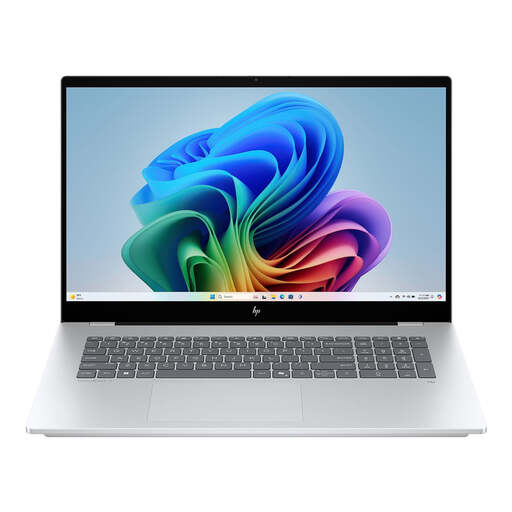 No image available
The 17.3-inch screen gives you plenty of built-in space to review pages when an external monitor isn’t available.
17.3-inch FHD IPS touchscreen; 16 GB RAM; 512 GB SSD; Wi-Fi 6E; Bluetooth 5.3.
According to the product description, a compatible USB-C charger is sold separately.
 No image available
The listed ports may be useful if you want to connect the laptop to an external screen and peripherals at a shared workstation.
16-inch screen with 1920 × 1200 resolution; 16 GB RAM; Thunderbolt 4 with DisplayPort support; two USB-A ports.
 No image available
The 16-inch screen gives you built-in workspace; check that the ports are suitable for the equipment at the shared desk.
16-inch OLED screen with 2560 × 1600 resolution; 16 GB RAM; 1 TB SSD; HDMI 2.1; Thunderbolt 4 with DisplayPort support.
The product description states that the charger must be purchased separately.
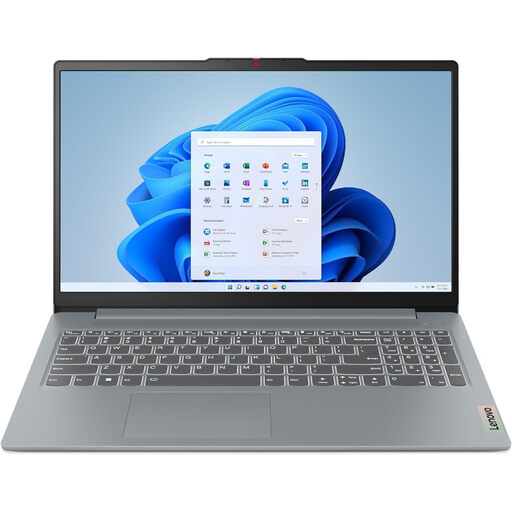 No image available
The HDMI and USB-C connections listed may be useful when connecting to a shared workstation; compare them with the equipment available.
15.3-inch WUXGA screen with a 16:10 aspect ratio and anti-glare IPS panel; 16 GB DDR5; 512 GB PCIe 4.0 SSD; HDMI; USB-C with DisplayPort support.
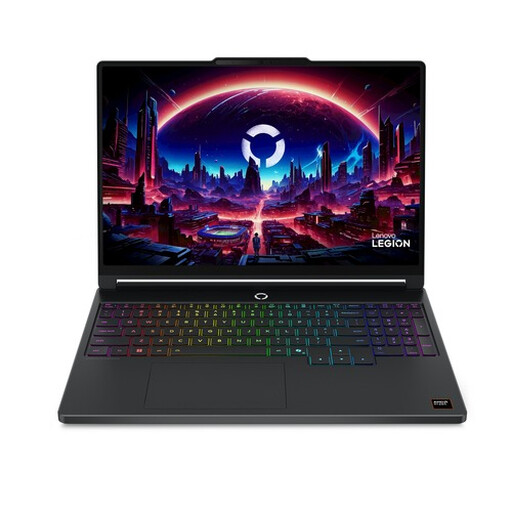 No image available
The product description lists connections for external screens; check that they’re suitable for the equipment at your shared workstation.
15.3-inch OLED screen with 2560 × 1600 resolution; 16 GB DDR5; 512 GB SSD; two USB4 ports with Power Delivery support.
It depends on the software. Adobe lists 8 GB RAM as the minimum and 16 GB as the recommended amount for InDesign version 21.3 and later; that recommendation doesn’t automatically apply to other programmes.
For employees who spend more than 2 hours a day working with a screen, the Dutch Arboportaal states that the screen and keyboard must not be attached to each other. Check whether the workstation can accommodate a separate screen or keyboard; this requirement does not necessarily apply to every user.
Ask your printer for their file specifications, then check the margins, bleed and crop marks in your layout. Canva describes print options such as bleed and crop marks, and distinguishes between PDF Print and PDF Standard. These are software and export settings, not laptop features.
For consumer purchases in the Netherlands, statutory rights apply alongside any manufacturer’s warranty. ACM ConsuWijzer explains that the seller must resolve a fault that you wouldn’t expect with normal use; there is no fixed statutory warranty period that applies to all products in the Netherlands.
According to ACM ConsuWijzer, online consumer purchases often come with a cooling-off period of up to 14 days after delivery, subject to exceptions and conditions. Check the returns information that applies to your purchase.