
Developers with limited desk space
If you use an editor and terminal on a small desk, you’ll want a laptop that doesn’t take up too much of your work surface. Compare the laptop’s size with the space left for your peripherals.


Start with the development environment your project needs, then choose a size that fits your small desk. A compact Windows laptop can be handy if you want built-in USB-A and HDMI ports; the 13-inch MacBook Air is a macOS option with two Thunderbolt 4/USB-C ports. A Chromebook is only suitable if the tools you need work in the Linux environment on that specific device.
If you use an editor and terminal on a small desk, you’ll want a laptop that doesn’t take up too much of your work surface. Compare the laptop’s size with the space left for your peripherals.
If you need a particular toolchain, Linux environment or container workflow, check the operating system and compatibility first. Microsoft documents the requirements for Visual Studio Code, while Docker lists additional requirements for Docker Desktop on Windows. Google notes that Linux isn’t available on every Chromebook.
If you work with an editor, terminal and browser side by side, you’ll need to balance memory and screen space against the room available on your desk. Which? notes that 16 GB of memory can be a good choice for smoother multitasking.
A good fit if: you need Windows or want to connect existing USB-A and HDMI devices directly. Lenovo lists these ports for the ThinkPad X13 Gen 6.
The trade-off: a smaller screen takes up less room, but gives you less space to view multiple windows at once. Check your tools’ requirements too.
A good fit if: your tools support macOS and two Thunderbolt 4/USB-C ports suit your set-up.
The trade-off: you may need a suitable adapter or dock for USB-A devices or a monitor with HDMI only.
A good fit if: the command-line tools you need work on your chosen Chromebook and Linux can be enabled on that device.
The trade-off: Google warns that Linux may be blocked on work or school devices, so you shouldn’t assume ChromeOS is interchangeable with Windows or macOS without checking first.
| What to consider | What to look for | Who should prioritise this? |
|---|---|---|
| Desk size and workspace | Compare the laptop’s width and depth, screen size and the space available on your desk. If you use an external monitor, check which video connection you need. | If I want to use an editor, terminal and browser on a small desk, I need to leave enough room for my other things. Around 33% of consumers put desk size first. |
| Operating system and tools | Make a note of the tools you need and check the supported operating system and processor architecture for each one. For a Chromebook, also check Linux support and any management restrictions. | If my project needs a particular toolchain or container workflow, I want to know before buying whether it will work on my chosen system. Around 27% of consumers put tool compatibility first. |
| Memory and storage | Check the installed memory, SSD capacity and whether either can be upgraded. Read the system requirements for the programmes you’ll actually use. | When I use an editor, terminal, browser and local processes side by side, I want to choose a configuration that can handle the workload. Around 20% of consumers put multitasking capacity first. |
| Ports and accessories | Compare the ports with your monitor and peripherals, and check whether a suitable charger is included. Lenovo lists USB-A and HDMI for the ThinkPad X13 Gen 6; Apple lists two Thunderbolt 4/USB-C ports for the MacBook Air reviewed. | If I want to connect my existing peripherals, I need to know in advance whether I’ll also need an adapter, dock or charger. Around 20% of consumers put ports and accessories first. |
A code editor’s system requirements don’t automatically tell you whether your compiler, tests, browser or container workflow will also work on the same laptop. Microsoft lists the requirements for Visual Studio Code; Docker has additional requirements for Docker Desktop on Windows.
Make a list of the tools you’ll actually install, then check the operating system, processor architecture and system requirements for each programme.
Linux isn’t enabled by default, and support varies by device. Google also warns that Linux may not be permitted on a work or school Chromebook.
Before you buy, check whether that specific Chromebook supports Linux, whether the tools you need work in it and whether device management allows the environment.
Ports and included accessories vary by model and configuration. You may need a suitable adapter, dock or charger to connect your existing work set-up.
Compare the ports on the exact model with your monitor and devices, and check what’s included in the box.
The ThinkPad X13 Gen 6 is a compact Windows option for anyone who values built-in ports.
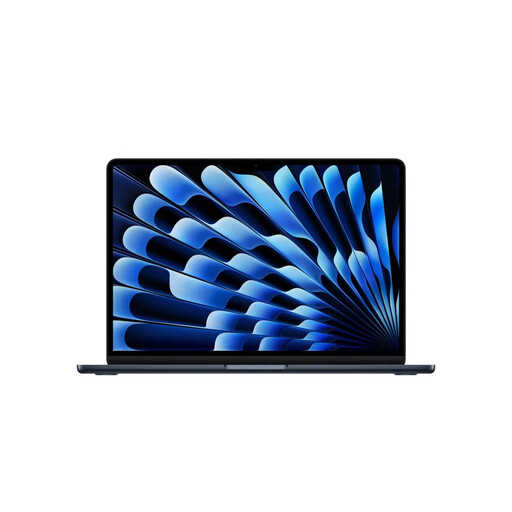
The 13-inch MacBook Air with M5 is a compact macOS option if the development tools you need support the system.
The 14-inch ProBook 4 G1i is a Windows alternative if built-in ports and screen space matter more to you than the smallest possible size.
The Chromebook Plus 514 is a ChromeOS option if the development tools you need work in the Linux environment on your chosen Chromebook.
The Dell Pro 13 series offers a configurable, compact Windows option for business users.
These product picks focus on compact Windows laptops and 13-inch MacBook Air models for a small workspace.
 No image available
A compact Windows laptop option if you’re looking for a smaller screen to suit a limited workspace.
Model: 13-bg1051nd NL. Screen size: 13.3 inches.
 No image available
This configuration may suit you if you’re looking for the listed memory and storage, but check that the 14-inch size fits your desk.
Screen size: 14 inches. Memory: 128 GB RAM. Storage: 1 TB SSD. Operating system: Windows 11 Pro. Keyboard: QWERTY.
According to the product information, the mains adapter isn’t included.
 No image available
A 14-inch option if you want a compact laptop with built-in ports; check that the screen size suits your desk.
Memory: 16 GB RAM. Storage: 512 GB SSD. Keyboard: Dutch QWERTY.
According to the product information, the 65W USB-C mains adapter isn’t included.
 No image available
A compact macOS option if your development tools support macOS and the configuration suits your work.
Memory: 24 GB. Storage: 1 TB. Keyboard: QWERTY.
You may need a suitable adapter or dock for USB-A or HDMI devices. According to the product specifications, the mains adapter isn’t included.
 No image available
A compact macOS option if you’re looking for the listed memory and storage configuration and can use the tools you need on macOS.
Memory: 16 GB. Storage: 512 GB. Keyboard: QWERTY.
You may need a suitable adapter or dock for USB-A or HDMI devices.
The editor alone won’t tell you. Microsoft recommends at least a 1.6 GHz processor and 1 GB of RAM for Visual Studio Code. These aren’t requirements for your compiler, browser, tests or any containers you use, so check those separately.
First, check whether your chosen Chromebook supports the Linux development environment. Google explains how to enable it in ChromeOS settings, but Linux may be blocked on a managed work or school device.
Not always. Compare the video connection on the specific laptop with the input on your monitor. Lenovo lists HDMI for the ThinkPad X13 Gen 6, while Apple lists video output via Thunderbolt 4/USB-C ports for the MacBook Air reviewed.
For a consumer purchase, statutory warranty applies alongside any manufacturer’s warranty. ACM ConsuWijzer says the retailer is responsible if the product doesn’t meet what you could reasonably expect. For a laptop bought online, the cooling-off period usually ends 14 days after delivery. Consumer rights don’t necessarily apply to a purchase made mainly for business use.