Who is this guide for?

Programmers with a permanent workstation

Would you like to view code and documentation side by side on your laptop screen and a monitor, or across two external monitors? Check the display support for the exact configuration and any dock you plan to use.

Developers working on demanding local projects

If you use containers or several development tools at once, compare your software’s requirements with the memory and storage of the configuration you’re considering. Docker, for example, lists separate system requirements for Docker Desktop on Windows.

Programmers who are often on the move

If you want to work across two areas without carrying a separate monitor, a laptop with two built-in screens is another option. ASUS lists two screens for the Zenbook DUO UX8407; in its review of one configuration, Tweakers highlights weight and fan noise under maximum load as points to consider.

What should you consider when choosing?

Laptop screen plus one external monitor

A good fit if: you mainly want to view code and documentation side by side at a desk.

Worth noting: check the laptop’s video output and the monitor’s connection. A USB-C port alone doesn’t tell you which display connection is available.

Two external monitors

A good fit if: you want to use two separate screens at the same time at a permanent workstation, possibly alongside the laptop screen.

Worth noting: check the laptop, monitor resolutions and dock as a complete set-up. Apple says the MacBook Air with M5 supports up to two external screens alongside its built-in screen; Lenovo PSREF says the ThinkPad T14 Gen 6 (AMD) supports up to three external screens alongside its built-in screen.

Two built-in screens

A good fit if: you want two work areas on the move without carrying a separate monitor.

Worth noting: this specialised design calls for careful consideration of its weight and keyboard layout. ASUS lists two integrated screens and 32 GB of built-in memory for the Zenbook DUO UX8407AA.

Point to consider What should you check? Who should pay particular attention?
External screens Decide how many screens need to be active at the same time. Check the laptop configuration, connections, required resolutions and any dock requirements. I want to see code and references on external screens at the same time; around 36% of consumers give this priority.
Local development tasks Compare the requirements of your development tools with the installed memory and SSD storage; also check whether the memory can be upgraded. If I use containers or several tools locally at the same time, I start by checking my software’s requirements; around 29% of consumers prioritise development capability.
Two screens on the move Decide whether you need two built-in screens, and consider the keyboard layout and weight of the configuration you choose. I want to work across two areas without a separate monitor; around 21% of consumers consider two built-in screens their top requirement.
Complete workstation Work out which monitor connection, cable, dock or charger you’ll need, and check what’s included with the exact configuration. I want to know in advance what I’ll need for my complete set-up; around 14% of consumers start by planning their entire workstation.

Common buying mistakes

  • Assuming two ports mean two screens are supported

    The laptop, video technology and dock need to support your preferred screen set-up together. According to the manufacturer, the dual MST adapter described by StarTech isn’t compatible with macOS.

    Before buying, check how many screens the exact laptop configuration supports simultaneously, along with the requirements for the specific dock.

    A suitable cable or a different dock may be part of the workstation you need.

  • Assuming every configuration has the product range’s specifications

    Memory and other features can vary between configurations. ASUS lists 32 GB of built-in memory for the Zenbook DUO UX8407AA; Lenovo lists two memory slots for the ThinkPad T14 Gen 6 (AMD).

    Compare the full model code with the configuration you’re actually choosing.

  • Assuming all the necessary items are included

    The ASUS Zenbook DUO UX8407AA-SNADPWS tested by Tweakers didn’t include a charger; this finding doesn’t automatically apply to other configurations.

    Check which accessories are included with each offer and what connections your screen set-up requires.

Brands to compare

Lenovo

The ThinkPad T14 Gen 6 (AMD) is a range worth considering for a permanent workstation with external monitors and a preference for upgradeable memory.

  • Lenovo PSREF lists the built-in screen plus up to three external screens and two memory slots for this range.
  • Check the screen resolutions and configuration for the exact model; the range specifications don’t automatically confirm that every dock will work.

Apple

The MacBook Air with M5 is an option if macOS suits your development software and you want to use external screens.

  • Apple lists support for up to two external screens while the built-in screen remains active, as well as two Thunderbolt 4 ports for the specified configuration.
  • Don’t assume any Windows MST dock will drive two separate screens on macOS; check that the specific dock is compatible.

ASUS

The Zenbook DUO UX8407 is designed for people who want to take two built-in work areas with them.

  • ASUS Netherlands lists two screens and 32 GB of built-in memory for the UX8407AA configuration.
  • Tweakers highlighted weight and fan noise under maximum load as points to consider for a tested UX8407AA; that assessment doesn’t automatically apply to every ASUS laptop.

HP

The EliteBook 8 G1i 14-inch is a business range to compare if Windows 11 Pro, memory configuration and service matter to you.

  • The Dutch HP page lists 32 GB RAM, a 1 TB SSD and three years of on-site support for configuration D51F8EA#ABH.
  • The page cited doesn’t confirm how many external monitors every other configuration supports; check this separately for the configuration you choose.

Dell

The Dell Pro 14 Plus PB14250 is a business Windows range whose configurations and service terms are worth comparing.

  • Dell Netherlands lists both laptop and 2-in-1 configurations.
  • Configurations and support services can vary; the product information consulted doesn’t confirm a set number of external monitors for every configuration.

Laptop options at Joybuy

These laptop options suit coding work where memory, storage and connections for external screens matter. Always check the specifications for the exact configuration to make sure it supports your preferred screen set-up.

HP OmniBook Ultra Next Gen AI 16-bk0004nd laptop

HP OmniBook Ultra Next Gen AI 16-bk0004nd, NVIDIA RTX Spark N1X 675, 128 GB RAM, 2 TB SSD

If you’re developing and want to connect an external screen, check that the port on this configuration is suitable for your monitor and preferred screen set-up.

The product description lists USB-C/USB4 with DisplayPort. The product name lists 128 GB RAM and a 2 TB SSD.

Joybuy

Lenovo Yoga Pro 9 15N1X11 83SR002XMH laptop

Lenovo Yoga Pro 9 15N1X11 83SR002XMH, 32 GB RAM, 512 GB SSD

If you want to connect an external monitor, compare the connections on this configuration with those on your monitor and any adapter you may need.

The product description lists HDMI and USB4. The product name lists 32 GB RAM and a 512 GB SSD.

Joybuy
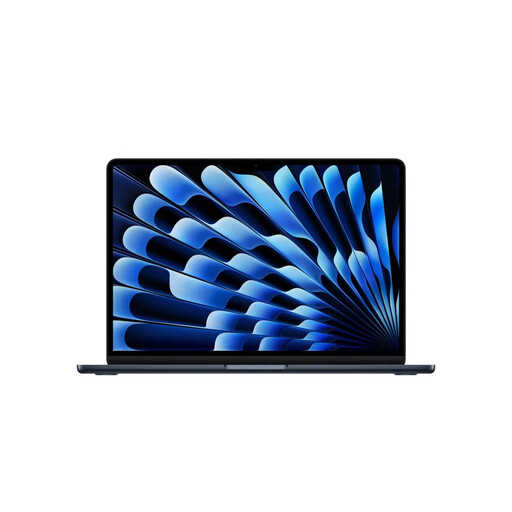
Apple MacBook Air 13-inch M5, 24 GB, 1 TB, Midnight

Apple MacBook Air 13-inch M5, 24 GB, 1 TB, Midnight

If you want to use two external screens alongside the built-in screen, check the connection and dock requirements for this MacBook Air configuration.

The product description lists support for up to two external displays. The product name lists 24 GB of memory and 1 TB of storage.

Joybuy

Apple MacBook Air 15-inch M5, 16 GB, 512 GB, Starlight

Apple MacBook Air 15-inch M5, 16 GB, 512 GB, Starlight

If you want to pair a larger built-in screen with external displays, check the display support and connections for this configuration.

The product description lists support for up to two external displays. The product name lists 16 GB of memory and 512 GB of storage.

Joybuy

Apple MacBook Pro 14-inch M5 Pro, 24 GB, 1 TB, Space Black

Apple MacBook Pro 14-inch M5 Pro, 24 GB, 1 TB, Space Black

If you want to use two external screens for development work with several tools, check that this configuration and your dock are suitable for your preferred set-up.

The product description lists support for up to two external displays, as well as Thunderbolt 4 and HDMI connections. The product name lists 24 GB of memory and a 1 TB SSD.

Joybuy

Frequently asked questions

When I say two screens, do I mean my laptop screen and one monitor, or two separate monitors?

These are different set-ups. Decide in advance which screens need to be active at the same time, and check the maximum supported by the exact laptop configuration. That maximum doesn’t automatically confirm that every dock or monitor resolution will work. Apple and Lenovo PSREF publish specifications for their specified configurations and product ranges.

How do I set up the screens if they show the same image?

Choose an extended desktop rather than mirroring. Microsoft Support explains how to identify and arrange screens in Windows; Apple Support explains how to set up connected displays on a Mac.

Will any USB-C dock with two monitors work with a MacBook?

No. USB-C alone doesn’t tell you which video connection is available. StarTech says that the dual DisplayPort MST adapter described isn’t compatible with macOS. Check the requirements of the specific dock and the exact MacBook configuration.

What if a laptop I bought online doesn’t do what was promised about the screens?

For a consumer purchase in the Netherlands, the product must meet reasonable expectations and promises; the retailer is your point of contact if you need a solution to a problem. According to the Dutch government, distance purchases also come with a 14-day cooling-off period in many cases, subject to exceptions. These are statutory consumer rights, not a standard manufacturer’s warranty period.

Are there Dutch requirements for a home-working set-up with screens?

For employees working from home, the Dutch government describes the employer’s duty of care to provide an ergonomically sound workstation. The equipment needed is assessed for each employee and task. This isn’t a standard laptop specification, nor does it automatically mean that a private buyer needs to buy two monitors.
