
Student who mainly reads pull requests
You review changes, read the context and leave comments, usually without running the project locally. GitHub Docs explains how to review changes and respond to a pull request.


You don’t necessarily need a powerful local development environment to read and comment on code changes in a browser. If you also want to build or test projects locally, first check that your course tools work with the operating system you’re considering. Then weigh screen space against size and portability.
You review changes, read the context and leave comments, usually without running the project locally. GitHub Docs explains how to review changes and respond to a pull request.
You want to use an editor and project tools as well as review code. Your course or project’s software requirements determine which operating system and configuration are right for you; Microsoft, Lenovo Netherlands and Google Chromebook Help outline different development options.
You work in your room and elsewhere, so you need to balance screen space with a size you’re happy to carry around. Lenovo Netherlands and Apple Netherlands offer product-specific guidance on studying on the move and available configurations.
First decide whether you’ll only review code in a browser or also test it locally. Then choose a screen size and system to suit your study space and software.
A good fit if: you mainly read and comment on pull requests using a supported web workflow.
Keep in mind: to develop locally on a Chromebook, Linux support and any school management settings must allow it, as Google Chromebook Help explains.
A good fit if: you want to work locally and your course or project supports or requires Windows.
Keep in mind: Visual Studio Code’s basic requirements don’t automatically cover what additional project tools need. Check those separately with Microsoft.
A good fit if: macOS works with your study tools and you’ll also use the laptop away from your room.
Keep in mind: check software compatibility and read the test conditions behind Apple’s stated battery life. They don’t automatically indicate how long it will last when you’re working on your code projects.
| What to consider | What should you check? | Who is this important for? |
|---|---|---|
| Screen readability and workspace | Compare screen size and resolution. If you plan to use a monitor, check the ports and support for the exact configuration. | If I want to view changed files alongside their context, I look for a readable screen and enough desk space. Around 33% of consumers prioritise screen space and readability. |
| Building and testing locally | Check which software is required, whether it supports the operating system, and whether you’ll work locally or use a browser or remote development environment. | If I want to build or test projects myself, my course and project tools need to work on the system I choose. Around 27% of consumers prioritise software compatibility for local work. |
| Matching the hardware to the task | Compare the requirements of your most demanding project task and check the full configuration and what’s included. | If I mainly read reviews, I don’t want to choose a configuration based on local tasks I won’t be doing. Around 20% of consumers prioritise matching the configuration to the task at hand. |
| Portability and using your laptop away from your room | Check the weight, dimensions and ports, as well as the test conditions behind the stated battery life. | If I often take my laptop with me and work away from a power socket, I weigh up its size against the screen space I need. Around 20% of consumers prioritise portability and using their laptop away from their room. |
Reviewing code in a browser and building a project locally are different tasks. If you only read and comment on changes, you don’t necessarily need the same development environment as someone who tests projects locally.
Before choosing, write down whether you’ll only review code or also build and test projects locally.
Linux support varies by device, and it may be disabled on a school-managed device.
Check support for the specific device, any management restrictions and the software your course requires.
The stated maximum is based on specific test conditions and won’t necessarily predict how long the laptop lasts with your apps and settings.
Read the testing information and consider battery life alongside the screen size you find comfortable.
Acer Aspire configurations vary in screen and specification, so compare the full model and manufacturer codes.
A MacBook Air with macOS could be a good fit if your study tools are compatible and you’re looking for a laptop to take with you.
The Chromebook and Vivobook models discussed here represent different options for browser-based work and Windows work.
When comparing IdeaPad configurations, Lenovo treats writing, programming and portability as different study needs.
A Dell 14 could be worth considering if you have a smaller desk and regularly take your laptop with you.
This selection from Joybuy includes Windows and macOS laptops for code reviews and studying. Compare the screen size and software compatibility with the way you work.
 No image available
The 16-inch screen could be a good fit if you’d like more room to read files in your room.
16-inch IPS screen, 1920 × 1200, 16:10, Ryzen 5 7520U, 8 GB memory, 512 GB SSD and Windows 11 Home. HDMI and two USB-C ports are listed. Charger not included.
 No image available
This 14-inch configuration could be a good fit if you’re looking for a more compact screen for studying and code reviews.
14-inch IPS screen, 1920 × 1200, 16:10, Ryzen 5 7520U, 8 GB memory, 512 GB SSD and Windows 11 Home. USB-C and HDMI are listed. The laptop is supplied without a charger.
 No image available
This MacBook Air could be a good fit if macOS works with your study tools and you’d like a 15-inch screen.
M5, 16 GB memory, 512 GB storage and macOS. The description lists a 15.3-inch screen, Thunderbolt 4 ports and a weight of 1.51 kg. Power adapter not included.
 No image available
Its stated weight of around 0.98 kg could be useful if you often take your laptop with you. Check that your software works with this Windows configuration.
14-inch OLED screen, 1920 × 1200, 16:10, Snapdragon X, 16 GB memory, 512 GB SSD and Windows 11 Home. This configuration has a Dutch QWERTY keyboard. A compatible 65W USB-C Power Delivery charger is required and not included. Compatibility may vary for some older software, drivers and specialist peripherals.
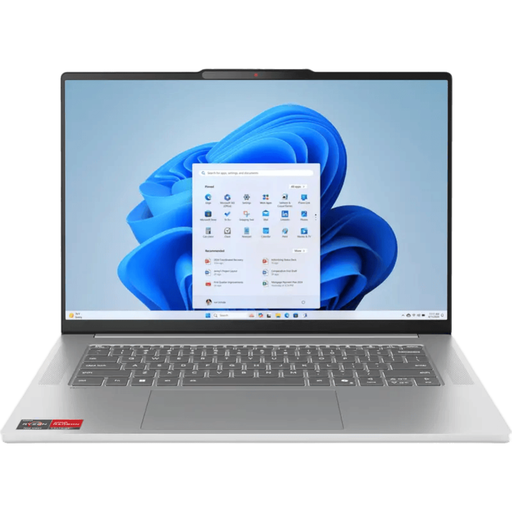 No image available
The 15.3-inch screen could be a good fit if you want room for files and context in your room, while its stated weight is 1.49 kg.
IPS screen, 1920 × 1200, 16:10, AMD Ryzen 7 7735HS, 16 GB memory, 512 GB SSD and Windows 11. USB-C and HDMI are listed. A compatible charger is required and isn’t included as standard.
Not necessarily. GitHub Docs explains how to read and comment on changes in a pull request using a browser. If you also want to build or test the project locally, check separately which tools you’ll need.
You can on Chromebooks that support the Linux development environment. Google Chromebook Help lists command-line tools, code editors and IDEs as possible uses. Check that your specific device is supported and that a school administrator has enabled Linux.
Start with the pull request and review the changed files alongside their context; GitHub Docs also explains how to comment on specific changes. If you want more workspace with an external monitor, check the ports and support for the exact laptop configuration.
For a standard online consumer purchase, you generally have a statutory cooling-off period of up to 14 days after delivery; ACM ConsuWijzer lists some exceptions. The legal guarantee is separate from a manufacturer’s warranty: if a product doesn’t perform as you could reasonably expect under normal use, the seller is responsible for providing an appropriate solution.